
#Foreword
I moved my blog to a new static site generator, Zola, and implemented a lot of new features along the way. Some of them make writing posts easier, and some are about everything else. First I will:
- brag about all the features in a short list with pictures,
- show the syntax for using them
- leave links to the technical parts of each feature, in case you want to steal it for yourself.
And then I'll tell you:
- the story behind them,
- the difficulties of implementing them,
- how Zola helped.
Ideally, open this post on both desktop and mobile to check out all the features side by side.
I don't guarantee that I've left all the information needed to add each feature to your blog. If you can't get something to work, look at the sources or DM me. If there are too many requests, I'll write posts on how to add the most wanted features.
#Features in brief
#2Shortcodes
The features in this section can be used inside a Markdown post with the special syntax of shortcodes, a feature of Zola. In other words, they are a custom extension of Markdown.
#3Images
This feature inserts an image with a bunch of extra goodies. Usage example:

png
{{ image(path="base.png") }}- It's centered, and its corners are rounded to look nice.
- It's automatically resized to at most 1280×1280 pixels in
webpformat with quality75, and it's this version that goes into the post. This saves a lot of traffic. You can read more about resizing and saving traffic in another post.- If the
scaleparameter is passed, the resulting image will have a maximum size of(scale × 1280)².
- If the
- Its
widthandheightare written into the attributes automatically! This means that an image that hasn't loaded yet won't push the whole page down when it does load. - The following features will be covered later in the post:
- The ability to open the image in full resolution.
- The ability to set the image scale relative to the page.
- Shortcodes:
image.html. - Styles:
_image.scss.
#3Gallery
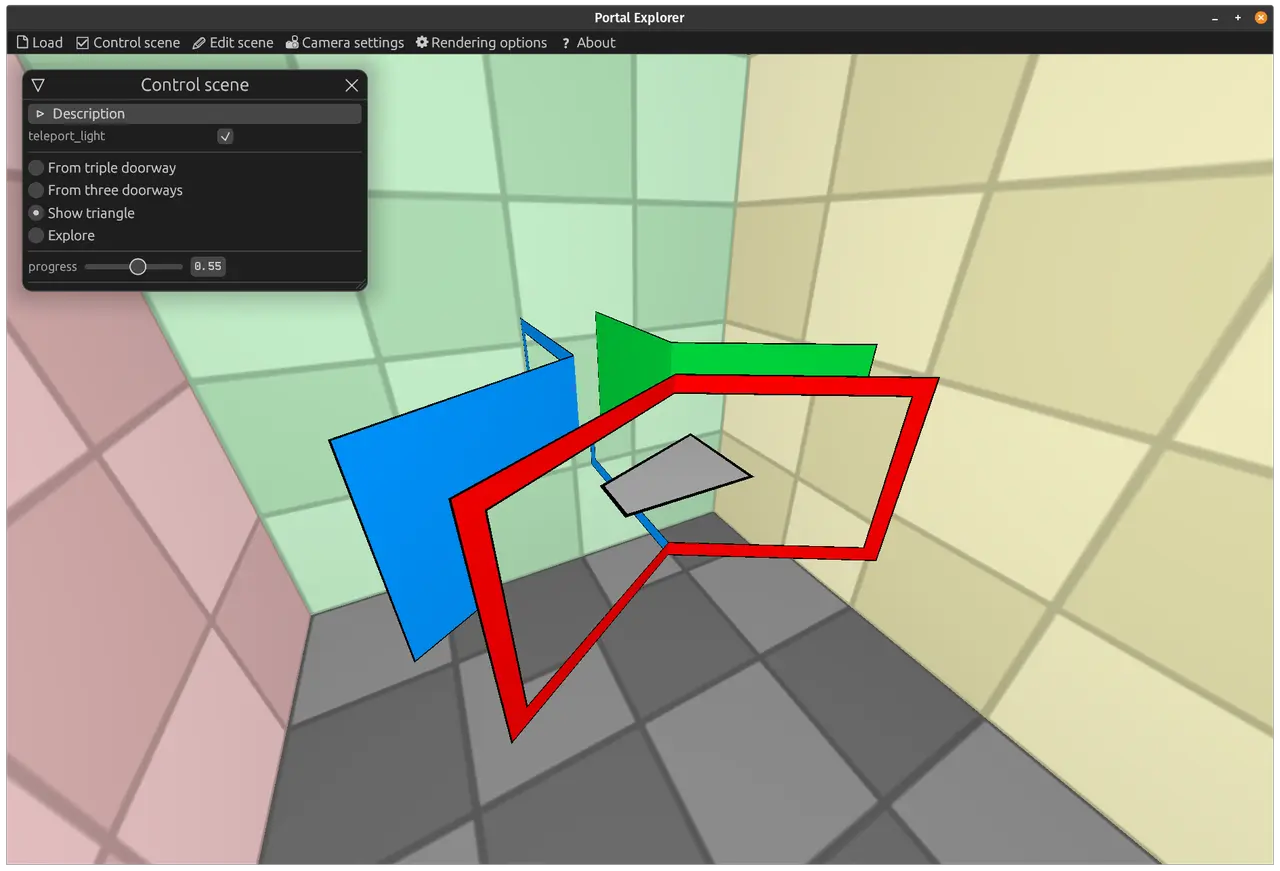
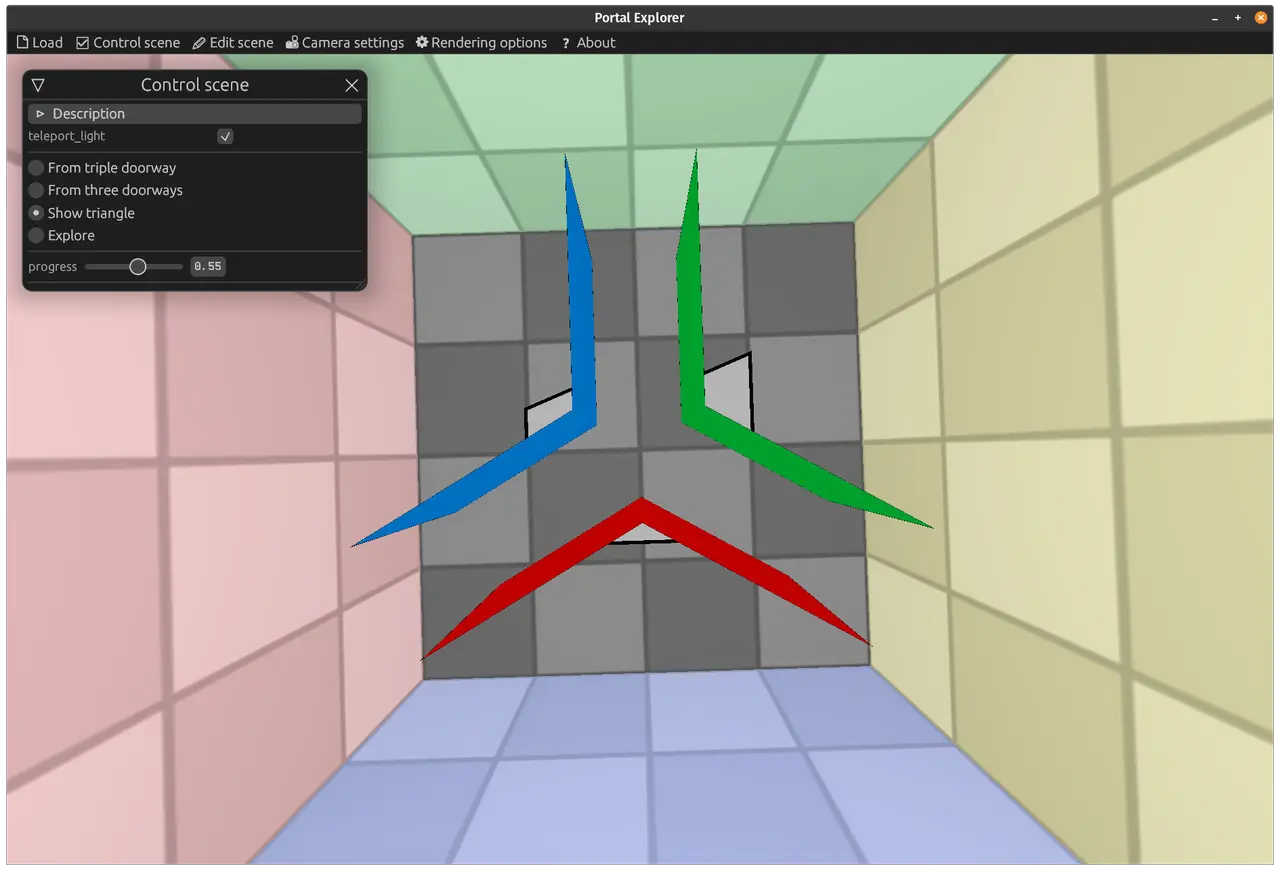
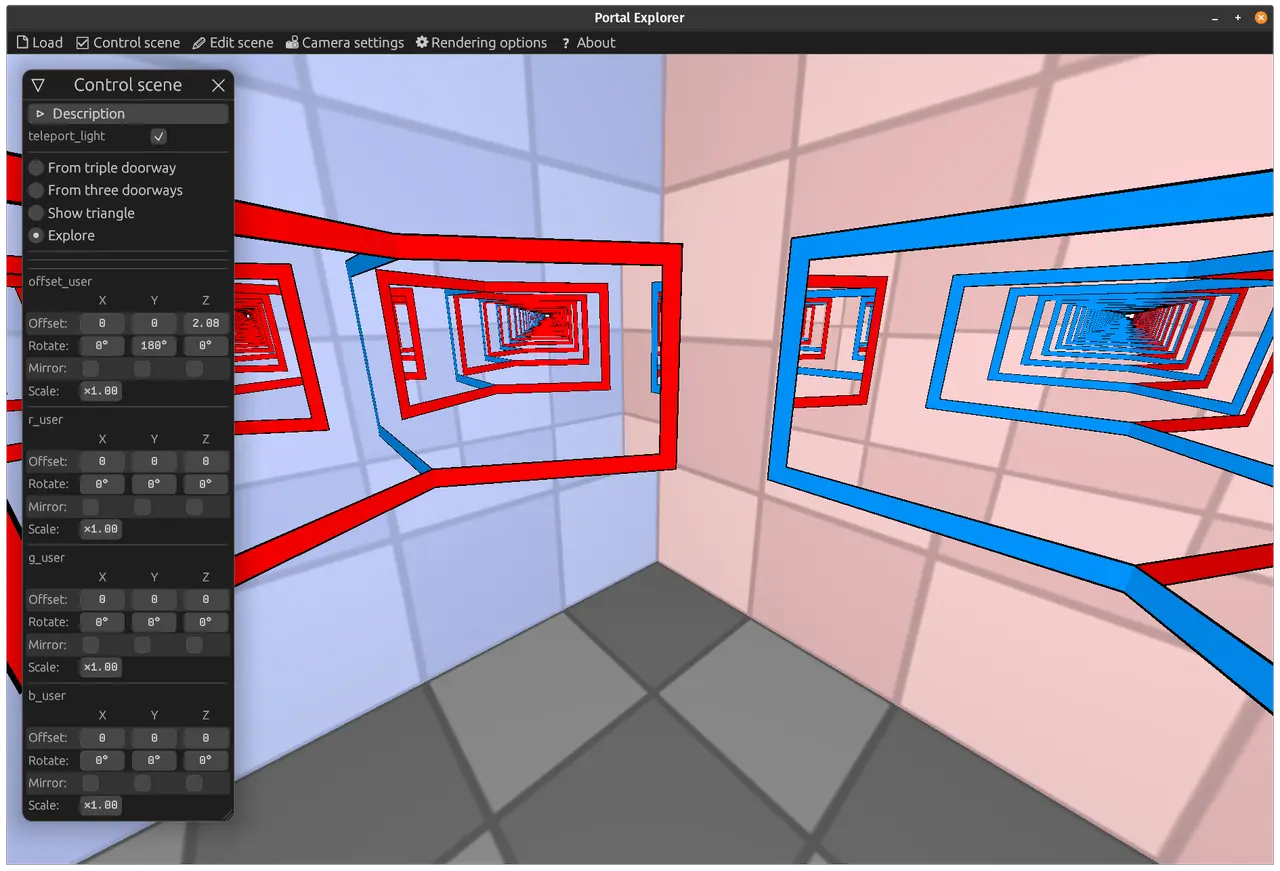
The gallery has all the features of a regular image, but also lets you flip through images. Usage example:
A triple portal, side view
png
A triple portal, top view
png
The triple portal is unfolded and its parts point into itself
png
The triple portal has gathered for a team huddle before a big game, just like in the movies. This creates a recursive picture.
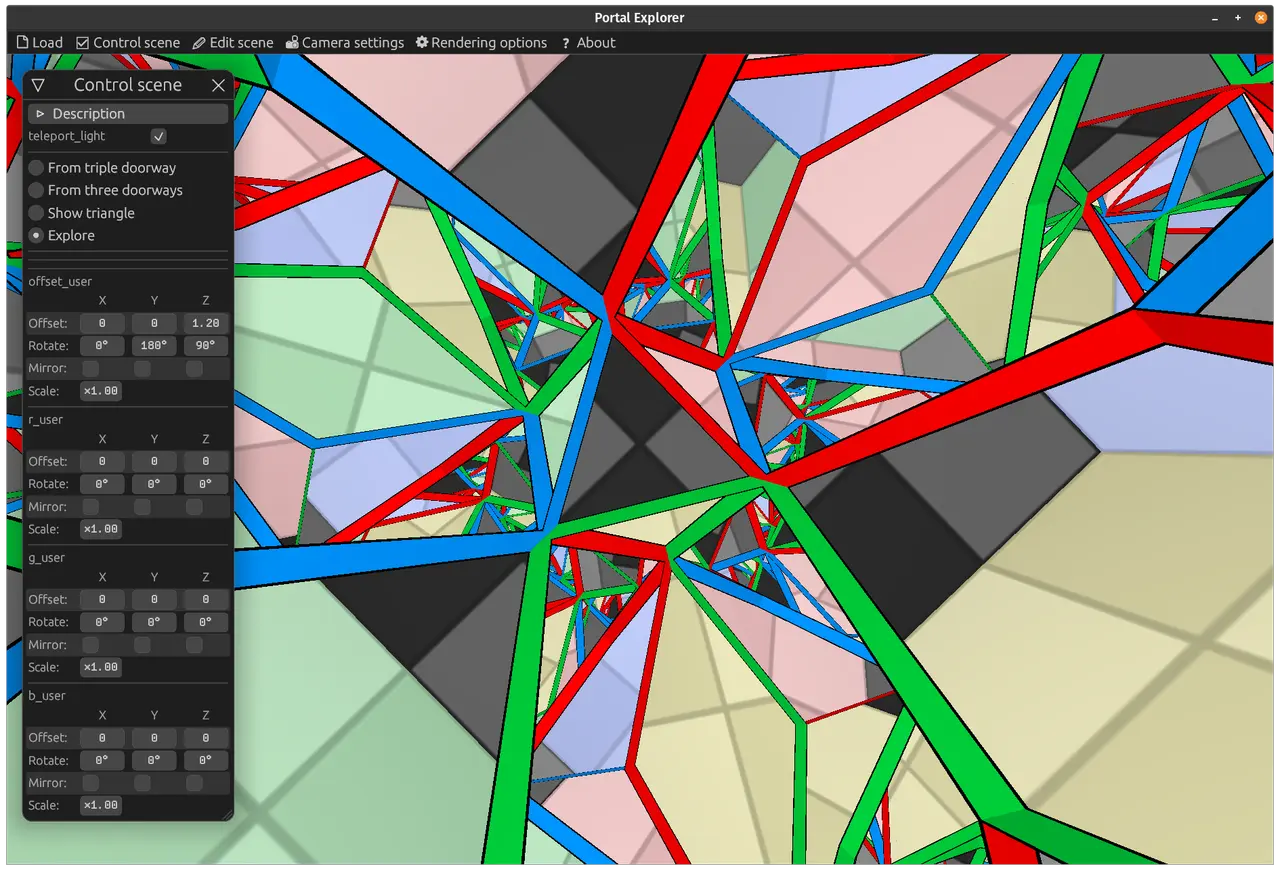
png
{{ gallery(images=[
	"../portals/368.png",
	"../portals/369.png",
	"../portals/370.png",
	"../portals/371.png",
], alts=[
	"A triple portal, side view",
	"A triple portal, top view",
	"The triple portal is unfolded and its parts point into itself",
	"The triple portal has gathered for a team huddle before a big game, just like in the movies. This creates a recursive picture.",
]) }}- Just like “Images”, it's resized to a smaller size and has its dimensions in the attributes.
- The image number is shown in the top left.
- You can pick the image you want at the bottom.
- All images are centered vertically, so the page doesn't jump around when you flip through them.
- You can add captions to the images, with
markdownsupport. Or you can leave out the captions entirely by not specifying thealtsfield. - The following features will be covered later in the post:
- The ability to open the image in full resolution.
The basis is taken from this tutorial.
- Shortcodes:
gallery.html. - Styles:
_gallery.scss. - Scripts:
gallery.js.
#3Scale relative to the page
The “Images”, “Other images”, “Video GIF” and “Video” features let you set a scale. The scale says how much smaller than the content width the object should be; for example, a scale of 1/2 means the object should take up half the width of the post.
- The scale is set with the
scaleparameter. scalecan take the following string values:11/23/41/42/31/3
- On desktops, objects really take up the size written here.
- But on medium-sized screens they're larger, some of them up to 100%.
- And on phone screens they're larger still.
- Macros:
scale_macros.html. - Styles:
_image.scss.
#3Viewing enlarged images
The “Images” and “Gallery” features get a big extra feature: the ability to open images in full resolution.
png
png
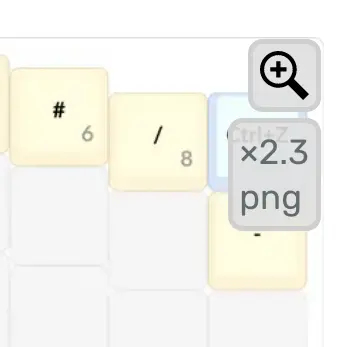
- When you hover the mouse over an image, you see on its right:
- a magnifying glass icon,
- how much larger the original resolution is than the current version,
- the format of the original image.
- If you middle-click the image, it opens in a new tab.
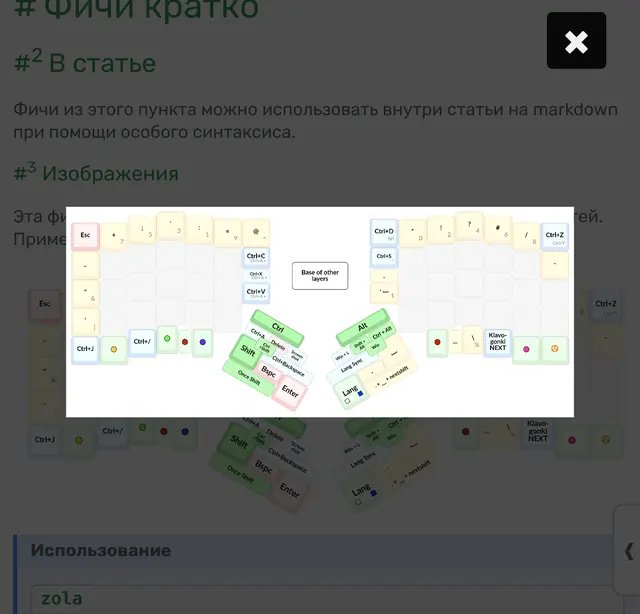
- If you left-click the image, it opens on the current page. I called this mode
full-screen.- The image in its original resolution and format fills the whole screen, and the rest of the screen is dimmed.
- You can close it by clicking the dark background or the close button (handy when the image is zoomed in too far).
- You can zoom and pan the image with the mouse.
- You can zoom and pan the image with your fingers!
- A loading animation is shown until the image has loaded.
The basis is taken from this tutorial and this demo.
- Styles:
_full_screen.scss. - Scripts:
full_screen.js(source),hammer.min.js(website). - Resources:
loading.gif(source),magnifier.svg(source)
#3Other images
If you need to insert an image without automatic resizing (for example, if resizing fails with an error, or you have a gif or an svg), you can use the following shortcode:
{{ other_image(path="...", scale="1/2") }}- Writes the image dimensions into the
widthandheightattributes. - Lets you set the scale.
- Shortcodes:
other_image.html.
#3Video GIF
I hardly ever use GIFs, in the name of saving space and traffic. So almost all my GIFs are re-encoded into mp4, which is then embedded in the page with autoplay on. Below you can see an example of such a GIF:
{{ video_gif(path="../space-objects/explanation_5/post_3_1_web.mp4", scale="1/3") }}- Supports
scalejust like images, but without automatic resizing.
- Shortcodes:
video_gif.html.
#3Video
In the same way you can insert regular videos, with sound and controls:
{{ video(path="../my-keyboard-layout/startup_sound_web.mp4", scale="2/3") }}- Supports
scalejust like images, but without automatic resizing.
- Shortcodes:
video.html.
#3YouTube embed
The most lightweight possible replacement for a YouTube embed. It downloads nothing from YouTube's servers when the page loads:


{{ youtube(id="1q0sHf_n_2Y", timecode=490) }}You need to install my script youtube-zola, which depends on youtube-dl, and run it with the ID of each video, so that it downloads the metadata and the thumbnail locally:
youtube-zola 1q0sHf_n_2YAs a result, the meta information is downloaded to static/ and the thumbnail to static/.
- Downloads nothing from external servers when the page loads; all downloading happens only locally, on the post author's machine.
- Doesn't track you.
- Looks almost like the real YouTube player.
- When clicked, it simply opens the corresponding video in a new tab.
- Shows the length of the video (which the regular YouTube player can't do).
- With the
timecodeparameter you can pass the timecode the video should start from. It's shown on the video and added to the link.
- Shortcodes:
myyoutube.html. - Styles:
_youtube.scss. - Dependencies:
youtube-zola,youtube-dl.
#3Math formulas
You can insert math formulas:
{{ katex(body="\infty^0 - 1 \neq \textrm{NaN}", block=true) }}Also, on a page with math formulas you need to add the following lines to the front matter. This is so that pages without formulas don't get links to the scripts, styles and fonts, and don't waste traffic for nothing.
[extra]
use_katex = true- Uses KaTeX.
- The scripts, styles and fonts are hosted locally.
- To center the formula, specify
block=true; otherwise it's an inline formula that can sit inside the text.
- Shortcodes:
katex.html. - Styles:
katex.min.css. - Fonts:
fonts/KaTeX. - Scripts:
mathtex-script-type.min.js,katex.js(website).
#3Colored blocks
These text blocks are very cute and pretty.
{{ admonition_start(color="red", title="❗️ Please note") }}
These text blocks are very cute and pretty.
{{ admonition_end() }}Because these blocks have a semi-transparent color that stacks when they're nested, it's gray here to make them easier to see.
red,red2,red3green,green2,green3blue,blue2,blue3orangevioletgray
markdown inside the titleAnd this is the orange color.
from the LoveIt theme
- Shortcodes:
admonition_start.html,admonition_end.html. - Styles:
_admonition.scss.
#3Pros and cons
- They look very pretty.
- Green and red.
- They're made from regular lists.
- The “Pros:” and “Cons:” labels are the default, but you can change them with the
textoption. - They also support
markdownin the title. - You can use pros on their own when there are no cons, and vice versa.
- The second line of text wraps with an indent, just like in a regular list.
- And I came up with this shortcode myself, I haven't seen anything like it anywhere!
- You can also use nested lists.
- I had to draw the SVG icons for the plus and the minus by hand, in code: Google was no help, and the in-browser SVG editors are bad too.
- They can't be used as a shortcode with a body, because shortcodes with a body are poorly made in Zola, but more on that in the next post.
- Sometimes you have to pull pros and cons out of thin air to get a pretty picture like this.
{{ pros_start(text="Pros: (_features_)") }}
* pro1
* pro2
{{ pros_end() }}
{{ cons_start() }}
* con1
* con2
{{ cons_end() }}- Shortcodes:
pros_start.html,pros_end.html,cons_start.html,cons_end.html. - Styles:
_pros_cons.scss. - Resources:
green_plus.svg,red_minus.svg.


#3Image caption

jpg
markdown here too.{{ figure_start() }}
{{ image(path="preview.jpeg") }}
{{ figure_end(caption="The fluffy wolf is magnificent and his paws are mighty. And there's `markdown` here too.") }}- Shortcodes:
figure_start.html,figure_end.html. - Styles:
_figure.scss.
#3Container for multiple images
On a desktop you should see 3 fluffy wolves in one row here, and on a phone 2 wolves in one row:

jpg
jpg
jpg
{{ container_start() }}
{{ image(path="preview.jpeg", scale="1/3") }}
{{ image(path="preview.jpeg", scale="1/3") }}
{{ image(path="preview.jpeg", scale="1/3") }}
{{ container_end() }}- Shortcodes:
container_start.html,container_end.html. - Styles:
_container.scss.
#3Details
The details are inside
Lets you make an element like this one, which can be collapsed and expanded.
{{ details_start(summary="The details are inside") }}
Lets you make an element like this one, which can be collapsed and expanded.
{{ details_end() }}- You can use
markdowninsummary. - The arrow rotation is animated with CSS, but there's no animation for opening and closing the element itself, because that needs JS, and I'm too lazy and don't want to weigh the page down.
- Shortcodes:
details_start.html,details_end.html. - Styles:
_details.scss.
#3Hide from the table of contents
This shortcode is used to hide something from the table of contents. It can be useful inside the details shortcode.
For example, this heading:
This heading is not in the table of contents
And neither is its child
And they also have no links to themselves
{% not_in_toc() %}
# This heading is not in the table of contents
## And neither is its child
### And they also have no links to themselves
{% end %}- Shortcodes:
not_in_toc.html.
#2Everything else
These features aren't directly about writing posts, but rather about the rest of the blog.
#3Table of contents
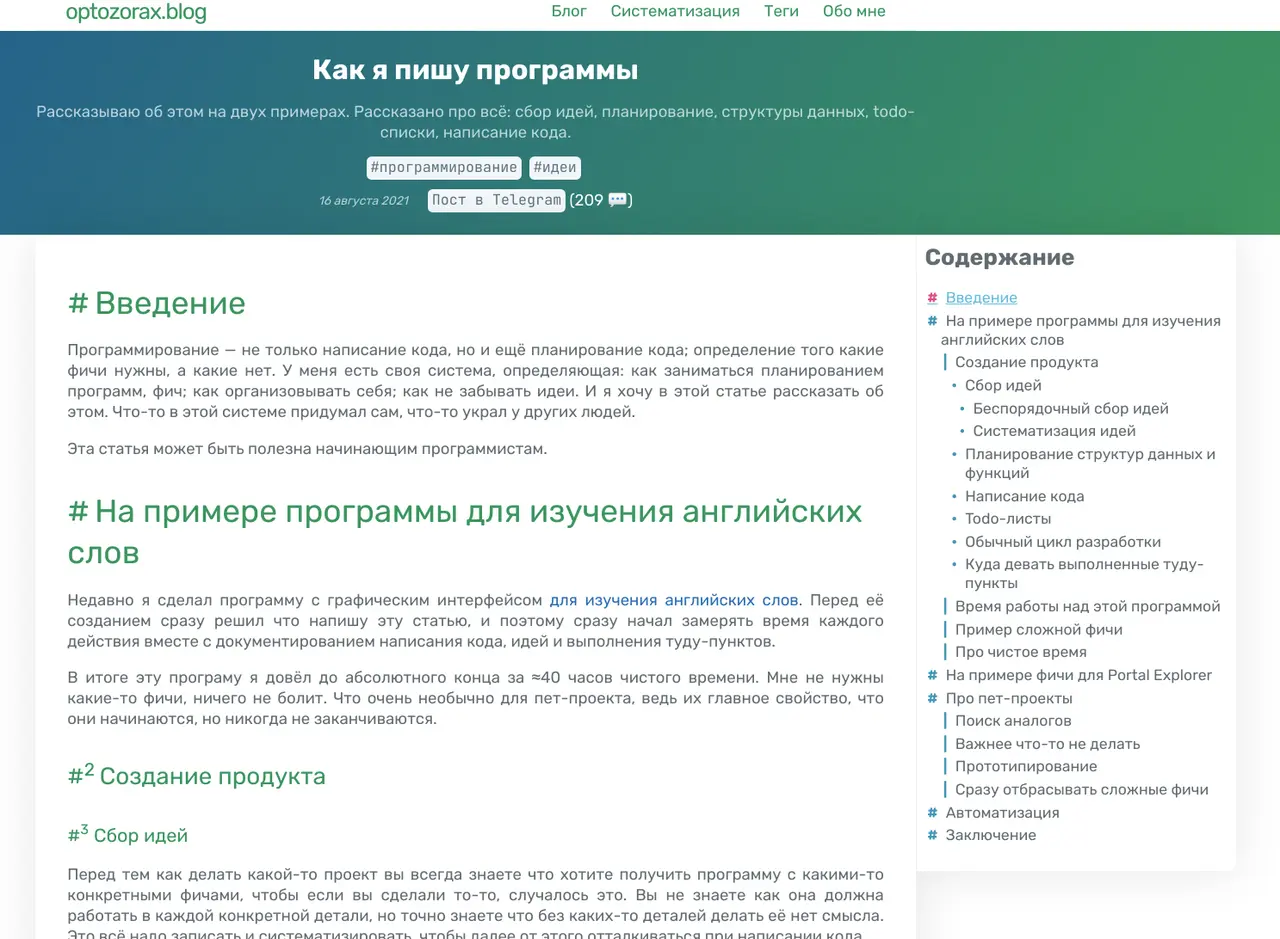
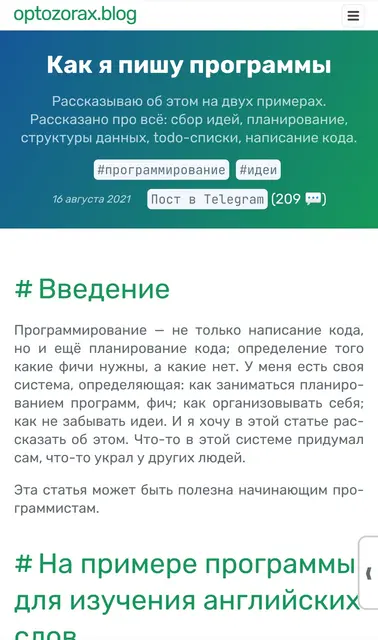
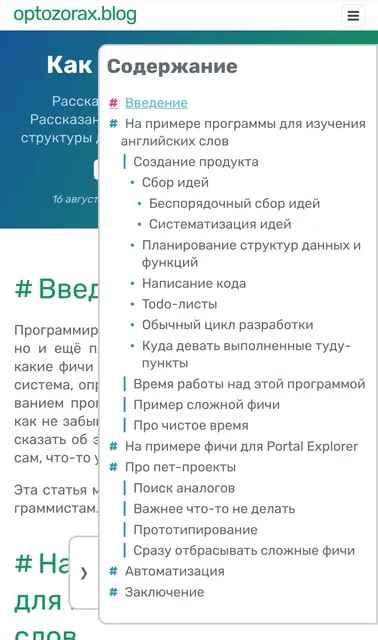
Posts have a table of contents. Posts are long. So you can take that table of contents and show it somewhere. I did that, and depending on your device, the table of contents may look different for you:
png
jpg
jpg
- On all platforms:
- Generated automatically for all posts.
- Turned off if the table of contents is empty.
- The current item and its parents are highlighted.
- Highlighting the current section requires JS.
- On a desktop
- If you have a very large screen, the post is centered.
- If your screen isn't that large, the post is aligned to the left so that the table of contents fits.
- It's a sticky panel on the right.
- If the current item in the table of contents is below the middle of the screen, the table of contents scrolls up automatically.
- For very long posts, you can scroll the table of contents up and down with the mouse wheel to pick the section you need.
- Yes, the fact that you can scroll it above the main content isn't a bug, it's a feature.
- Scrolling up and down requires JS.
- On a phone
- The button that slides out the table of contents is at the bottom, on the side, so it doesn't block much of the main content.
- You can scroll the menu up and down with your fingers.
- Works without JS, in pure CSS + HTML.
#3Justified text
Justified text is when the text tries to fill the whole width of the line by widening spaces or hyphenating words.
- Firefox supports automatic hyphenation for wrapping text.
- So justification is turned on for all screen sizes.
- Also, all words are hyphenated, which looks very nice.
- Chrome and the others don't support automatic hyphenation for Russian.
- So for large and medium screens, regular justification with wider spaces is turned on. You won't notice it, because the lines are fairly long and the spaces change relatively little.
- And on phones with Chrome, text is aligned to the left, the way everyone is used to.
- Styles:
_justify.scss.
#3Code block
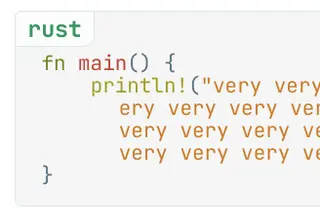
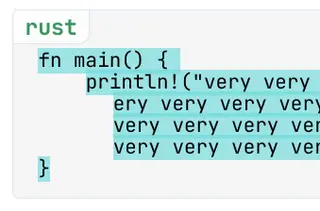
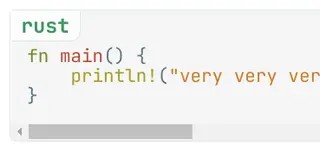
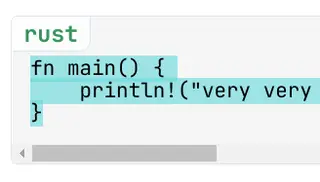
Depending on your device, the following code block will look different for you:
fn main() {
    println!("very very very very very very very very very very very very very very very very very very very very very very very very very very very very very very very very very very very very very very very very very very very very very very very very very very very very very very very very very very long line, {}", "hello world");
}
png
png
png
png
- On large and medium screens, code is word-wrapped.
- And it's not plain word wrap, it automatically indents the second and following lines!
- The second and following lines get an extra indent, just like in Sublime.
- On small phone screens, the usual horizontal scrolling of code is turned on, because word wrap looks bad there.
- And now the language of the code is shown.
- Styles:
_word_wrap.scss. - Scripts:
word_wrap.js.
#3New fonts
- The main text now uses the Rubik font. I really love its shapes, it was simply love at first sight.
- Code and this line use JetBrains Mono. It's the font in my code editor, and I like it more than any other monospaced font.
#3Small things
- Every heading now has a link to itself next to it.
- Nested headings are shown with a power: a second-level heading is #², a third-level heading is #³. I find that really cool and mathematical :)))
- There's now an Atom feed.
- The home page now shows an approximate reading time next to each post. It lets you compare the length of different posts.
#2Structural
#3Created a separate category for “editable pages”
The header now has a “Collections” link, which leads to pages that may be edited a lot.
- There's no publication date, because it would be meaningless.
- Each page is a repository and is included via
git submodule. - Each page has a mandatory changelog in a separate file.
- These pages aren't mixed with regular posts and don't mislead the reader.
#3Removed repository pages
Some of my posts used to be just READMEs from repositories, included via git submodule; I've now removed that.
- I removed all these pages, because it was a mistake.
- But I kept these as posts in the blog:
- And I kept these as editable pages:
- What used to be in the blog now redirects to the corresponding repository, for example:
#The story
Okay, the impersonal bragging is over; now it's time to tell you what difficulties came up while building these features, and what's special about some of them.
#2Why so many features
So how did it happen that I didn't even have the beginnings of all this before, and now I do?
I've just moved to a different static site generator, and there's a separate post about that. My previous static site generator was Jekyll. I chose it only because GitHub built it into a site right out of the box, and back then I thought Jekyll was good enough, since, like, GitHub itself chose it. Now I've switched to Zola, I generate the site locally and host it on GitHub Pages.
The cool thing is that Zola lets you create so-called shortcodes. They let you insert some HTML into your Markdown post with a short syntax. For example, you've written a shortcode for embedding YouTube videos, and then in your post you call it like this:
{{ youtube(id="1q0sHf_n_2Y") }}And the right HTML gets inserted by itself when the site is built. It's an incredible capability. Now you can greatly extend Markdown, and with it what you can do when writing posts.
And it all started when I began playing around with making a gallery as a Zola shortcode; then I couldn't stop, and in the end I made all these features and moved to Zola completely.
#2Traffic optimization
My images are automatically resized to a smaller size, YouTube is embedded from local data, and all GIFs are converted to mp4. What ties all of this together is that it was made to save traffic, and there's a separate post about that too. It also explains how I encode videos so that they work in the browser.
#2Gallery
#3Vertical centering
The gallery has this interesting feature, “vertical centering”. It's implemented in a very interesting way. Since Zola can find out image dimensions at build time with the get_image_metadata function, I compute the dimensions of all the gallery images in advance and find the maximum size. Then for each image I compute how large the vertical padding above and below should be, and simulate it with an inserted svg image of the right size:
<svg class="gallery-svg" viewBox="0 0 1 {{ height }}"></svg>This image gets width: 100%, and all images are vertically centered relative to the maximum size, so the page below doesn't jump when you flip through the images, and the gallery has a fixed size.
#3Pure CSS
This gallery is made with a small amount of JS code that switches the images. But in general it can be done in pure CSS with radio buttons, like here. I think I might bother doing that in the future. That way the gallery would also work for people who are against JS.
#3Swipe
People tell me I should make it possible to swipe images in the gallery. But I don't want to do it, because it's too much work. If you do it with the hammerjs library, feel free to send a pull request, I'll gladly accept it.
#2Viewing enlarged images
I'm glad I finally have this feature, and that you can even zoom and pan the image with your fingers!
#3Magnifying glass
I stole the idea of showing a magnifying glass in the top right corner of an image from joyreactor.cc (in Russian).
At the same time I thought it would be nice to show right away why you might need the enlarged image at all. So next to it I wrote how many times larger the original is than what you see now, and what format the original has. Just in case you want to save an image from this post and it matters to you that the original is a png.
#3Loading animation
When you open images in full resolution, you may notice that a loading animation is shown:

Actually, I don't track any requests for the image in JS: this animation is simply the default src of the <img>. In JS I only change the src field, and the animation disappears by itself when the browser gets the new image.
By the way, finding this animation was very hard for me. You know, I google “loading gif”, and it returns so much garbage that it's just impossible. Most of the GIFs are 500×500 and have been compressed a thousand times, first as mp4, then as gif. I got this image thanks to the icons8 website, where you can customize the animation and then download the gif for free. Unfortunately, their generator has a problem with transparent backgrounds, as you can see in the animation above, so I just gave up and used this GIF as it is.
If anyone knows how to google things like loading animations, please let me know in the comments.
#2Colored blocks
I really love this feature!!! You've probably noticed that from this very post. Originally I used something like this in the post Ilya Sheprut's keyboard layout. In the old blog I just used blockquotes there, but now with these colored blocks that post looks super pretty! Be sure to check it out if you haven't read it yet.
#2Pros and cons
I came up with this feature myself. I think when green and red icons are drawn next to the pros and cons, it looks awesome.
#2Image caption, Container for multiple images, Details
These are just concepts we think in, but which vanilla Markdown doesn't have, which is why reading and writing posts is sometimes painful. I'm glad I finally fixed that.
#2Hide from the table of contents
This is the only feature that uses the syntax of a shortcode with a body, rather than a shortcode made of two parts like all the others. The problem is that shortcodes with a body are broken: they can't properly render nested shortcodes or call the image resizing functions. Also, nothing written inside them makes it into the table of contents, and that's exactly what I use. That's precisely why all my shortcodes consist of two parts. But more on that in another post.
#2Table of contents
Hooray! At last! It happened!
At last my posts have a very convenient, automatically generated, scrollable table of contents!!!
Before, to generate a table of contents, I used hacks for Jekyll, plus this thing for posts included via git submodule.
All these features, automatic scrolling and scrolling with fingers and the mouse, are all for the sake of my long posts. I love writing long posts, and their table of contents sometimes doesn't fit on the screen. That's why all of this is very important.
In general, the main credit for this table of contents being so good goes to CSS+JS, not to Zola specifically. Zola's only merit is that it provided solid features for generating the table of contents.
There is one small problem with the table of contents right now, though: on a phone, when you scroll it up and down in Firefox, the stupid address bar pops up and breaks the rendering, cutting off the table of contents. I turned off the automatic hiding of this bottom bar on my phone for good, and I recommend you do the same. Or maybe you know how to make up and down swipes not cause this bottom bar to hide? preventDefault doesn't help :(.
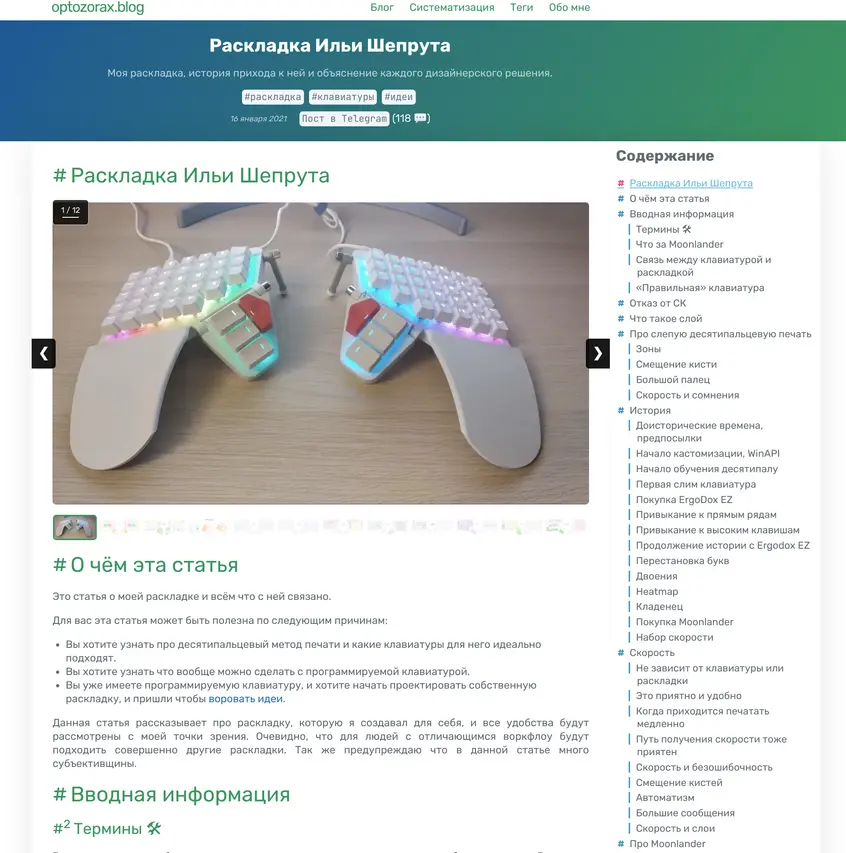
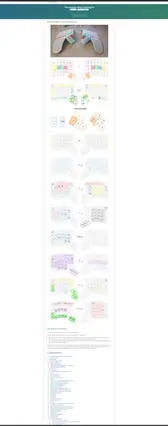
Just look at how my biggest post, Ilya Sheprut's keyboard layout, now looks with the table of contents and the gallery. You can see the main content right away and start reading it!
png
And now, what the old post looked like. Just look how much you had to scroll before reaching the actual post, how many screens! I sure did great, putting such a huge obstacle in front of my flagship post, but now everything is a million times better.
jpg
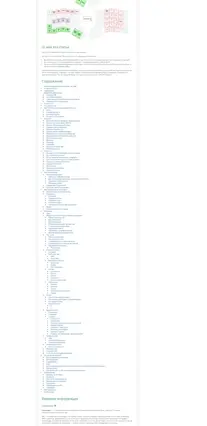
jpg
And for such a huge post it's extremely important to have a table of contents on the side that you can scroll. What if someone doesn't want to read everything, but only wants to see specific parts? They'll be able to.
By the way, if you still haven't read that post, now is the time, because it's now improved as much as it can be.
#2Justified text
Nowadays almost all text on the web is aligned to the left, and not because it's easier to read, but simply because it's the easiest thing to do.
I think justified text looks beautiful. The text then seems evenly distributed, and it's just like in books.
But classic justification creates huge spaces that turn the text into something ugly, while the empty space at the end of lines isn't that terrible. That's why nobody uses classic justification.
But there's improved justification, where some words are hyphenated so that the spaces change as little as possible. That's what books use, and it looks good. Yes, it exists, but with a couple of caveats.
The problem is that Chrome supports it only for English, while Firefox supports it for many languages. So you can't make the text look good everywhere. Here I just want to give Firefox props for supporting so many languages, just look at this.
So I tried to give each browser and screen size its own alignment, whichever is the least annoying. I'm glad my blog now looks a bit like a book.
#2Code block
Oooh. This feature really frayed my nerves.
So, as a reminder: I made long lines in code blocks wrap to a new line, but in such a way that the wrapped lines keep their indentation. All decent code editors do this, and people hate word wrap precisely because of the wrong way of doing it, which ignores the indentation.
There's no simple CSS solution for this feature, so you have to come up with something yourself. The first solution that comes to mind: make a table for each line, put the indentation in the first column and the rest of the line in the second column. And yes, it works, and everything wraps the way it should.
There's just one tiny problem: when you copy the text, a tab character \t gets inserted between the indentation and the text. Simply because it's a table, that's always done, for your convenience. It's impossible to turn off.
Okay, fine. Then let's make the table with CSS instead of the <table>, <tr>, <td> tags. Okay, we do it, and again a tab appears when copying.
Fine, what else do we have. Flexbox? Let's try it. We run it and... When copying, a newline gets inserted. Even better. It's impossible to turn off too.
You know, to google my way to all of this, I went through so much stress and googled so much that I seem to have leveled up my already incredibly developed googling skill.
Okay, so what do we do? It turns out that if you completely disable text selection in one of the table's columns, no tab character gets inserted there when you copy and paste.
Now we can do the following: put the indentation into the first column so that it indents the code, then put the whole line with its indentation into the second column, but hide that indentation with font-size: 0px.
As a result, the selection looks awful, but pasting is fine:
png
And I also added an extra indent for the second wrapped line, so that it looks like in Sublime.
Ideally, this feature would be built into Zola, since it's a modification of the html, but it isn't there, so for now it happens in JS when the page loads.
I wrote a feature request on the Zola forum, go there and leave a like.
#3Showing the code language with pure CSS
I didn't know this was possible, but it turns out CSS can read the attributes of html elements, so with the following code I made code blocks show their language:
pre[data-lang] {
	padding-top: 1.8rem;
}

pre[data-lang]::before {
	display: block;
	content: attr(data-lang);
	float: left;
	background: $background-color;
	color: $text-color;
	padding: 0.2em 0.5em;
	font-weight: bold;
	font-size: 1rem;
	border-radius: 0 0 8px 0;
	margin-top: -1.8rem;
	margin-left: -0.5rem;
	border-right: 1px $border-color solid;
	border-bottom: 1px $border-color solid;
	z-index: 10;
}
Yes, in theory it would be simpler to insert a div with the name of the language, but Zola doesn't let you configure that, so our only friend is CSS.
#2Reading time
Every post now has an approximate reading time next to it. It lets you judge which post is longer than which, and which ones may take a long time to read.
But this feature has one small problem: you can't exclude some parts from the count. And that's critical for the post How I write programs, since it has a lot of text hidden under collapsible menus, which is there just as an illustration, not for reading.
I requested this feature on the Zola forum, so leave a like.
#2Created a separate category for “editable pages”
My site used to have pages that weren't regular posts but could be edited at any time. Some were at the top in the menu (Ideas, Repositories), and others were among the posts (Emergevolution, 4D, Hyperbolic geometry). Now I've realized that they're the same kind of thing, and put them in one place. And since I learned to work with git submodule in an earlier post, One repository = One blog post, I was able to give each page in this category its own repository, so that you can see the change history and suggest changes with GitHub's tools.
#2Removed repository pages
Honestly, this was a mistake. It was a mistake to put READMEs, even ones formatted as posts, into the blog among regular posts. Especially through this git submodule mechanism. They only discredited the regular posts, and nobody read them anyway. Originally I did it so that it would, like, get indexed and people would find me on Google or Yandex, but that didn't happen. But I didn't break the old links: I made them redirect to the original repositories.
#Features that didn't make it
Sometimes I like to use tools for things they weren't meant for. For example, I already made Jekyll automatically use posts from other repositories via git submodule.
And I wanted to hack Zola in a similar way too. Well, not hack, no. My intentions are always good. I just want more features and convenience for myself, and doing hacks like this is fun.
For example, at some point I wanted math formulas to be inserted not via KaTeX, which parses them with JS in your browser, so I was thinking about how to make it possible to write a formula in Zola and have it, bam, inserted straight as an svg image!
I thought and thought, and realized there was no way around a dedicated feature here. I wrote a request for such a feature on the Zola forum and waited for an answer. And the author tells me that this goes against Zola's philosophy, “forget dependencies, everything you need is in one binary”, and rejected it. And I got a bit sad.
And then, after reading the documentation, I found a suitable loophole. It turns out Zola can make http requests. The documentation showed a harmless example of downloading an html page, but I immediately realized where the real potential was, and got down to hacking.
In the end I set up a local service: when you send it a math formula, it calls another program, generates an svg and puts it into a folder, similar to how resize_image works in Zola itself.
It worked, and it was cool that it worked, but it was somehow too complicated to set up, and after reinstalling the OS you have to download that program for converting formulas to svg again. So I gave up on the idea. The idea of “forgetting about dependencies” is tempting. But I left detailed instructions on how to do it, so leave a like, and use it if you really, really need it.
#What I won't do
#2Dark theme
Yes, I'd like to have a dark theme, but no. For a design amateur like me it's too much work. And I don't really like dark themes for text. White text on a dark background burns my eyes. If you want, you can make a pull request with a dark theme, I'll try to accept it.
#Conclusion
Lots of new features, and I like them! They greatly improve the user experience and make writing posts much easier for me, and they add colors and shapes. Steal them to your heart's content! If you can't get something to work in your blog, message me directly and I'll help.
Thanks to these shortcodes, I managed to get rid of html in my posts almost entirely.
And while creating all these wonderful features, I felt like this:

jpg