
#Ilya Sheprut's keyboard layout

jpg
KLE
png
KLE
png
KLE
png
KLE
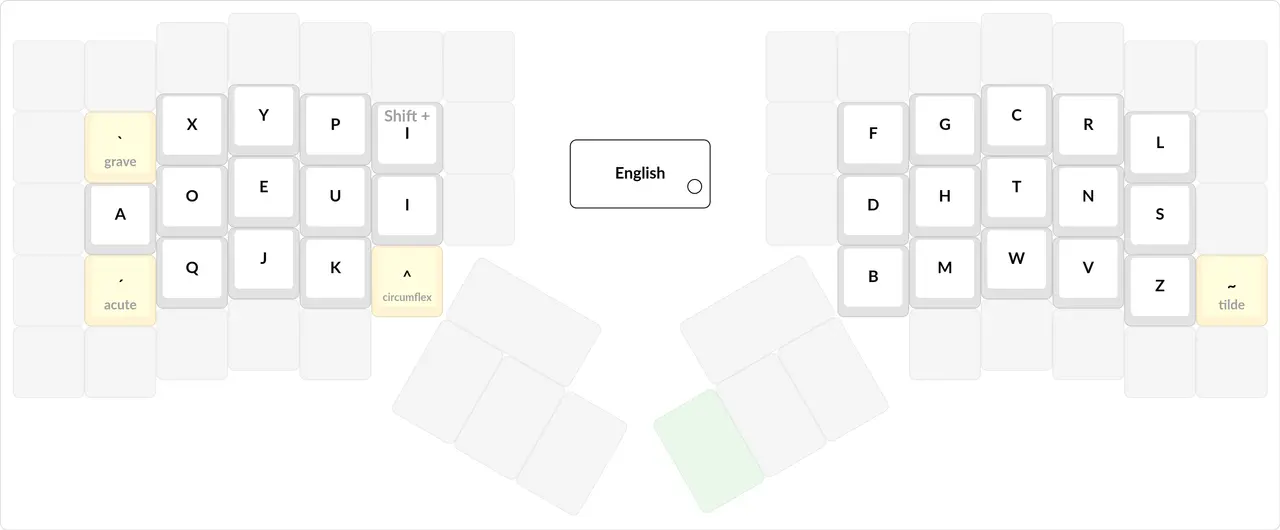
png
KLE
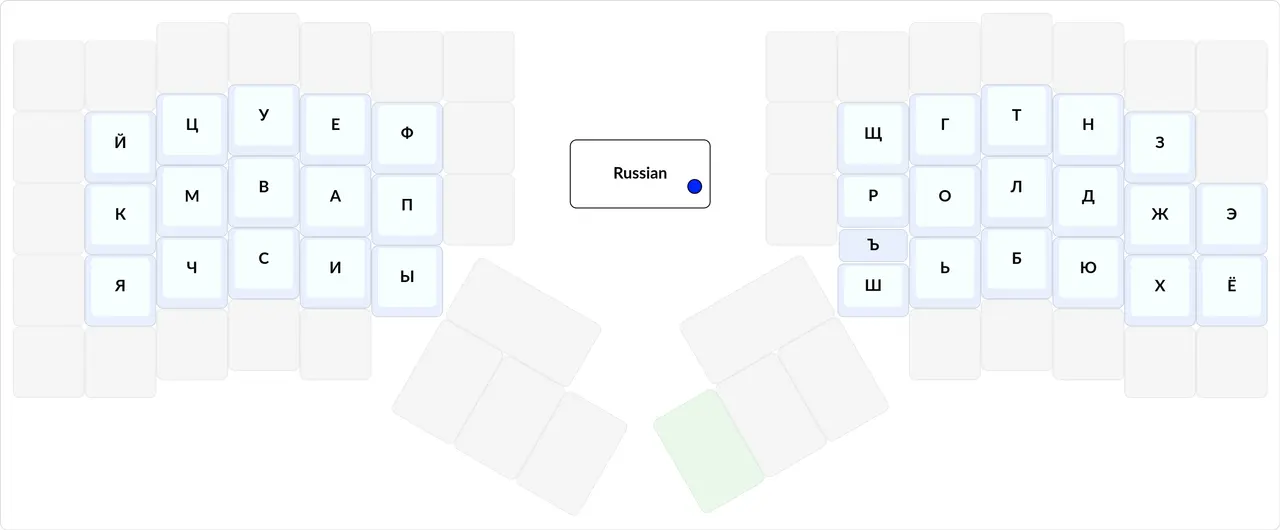
png
KLE
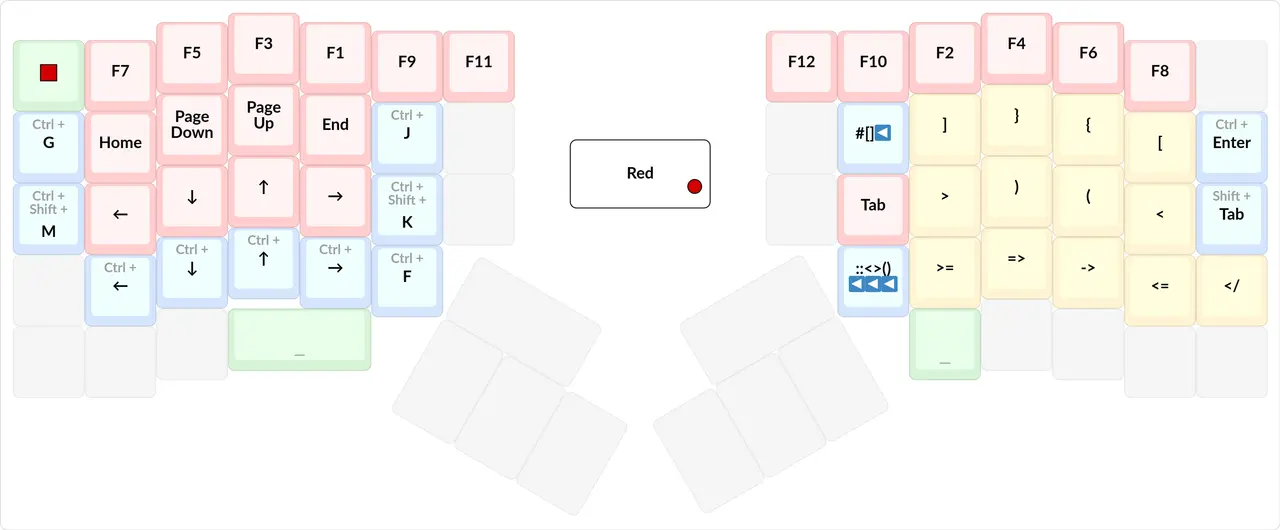
png
KLE
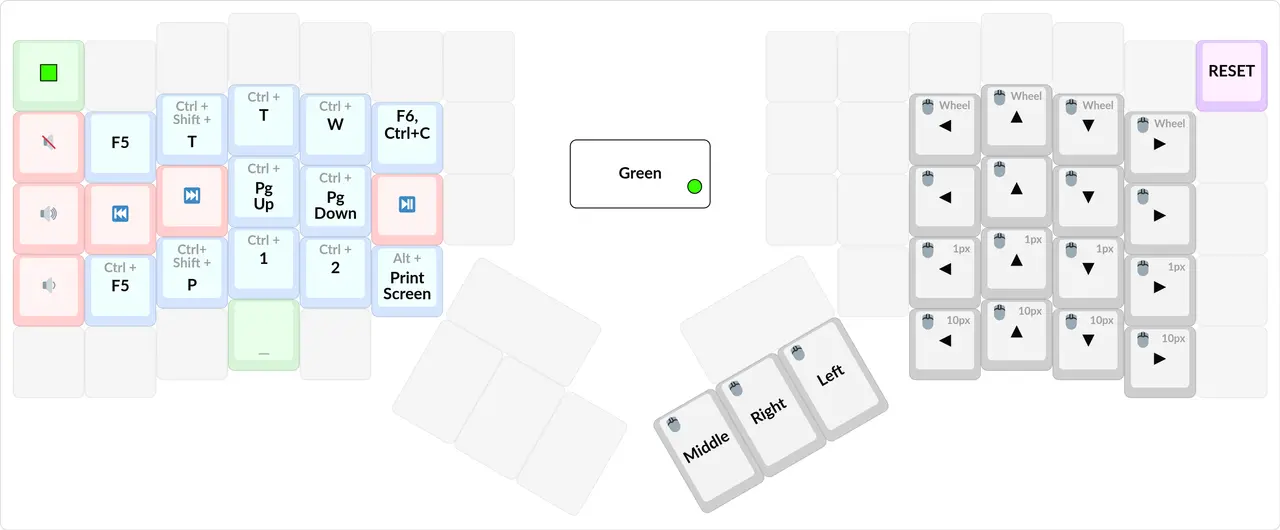
png
KLE
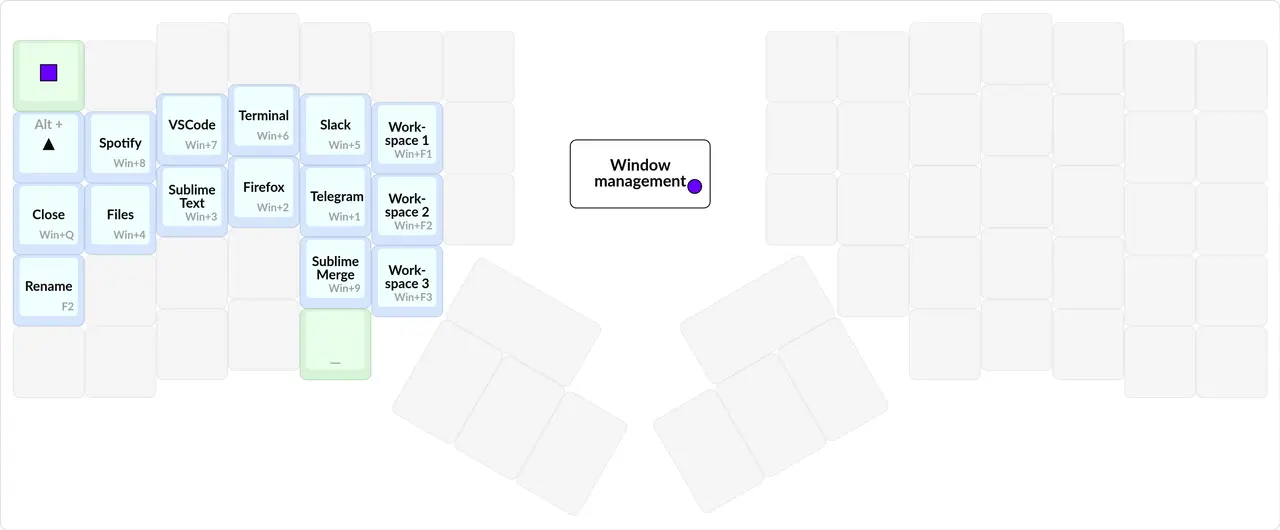
png
KLE
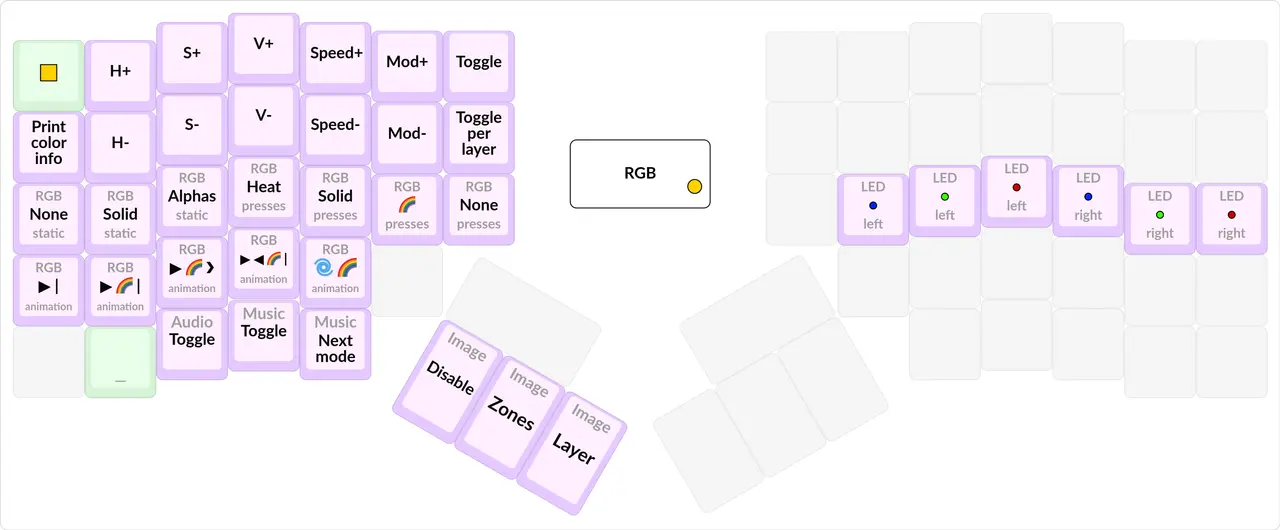
png
KLE
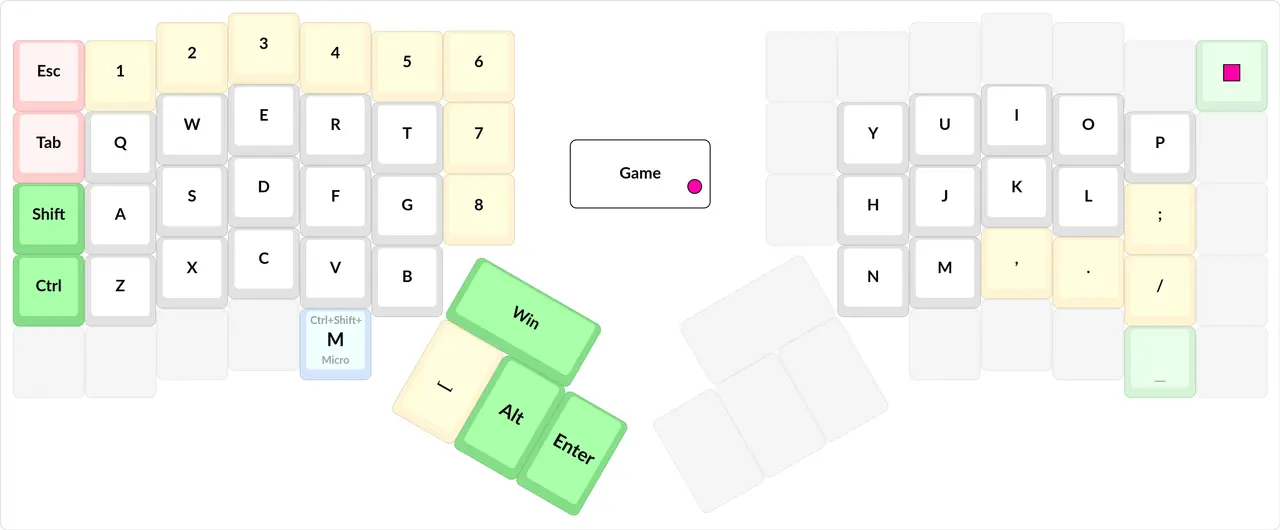
png
KLE
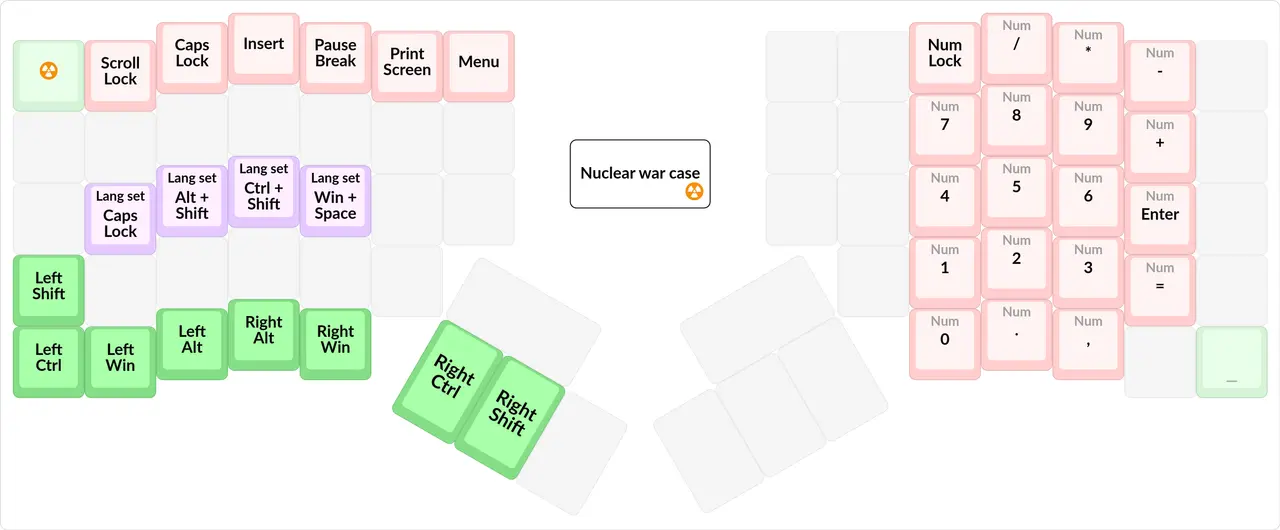
png
#What this article is about
This article is about my keyboard layout and everything related to it.
You might find it useful for the following reasons:
- You want to learn about touch typing and which keyboards are ideally suited for it.
- You want to find out what you can do with a programmable keyboard in general.
- You already have a programmable keyboard, want to start designing your own layout, and came here to steal ideas (in Russian).
This article describes a layout I created for myself, and every convenience is considered from my point of view. Obviously, people with different workflows will need completely different layouts. Also, fair warning: there's a lot of subjective stuff in this article.
#Introduction
#2Terms 🛠
Layout — the way keys are organized on a keyboard: where the letters, arrows, F-keys, modifiers, macros, etc. are.
SK — the standard keyboard, or the set of clichés that the makers of almost all keyboards follow. 99% of the keyboards sold in your local store are SKs, and you may never have seen a keyboard that isn't an SK in real life. Every laptop has an SK. From here on, the standard layout — a set of clichés about where certain keys go — is also considered part of the SK.
Row offset aka horizontal stagger — the horizontal offset of each row of keys relative to the previous one. One of the basic SK clichés.
Touch typing — short for the phrase: the blind ten-finger keyboard typing method™.
A programmable keyboard — a keyboard you can put a non-standard layout into.
A proper keyboard — a keyboard that is adequate for touch typing; or you could say that a proper keyboard doesn't follow the SK clichés. Measurable criteria for a proper keyboard are given below.
Klavogonki (in Russian, the name means "keyboard races") — a typing trainer where you can develop your speed well once you've mastered touch typing. It has social network features, so you can meet and chat with lots of great typists there.
Punctuation — here, for brevity, any character you can type on a keyboard that isn't a letter or a digit counts as punctuation; for example, '"+-*/^@#&|$~ are all punctuation.
Layer — an abstraction in a layout that lets you access a different set of keys when a certain key is pressed. For example, the Fn and Shift keys activate layers:
- Holding Fn activates a layer that has keys for controlling volume, music and so on in certain places.
- Holding Shift lets you type punctuation instead of digits, and capital letters instead of lowercase ones.
Layerficator — a key that activates a layer. The name comes from layer + modifier.
CPM — short for "characters per minute". Used to measure typing speed. In brackets I also give WPM (words per minute, CPM / 5), the unit English-speaking typists usually use.
Unknown necessity — an object or concept that has the following properties:
- If you don't have it and don't even know about it, you live without it, and you seem to be fine.
- If you learn about it, it still seems like you can live without it, and that it's not really that necessary.
- But once you start using it, you realize you can't do without it.
Lots of things in my layout are unknown necessities.
#2What is the Moonlander?
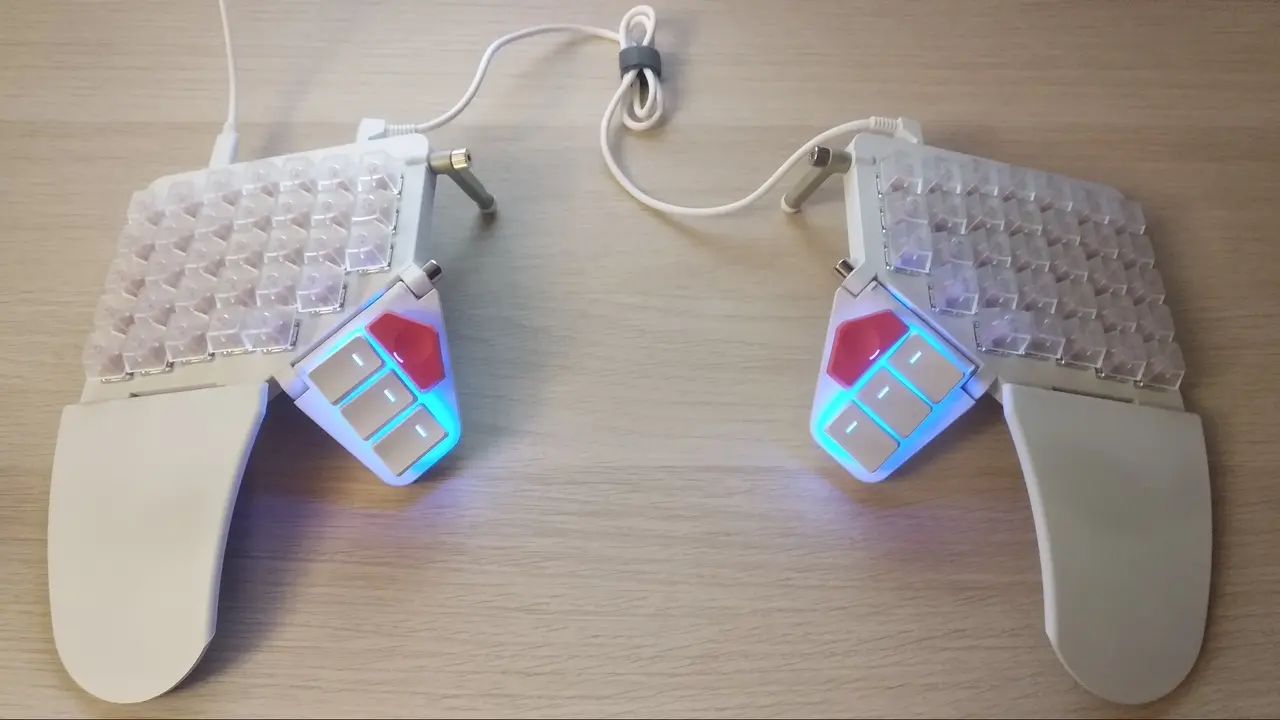
It's a proper/ergonomic/ortholinear programmable keyboard that you can buy and get a working product out of the box. People usually solder and assemble proper keyboards themselves. Since I don't like soldering, it's the perfect option for me. This article presents a layout specifically for this keyboard, although, generally speaking, nothing stops you from using all these ideas, and even the code, on absolutely any other keyboard.
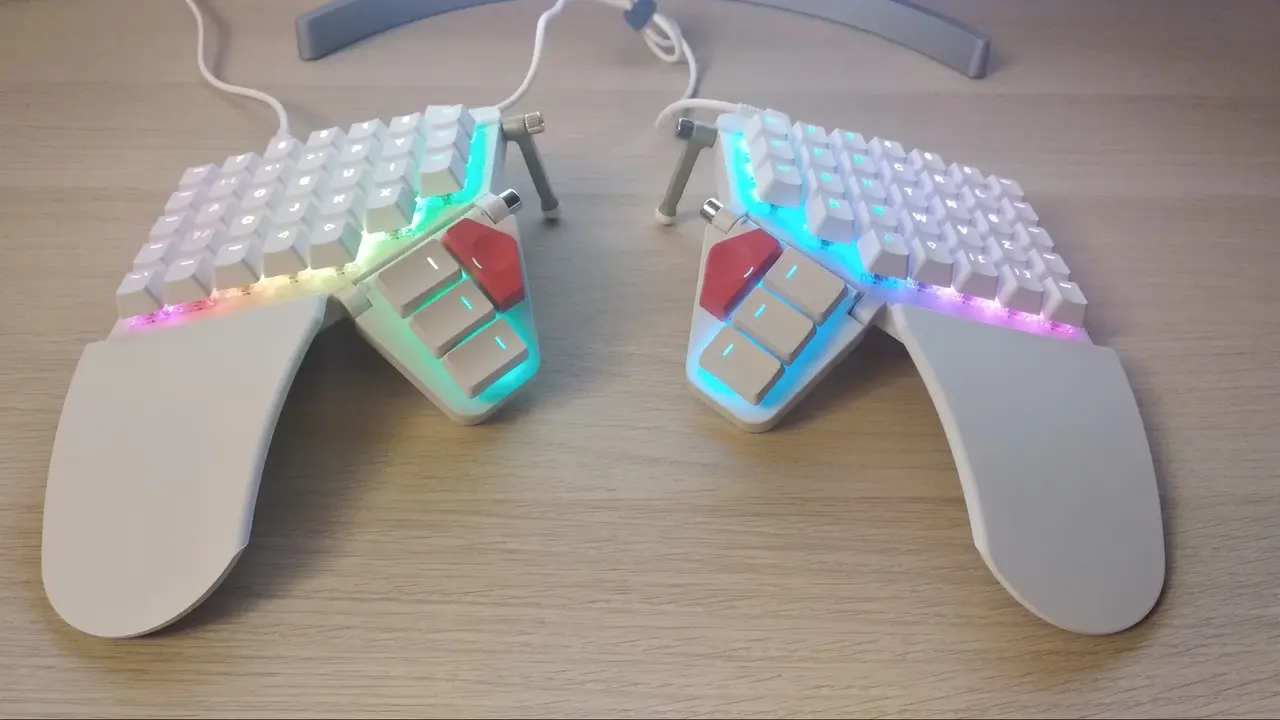
This is what my keyboard looks like at the moment:
jpg
#2How the keyboard and the layout are related
This keyboard is programmable, which means it has a microcontroller you can flash a program into (the program is called firmware); the program reads the pressed keys and sends the result to the computer. This program implements some layout.
It might seem that a keyboard is a very dumb thing that shouldn't contain any kind of processor at all, and should just pass all the information to the computer, and get everything from the computer too (to draw the backlight, for example). But that's not the case: you can, and should, stuff a lot of interesting things inside a keyboard.
Since you can upload an arbitrary program to the keyboard, you can define an arbitrary layout right on the keyboard, with any degree of automation and customization (provided you can program, of course), be it autocorrections or an automatic space after punctuation. The great thing is that all of this works over the completely standard USB HID protocol, so such a programmable keyboard will work on any computer (and even a phone) without installing any drivers.
The possibilities are so vast that someone even made Tetris on a keyboard!
Thanks to the keyboard being programmable, the standard SK layout can be completely rethought and implemented in a totally different, more convenient form. That rethinking is what I've been doing from the very beginning.
QMK is one of the C libraries for writing keyboard firmware. At the moment it's the best library, and it's supported by almost all programmable keyboards. Its main property for this article: you can write your own extensions in C without diving into the low-level details of the protocol or of matrix scanning.
#2A "proper" keyboard
As I've already said, a proper keyboard is adequate for touch typing. I believe a keyboard must meet the following criteria to be considered proper:
- It has no horizontal stagger of the
\\\\kind, and it is symmetric. - It has at least three keys for each thumb.
- It is programmable, so that all keys can be placed as close to the fingers as possible, via layers, without bloating the keyboard to a huge size, and minimizing hand movements.
All of these points will be covered in detail below.
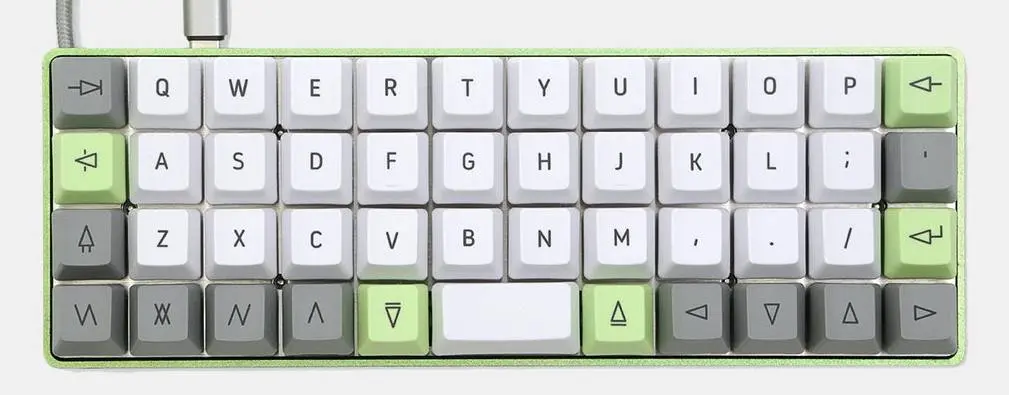
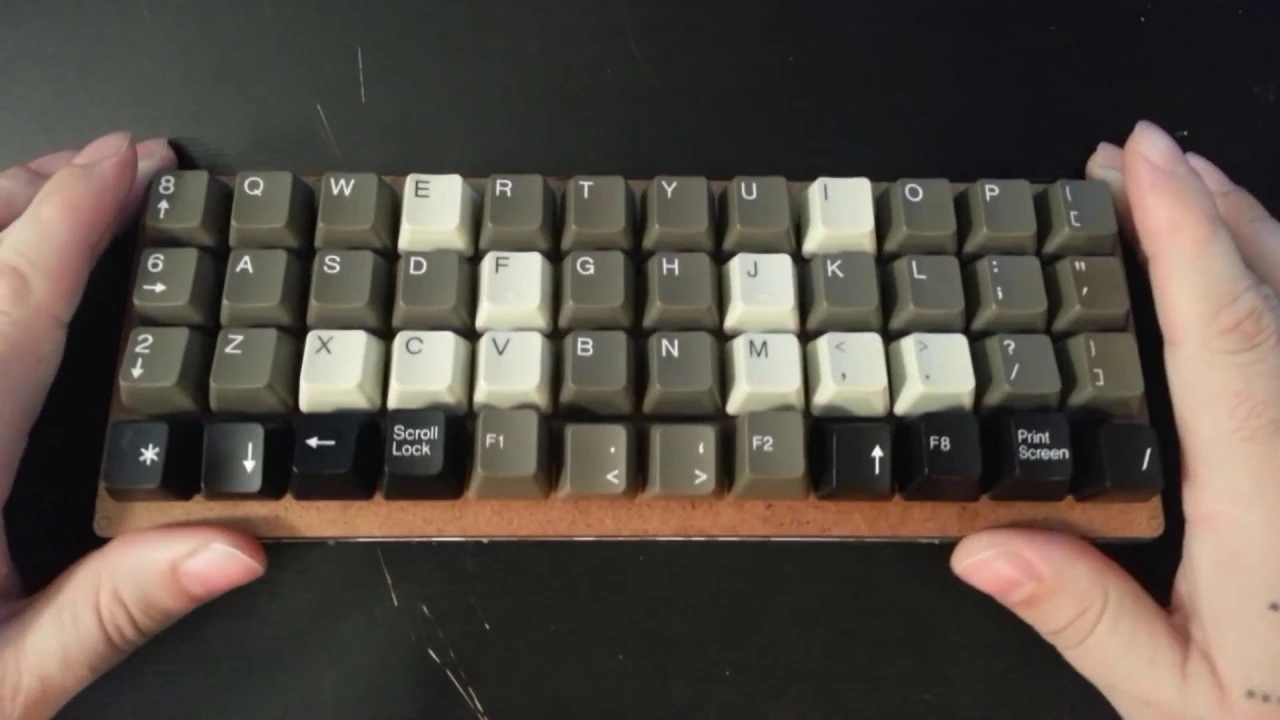
I prefer this sort of "subjective" term over the term ergonomic keyboard, because ergonomics doesn't have to include the points above. And in my opinion these points are more important than ergonomics. Plus, there are plain ortholinear keyboards, like the Planck, which are proper but not ergonomic. Here's what the Planck looks like:
jpg
I also don't want to get into arguments about ergonomics, which I know nothing about and which doesn't interest me.
But in any case, any proper keyboard has a much better chance of being ergonomic than any SK. And the principles of "properness" are, on the whole, universal enough for other kinds of typing too.
#Giving up the SK
I don't design my layout to make working on an SK more convenient later.
The SK contains a lot of bad decisions, and because of them it's inadequate for touch typing and in general. That's why I use the term "proper" keyboards: it implies that the SK is wrong, and that these "proper" keyboards fix all of its most critical problems.
I'm hostile to the SK, and hostile to the very phenomenon that such bad design decisions have survived into the 21st century, are the standard, and all of this goes unnoticed by billions of people.
So I don't use an SK, and I don't train my skills on it. I gave it up on the very first day of learning touch typing.
And that pushed me to completely rethink the whole SK layout from start to finish and make my own standard.
Thanks to this, I live with maximum comfort for myself, but it brings other inconveniences: I can't work at someone else's computer without my keyboard, and if I buy a laptop, I won't be as mobile as everyone else. I have to carry my keyboard everywhere I'll potentially be working for a long time.
And if I have to use an SK somewhere, I'll suffer a lot because of how unfamiliar and inconvenient it is. Also, I can't type on my keyboard at programming contests: their rules forbid using your own keyboard, especially if it has a microcontroller inside.
Some people can't afford such a luxury as giving up the SK. Well, OK, then this whole topic isn't for them.
This is the most basic principle, and without it you can't move on to the next levels of layout customization.
#What is a layer?
As a reminder, a layer is an abstraction in a layout that lets you access a different set of keys when a certain key is pressed.
The layer is the most important abstraction in programmable keyboards, and it will be used many times below.
Suppose you have an ordinary keyboard with an Fn key: while you hold it, some keys are replaced by volume controls and a few other things. Something like this:
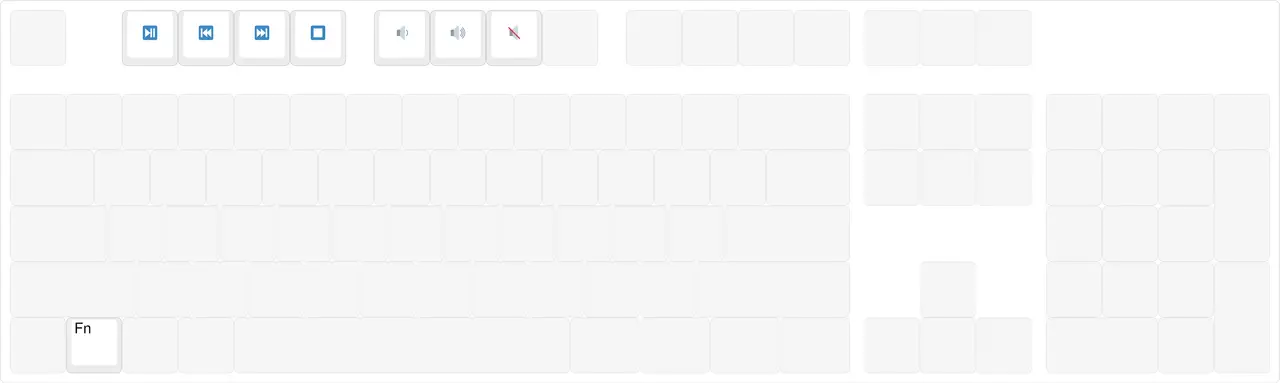
png
What gets activated is called a layer. And Fn is called a layerficator.
You can see that, besides the volume controls and so on, this layer could have held lots of useful things. Or distant keys could simply have been closer thanks to it. So formally the SK does use layers, but it does it very badly.
Usually, when a layer is programmed, keys that aren't assigned anything on the layer stay themselves when you press them.
A layer can be turned on in two ways:
- So that it works while a key is held — like Shift. From here on, this kind of layerficator will be called an
MOlayerficator, because that's how it's written in QMK. - So that it's toggled on and off by pressing a certain key — like Caps Lock. Similarly, it will be called
TG.
The QMK documentation page about layers.
Actually, the Shift key itself is a layerficator to some extent too. The Ctrl and Alt keys, on the other hand, can't be called layerficators, because every program handles them in its own way, but Shift can, because the way it changes characters is handled at the OS level.
Similarly, switching the language is to some extent switching a layer via TG.
In operating system terminology, a layer may be called the "3rd keyboard level". And it may be implemented via the AltGr key. An article about it. (in Russian)
But I don't like the phrase "3rd level", and the article doesn't say whether you can put arrows or F-keys there. I'll rely on my pessimism about keyboards and assume you can't. With layers, on the other hand, you can put any key into a layer. The article also says the layerficator has to be placed on a modifier, but doesn't say whether there is a pure layerficator that doesn't add a Shift, Alt, Ctrl or Win into the mix. So the concept of a layer is much more abstract and clean.
Plus, operating system developers haven't gotten very far in layout building, so you're unlikely to manage to create a layer for yourself that easily with the official tools.
That's why, mostly, all the most advanced people keep their layers, and their layouts in general, entirely inside the keyboard. It's easier to do there, and it's cross-platform anyway.
Below I'll go into great detail about what cool things you can do with layers, and why it's so important.
#About touch typing
This is an important point, because a lot of design decisions depend on how this typing method works. And in general, the very term proper keyboard is tied to this method.
My layout is designed on the assumption that its user can touch type.
So, blind ten-finger keyboard typing™ is a special typing technique in which:
- The fingers rest on the home position:
ФЫВА ОЛДЖin Russian orASDF JKL;in English, and on most keyboards the F and J keys have little bumps for the index fingers, so it's easier to aim without looking. - 9-10 fingers of both hands are used (the pinkies too).
- Each finger has its own strictly defined zones, and each finger is only allowed to press keys from its own zones. This is called static zones. When each finger presses whatever key comes along, this is called dynamic zones.
- You type without peeking at the keyboard, because all the keys are learned at the level of reflexes. Hence the word "blind".
- It's not the same as simply "typing without looking", because typing without looking usually doesn't imply static zones.
Sometimes the "Shift rule" and the "space rule" are also counted as part of touch typing, but I consider these rules useless and harmful, so I don't include them here. This topic will be covered further below.
Touch typing is deliberately mastered by people who use a computer and keyboard professionally, for example: programmers, transcribers, rewriters, accountants, etc. Unfortunately, our schools don't teach touch typing, and they should, because it's a skill that will come in handy for all of us in this life, given the pace of digitalization. Besides, it's a hundred times easier to learn at school than as an adult.
- You make fewer mistakes, since the fingers have a strictly defined set of keys that they press, in strictly defined positions. This doesn't hold for dynamic zones, for obvious reasons.
- After a certain amount of practice, there's no need to look at the keyboard at all. So your eyes get less tired from switching focus keyboard-screen-keyboard-screen, and your neck hurts less.
According to my own informal statistics, most people:
- Have never heard of touch typing.
- Have been typing on a keyboard long enough that they hardly peek at it.
- Almost never use their pinkies, doing almost everything with their index fingers, and occasionally their middle and ring fingers.
- Type fast enough to be satisfied with it.
- Type with dynamic zones.
#2Zones
If you google it and read the literature, everyone will tell you that these are the touch typing zones on an SK:
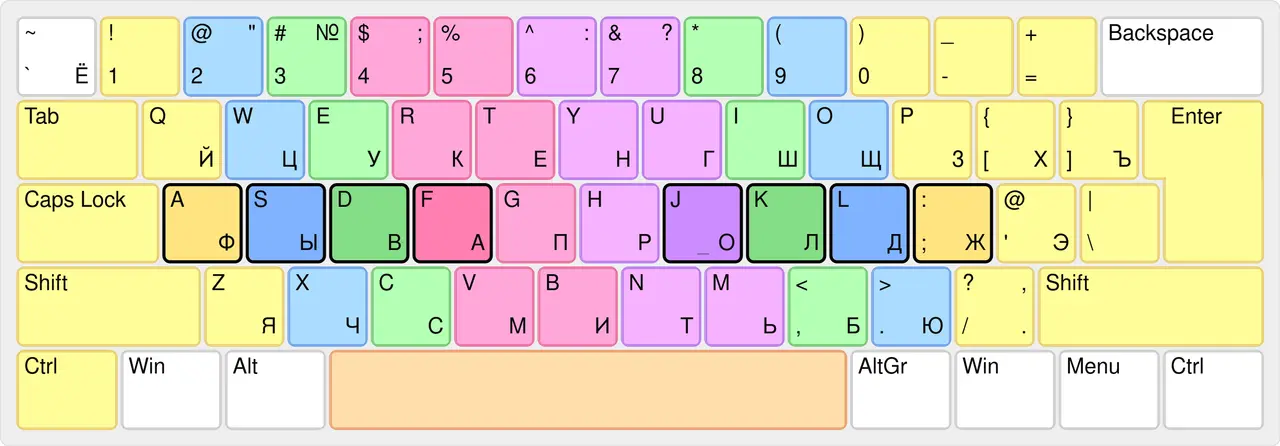
png
The color shows which finger presses which key:
- White — unspecified, and usually any finger presses this key, sometimes while looking.
- Pink, Violet — index finger.
- Green — middle finger.
- Blue — ring finger.
- Yellow — pinky.
- Orange — thumb.
Let's look at them in a cleaner form:
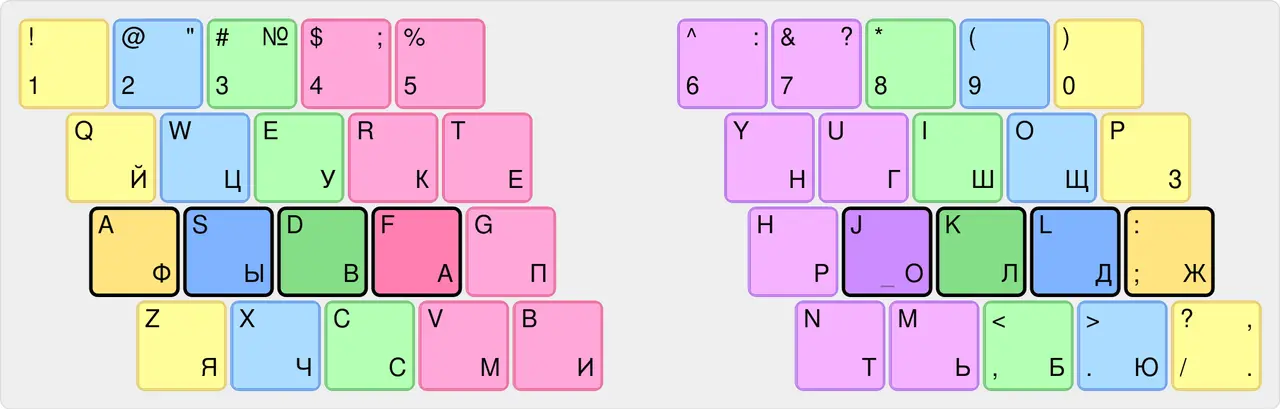
png
You can see that this must be uncomfortable for the left hand. Some people notice this right away and make workarounds in the form of zones like these:
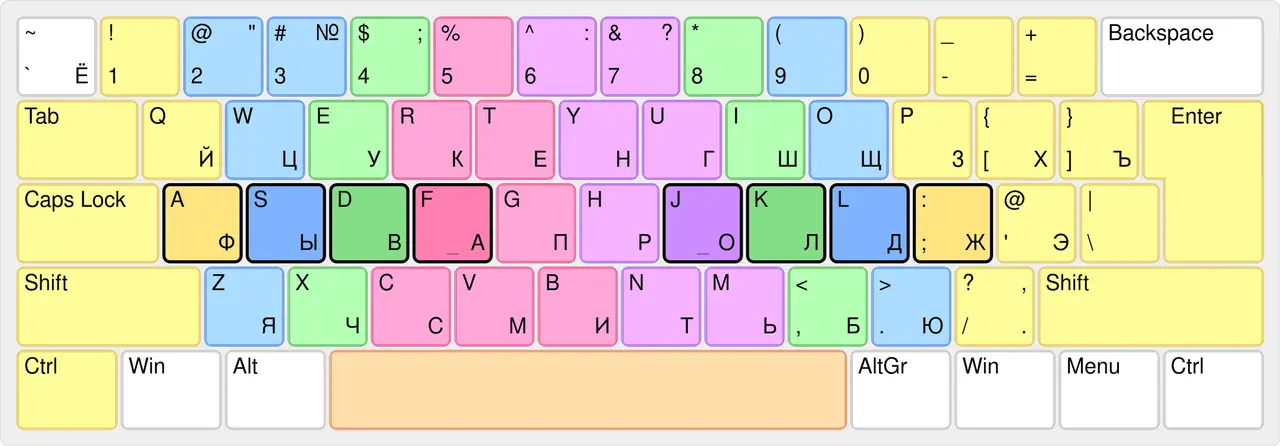
png
Which look like this in a clean form:
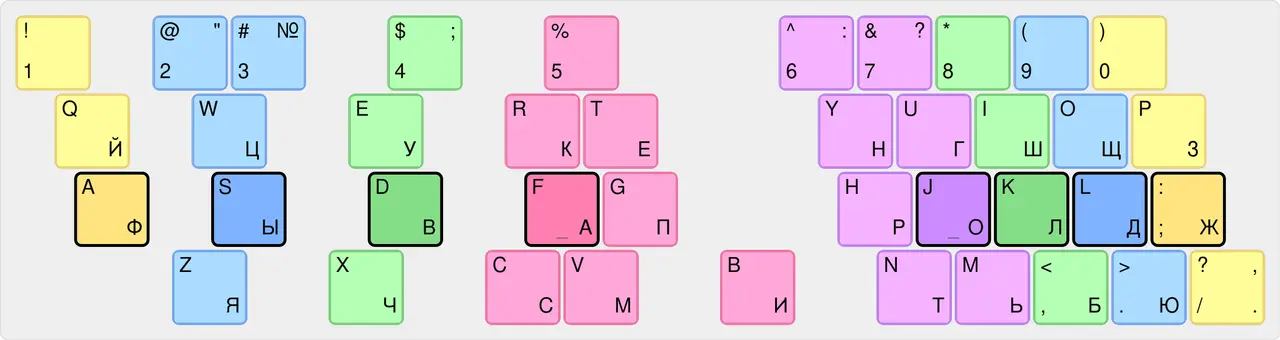
png
They're better, but still rather crooked. They make typing better for the left hand. But unfortunately not everyone figures them out (I, for example, didn't), and not everyone knows about them. So most people learning touch typing suffer on the original zones that are written in all the textbooks and tutorials. Of course, even these alternative zones can't be called ideal, and you can't say that by using them you can forget that the SK is inadequate for touch typing.
Some people on Klavogonki with unusual zones: _VR_, Alkhor, Pereborych (in Russian).
There are even bigger workarounds that not only change the zones but also the hand position — ЫВАМ ТОЛД (in Russian; the fingers rest on the keys that are S D F V and N J K L in QWERTY). This position substantially reworks how you type on the ЙЦУКЕН layout (the standard Russian layout), and also makes the hand position a bit more ergonomic. Here's what it looks like:
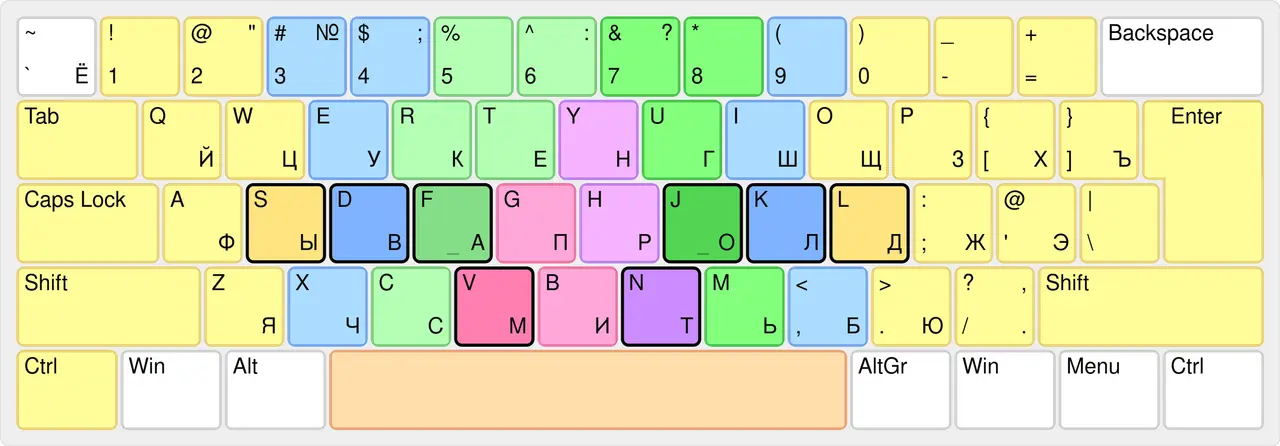
png
Now ЫВАМ ТОЛД is a strange concept, and I wouldn't recommend it; try it at your own risk.
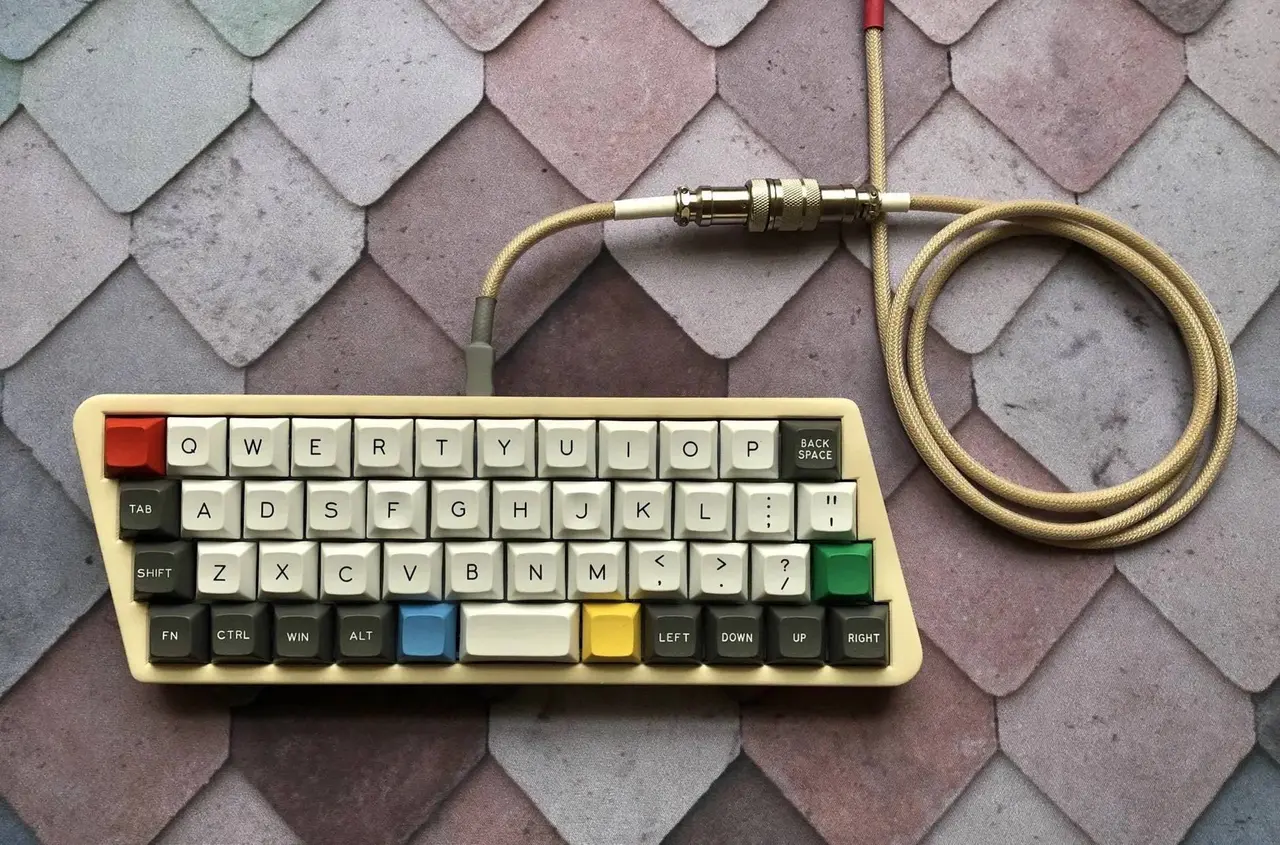
The zones show why the SK is inadequate. It happens precisely because of the horizontal stagger, which slants in one direction and is on keyboards as a holdover from typewriters. This stagger can be denoted the same way as the standard zones: \\\\.
You can learn more about horizontal stagger in the article Genetic defects of the standard keyboard (in Russian).
You can also see the \\\\ stagger very well in this photo, taken from here:
jpg
But this stagger isn't exactly the same as on the SK. Let's compare how much each new row is offset relative to the previous one on the SK:
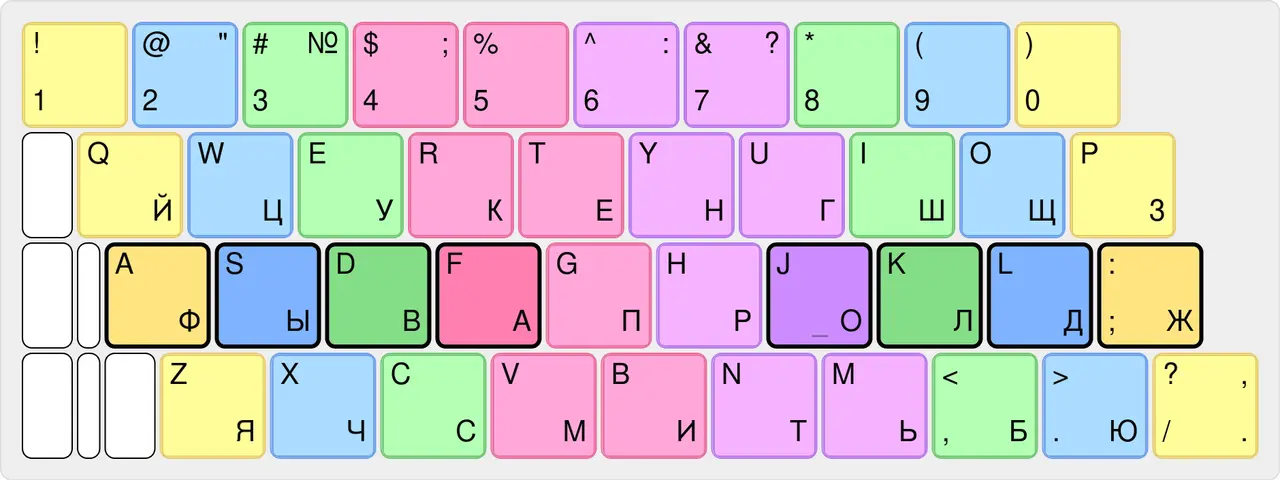
png
You can see that the first offset is 1/2 of a key, but the second one is 1/4 of a key, and then 1/2 again. This strange change in offset comes to us from the peculiarities of typewriters, and it's worse than a constant 1/4 offset. This will be covered later in the history section.
You could say that a proper and adequate stagger would be |||| or //\\.
An example of //\\ stagger with a constant 1/4 offset:
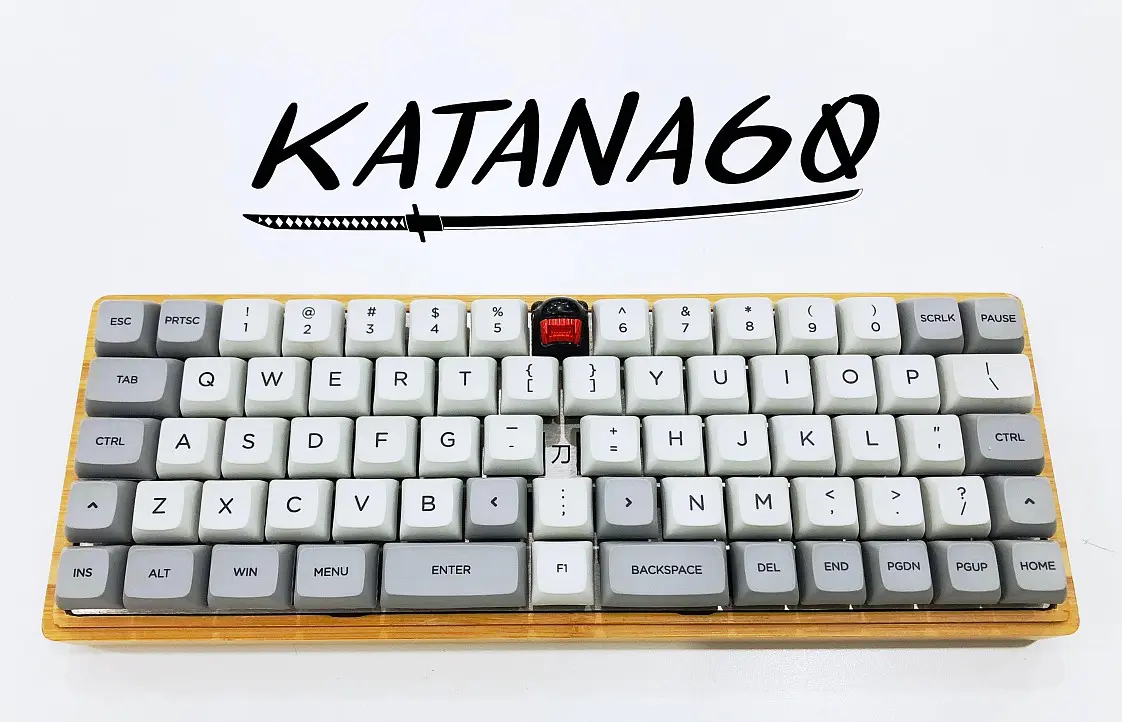
jpg
You can also make //\\, but with a sensible non-uniform row offset, for example: 0, 0, 1/4, as on the Sagaris keyboard:
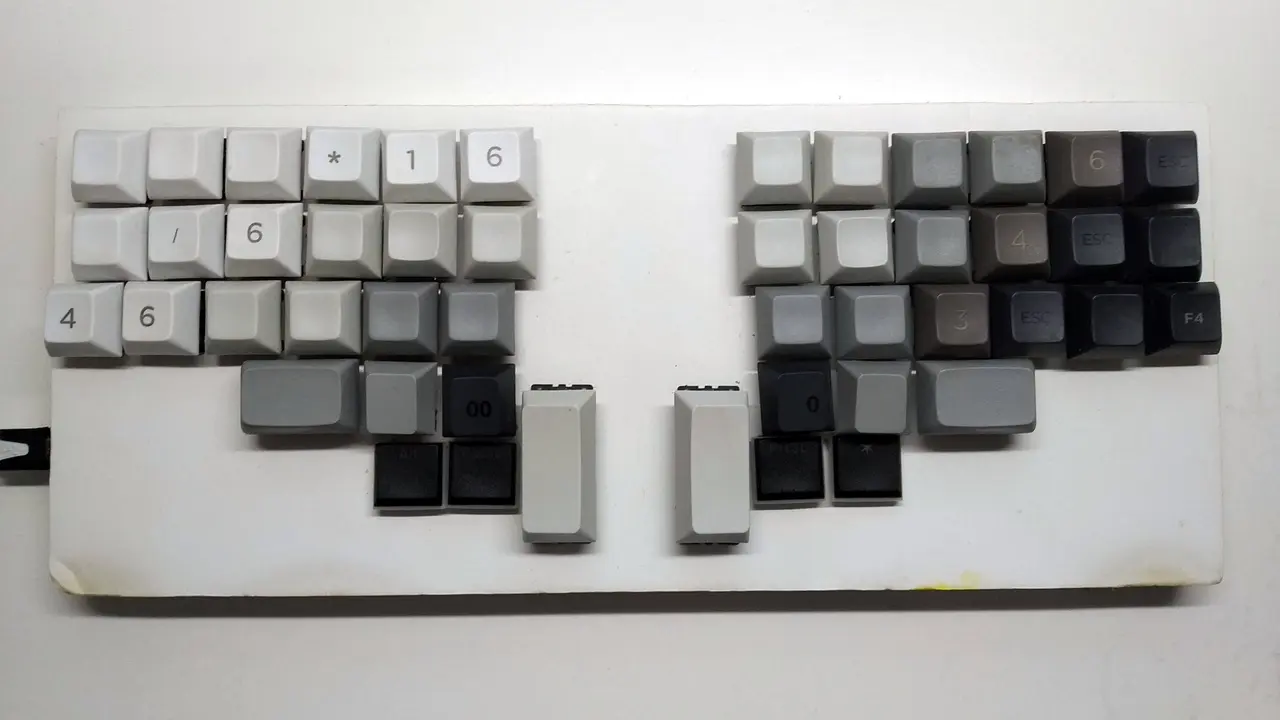
jpg
Now let's look at what zones can be made for my keyboard with its |||| offset:
png
Here the zones are straight and symmetric for both hands; there's no need to twist yourself inside out.
#2Moving the hand
Touch typing is built on the idea that most of the time you don't have to look at the keyboard and can press everything blindly. But this pleasure breaks down when you need to press distant keys that you can't reach from the home position.
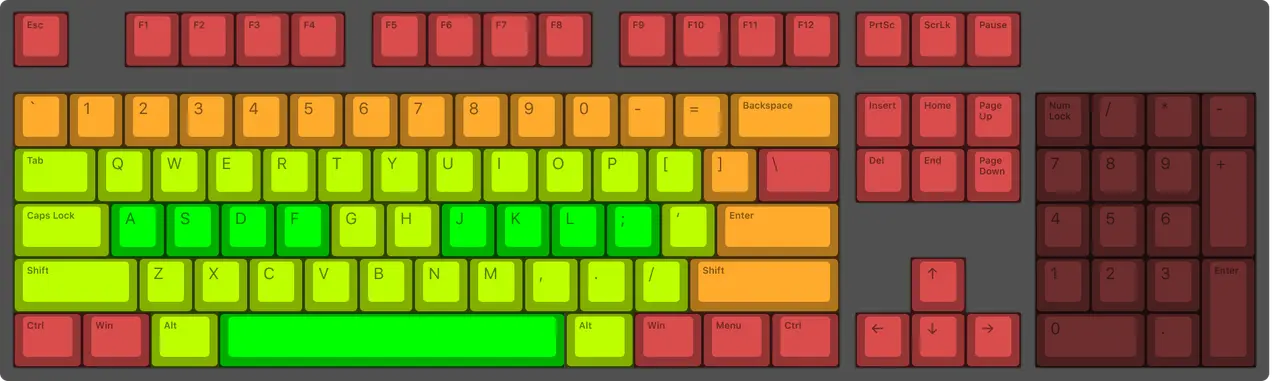
Let's look at how the keys on a keyboard are actually laid out relative to the home position. I'm taking the following illustration from the article Keyboards and design (in Russian).
png
The home position is marked green, a distance of 1 key from the home position is light green, a distance of 2 keys is orange, and so on.
Frequent and useful keys are placed far away, which forces you to move your hand off the home position often.
Take Backspace, for example. It's so far away that it doesn't even fit into the farthest keys of the right pinky. So what do you press it with? Whatever you like! It seems the pinky is the closest to it, but it's easier and more comfortable to press it with the ring finger. You have to move your hand off the home position anyway. And since it moves, it then has to come back to press the next keys. And this is where the problems start, especially at speed. Getting the hand back isn't that easy, plus if you do it fast and also want to press some key at the same time, there's a high chance of missing. And you'll have to move your hand again and press Backspace again. A vicious circle :)
And learning to return to the home position from distant places takes practice. But why do you need this practice if in theory you can do without it? Simply by putting Backspace closer, for example on the thumb:
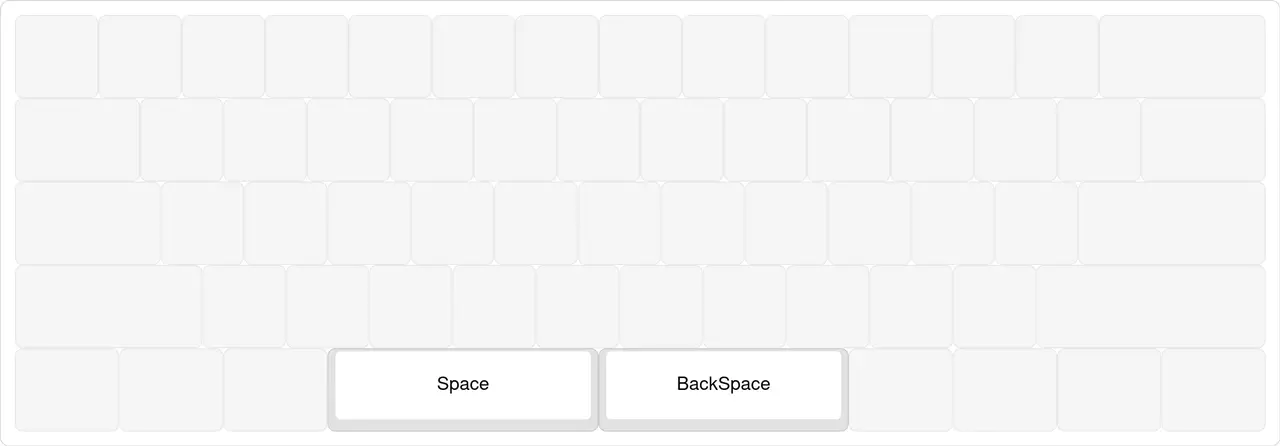
png

jpg
Obviously, for touch typing it's better if all keys are within easy reach of the home position, without big hand movements.
The position of Backspace isn't as sad as the position of the arrows. The arrows are two orders of magnitude farther away than Backspace. And all sorts of programmers and article writers have to use the arrows very often while writing text. And jumping your hand back and forth just to move a couple of characters is simply unbearable.
By the way, that's exactly why things like vim came up with their own modes, where the arrows are right on the home position. The same goes for the numpad and the keys above the arrows: all of that can be put under the home position via layers.
And keys like Backspace, Shift, Enter can be placed closer without any layers, simply by using the thumb.
#2The thumb
It's amazing, but on the SK the thumb isn't used for anything except the space bar. The thumb is one of the most mobile fingers. People type a lot of text on phones with one or two thumbs. And such a powerful finger is left out.
The SK doesn't use the thumb, even though there's no reason for that, and this is inadequate not only for touch typing but in general.
The thumb is strong, so a proper keyboard has at least three keys under each thumb. And then lots of useful things can be put on those three keys.
#2Speed and doubts
People very often say that "once you learn touch typing, you'll start typing faster". If you look at practice, there are reasons to doubt it.
For example, I've seen many examples of schoolkids who, without any touch typing training, came to Klavogonki and quickly reached the highest speeds of 800-900 CPM (160-180 WPM), typing with dynamic zones. I've seen even more examples of those who quickly reached 500-700 CPM (100-140 WPM).
And the fastest typist on the planet, Sean Wrona, types with dynamic zones and reaches about 1200 CPM (240 WPM) in English. The same goes for alternative layouts. They have no objective practical advantage.
But a stenotype machine does have a real advantage.
And what about touch typing meanwhile? It took me more than a year to reach a speed of 500 CPM (100 WPM). And I trained a lot, and started at 17. Right now my maximum speed on Klavogonki is 700 CPM (140 WPM).
So if your goal is speed, you'll have to research further; it's not that simple.
So it's not clear whether touch typing is the one true way of interacting with a keyboard, the one keyboards should be optimized for.
For example, something better can be invented. For instance, on Klavogonki, Fenex learned limited dynamic typing (in Russian) on the index fingers for the ЙЦУКЕН layout. When he gets two consecutive keys in the index finger's zone, he doesn't press them with one finger but with the index and middle fingers. This way he reduces the load on the index fingers and increases his speed by cutting down on same-finger bigrams and increasing the number of rolls. And this approach is neither pure touch typing nor pure dynamic typing.
So I'm not sure that touch typing is the ultimate truth, and that after learning it you'll be guaranteed to type faster. But touch typing is very close to the truth, and learning it should bring at least a drop of comfort.
It should also be noted that when you get a proper keyboard, you'll most likely have to retrain yourself to touch type, because if you got used to typing with dynamic zones on an SK, that won't work on a proper keyboard due to the completely different key positions. And dynamic typing is much harder to relearn than static.
Further on I'll cover where else the SK is inadequate for touch typing and how this problem can be solved on a proper keyboard.
#History
#2Prehistoric times, background
Originally I typed on the keyboard the same way everyone does:
- Sometimes I looked at the keyboard, sometimes I didn't.
- I pressed keys with whatever fingers, practically without using my pinkies.
- I typed sort of fast, and with lots of typos.
Which is typing with dynamic zones with elements of blind typing.
The idea that I should learn touch typing was planted in me independently by three bloggers:
- First Denis Borisov released a video about how he spends his day, and said in it that he had learned touch typing to write articles more easily and faster.
- Then Konstantin Kadavr mentioned in passing, at some random point, that he considers people who type at 300 CPM (60 WPM) to be superhumans.
- And finally, Sorax's video "How to learn touch typing?" (in Russian).

jpg
It's like pouring water into a glass: they kept pouring, and at some point it overflowed.
I'm not sure I would have taken this up after reading one article on the internet or listening to one person. Unfortunately, it's not that easy to convince a person or make them change a habit. Speaking of which, I tried to explain to my friends that they should learn touch typing or switch to proper keyboards, but nothing came of it.
Towards the end of the 11th grade of school (2016) I started digging into how to get started with this.
I started learning this kind of typing right after the 11th grade, and not earlier, because I thought that since I was going to university, I would be writing down all the lectures, and it was better to do that on a keyboard, because it's faster than writing by hand. Plus, it was summer, and in summer you don't have much to do, so I could afford to wreck my typing speed for a while.
The idea also came to me because I'd had a positive experience in history lessons, where we were dictated a lot of material to write down (preparation for the UNT, the national school-leaving exam), and I couldn't keep up writing everything with a pen, and my handwriting was awful anyway, so I couldn't read it later. So one day I dragged my huge wireless keyboard to the lesson, plugged its dongle into my phone through an adapter and started typing into the phone. We were doing it for ourselves, to prepare for the UNT, so nobody said anything to me, everyone was just surprised. Later the teacher asked me to send her all my notes in electronic form, so she could edit them a little and print them out for everyone.
That is, I did it for myself, and it ended up helping everyone.
That's the most important property of digital notes. By the way, this is one more reason why I don't like writing with a pen.
So, I wanted to learn touch typing in order to (!) take notes at university lectures. Remembering this reason now makes me laugh. What an idiotic reason to do such a long and hard thing. In short: first, lectures are most often total crap and can be replaced with a good study guide. And second, if a subject has no study guide and you need to write something down, then most likely something is wrong. Especially if it's a subject that has been taught since time immemorial, like calculus, probability theory, or history.
Lectures go down well when you can watch them recorded at 2x speed. What's good about lectures is that at speed they passively push information into you; you don't have to make an effort to read.
So that's how, out of fear of the unknown, I had to learn a hard skill.
#2The beginning of customization, WinAPI
At some point I also came across an article about the UHK keyboard (in Russian) on what was then GeekTimes. And after it I realized that I wanted this keyboard, and until I had it, I wanted to have arrows the same way it does, namely like this:
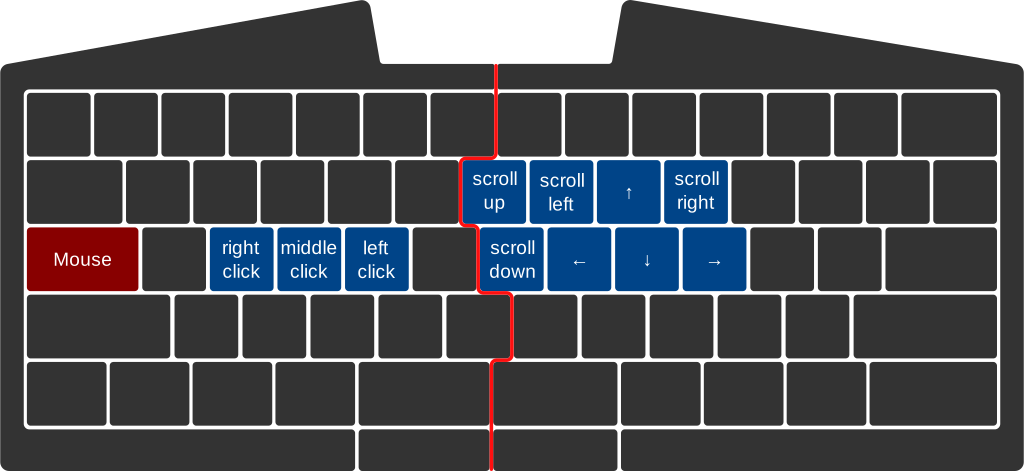
Now I understand that this keyboard isn't all that great, and most importantly, it isn't proper. Although I have to give the article credit: it planted this idea very deep in me, and in general the idea of what you can do with a programmable keyboard.
Back to the topic: before learning to type, I decided to make myself the same arrows, so that instead of Caps Lock I'd have some magic key that makes other keys work differently while it's held (as we already know, this is called a layer). At first I tried to do it with AutoHotKey, but when I did, the arrows worked way too slowly, and it was impossible to use. It even turned into a thread on CyberForum, which nobody answered. Here's the thread, the original script is there too: How do I get arrows on the letter part of the keyboard? (in Russian). Back then I didn't know the term "layer", so googling didn't turn up anything sensible.
Today, to solve this problem, I can recommend Enhanced Keyboard (in Russian), which unfortunately only works on Windows. There's also Karabiner-Elements for macOS.
And back then the only option I had left was to use WinAPI, which I had already played around with quite a bit to draw windows and make simple programs. With it I decided to intercept all keys and change them accordingly. I called the program ModBind, where Mod stands for the key that turns the layer on, and "Bind" stands for "to bind" (the word comes from CS 1.6).
The source code of this program is here: modbind (although nobody needs it, let it stay there for history).
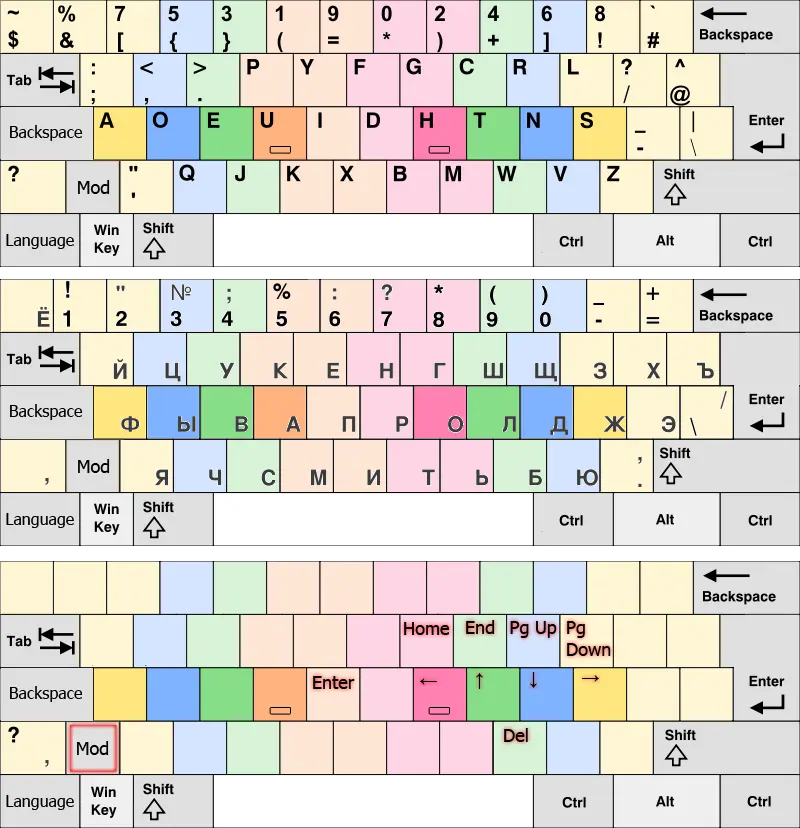
After I finished this program, my layout looked like this:
png
As you can see, there's much more here than just arrows in a layer. Here I:
- Assigned Shift to the left Alt. Because of this I had to relearn pressing space with the right hand instead of the left.
- I have to say that Alt is actually rather far for the thumb, and it's uncomfortable to bend the finger like that. Yes, it's uncomfortable, but bearable, and it's much better than pressing Shift with the pinkies.
- Made the arrows flat. Because I'd heard somewhere that some vim has its arrows arranged like that.
- Added a separate key for the comma.
- Moved Backspace to where Caps Lock was.
- Dedicated a separate key to switching the language.
- Moved Enter closer.
All of these ideas are still with me; I'll go over them in more detail and with thorough explanations below.
The English layout here is "Programmer Dvorak", and its main feature is that the main characters for programming are typed without Shift, while the digits are typed with Shift. The digits are also in a non-standard order, and the punctuation useful in programming is placed as close as possible (and not on the pinky, as on the SK 😑).
If you want punctuation like in the "Programmer Dvorak" layout, you don't have to install that exact layout and relearn new letter positions. You can make yourself a "programmer qwerty" layout in special programs, and keep relearning to a minimum while getting the maximum result. If you're a programmer, this will make your life much better.
Then, once I'd made this perfect layout, I finally started learning touch typing with the VerseQ trainer. After that I moved to Klavogonki (in Russian), and raced with this modified layout for a long time under the account optozorax. You can read more about this layout there.
You can see that I gave up the SK and started rethinking it at the very beginning.
#2Starting to learn touch typing
Here I want to say a few words about VerseQ. I stumbled upon this trainer by chance, but fell in love with it because of the text in the help that pops up when it starts. Also, it's very pleasant to type in, both aesthetically: the look of the keyboard and the click sound, and conceptually: the texts there are very short, and from the very first launch they train all the letters at once.
And I want to criticize the trainers "Solo on the Keyboard", "Stamina", and the "ва ол" vocabularies on Klavogonki. There you're required to first type the letter А a hundred times, then the letter О a hundred times (the index-finger home keys of ЙЦУКЕН), and slowly go through all the letters like that. I consider this approach stupid: you should type real combinations right away, memorize all the letters at once, and in a real setting. There's nothing hard about it. Plus, "Solo on the Keyboard" makes very high demands on the typist's accuracy, which is why some people give up learning touch typing altogether. VerseQ doesn't have that much stress.
And today, to get started with typing, I recommend klava.org: it's free and has lots of features.
From Sorax's video I learned that it's better to use the "Programmer Dvorak" layout for English. Then I thought it would be nice to find a similar layout for Russian, but unfortunately Diktor and the Zubachev layout didn't come up in my searches.
When learning touch typing, I ran into the problem that my fingers were pressing keys outside their zones, and it was very hard for me to control myself. So I made these paper things:
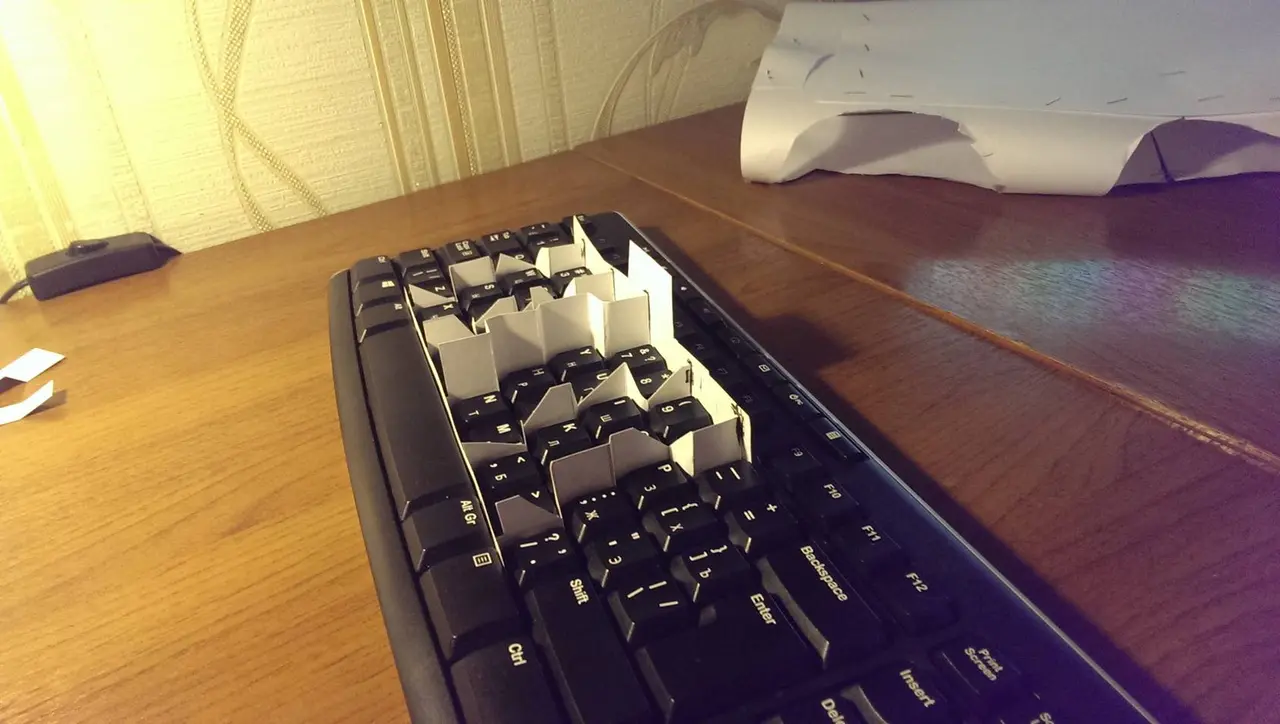
jpg
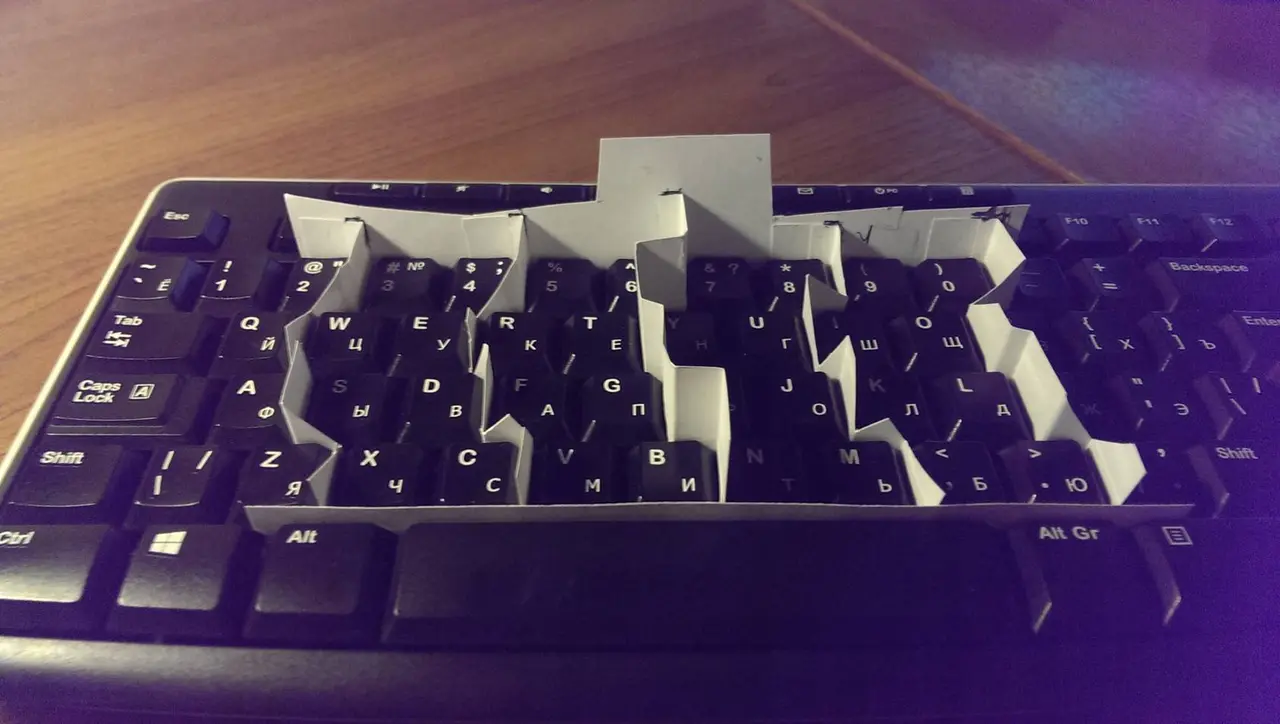
jpg
Oh, these things were very hard to make. Their first problem is that you can't make them out of ordinary paper — it gets crumpled. You need cardstock. The next problem was that these pieces of paper kept falling, so I had to glue them to paper walls. And I also had to cut out some parts of these pieces of paper so that the fingers could move freely.
It took me a lot of time to make this monster, and in the end, when I started typing, I realized it was complete nonsense. All that work wasn't worth it; I'd rather control myself mentally than physically.
Then I ran into the problem that peeking at the keyboard was hardwired into my brain, and I was constantly looking at the keyboard, so I crafted this:
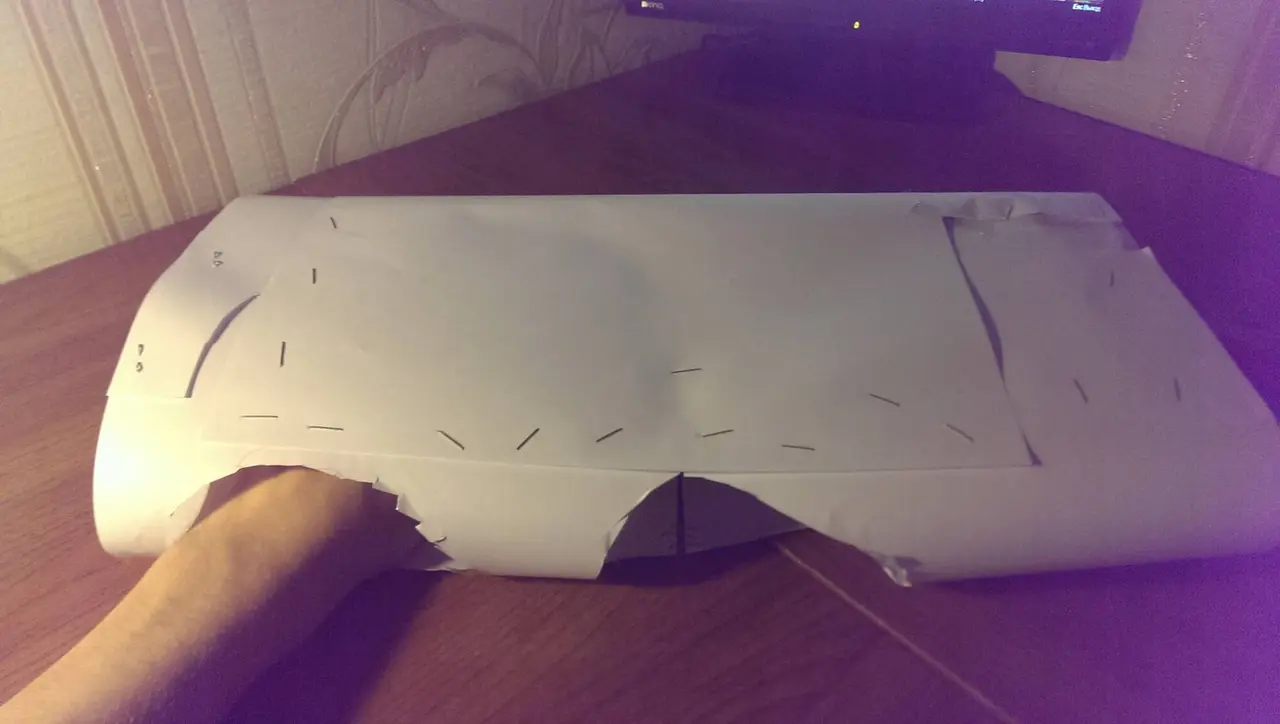
jpg
With this thing, when you want to look at the keyboard, you look and see nothing. Profit 👍.
But then this thing turned out to be inconvenient too, because you had to put it on and take it off.
Then a brilliant thought came to me: peeking at the keyboard is pointless if the labels on the keyboard are meaningless, so I pulled out all the keys and put them back in random order. This is the cheapest and most effective way to fight peeking. You can see it in the picture below.
In the end, my typing workflow looked something like this:
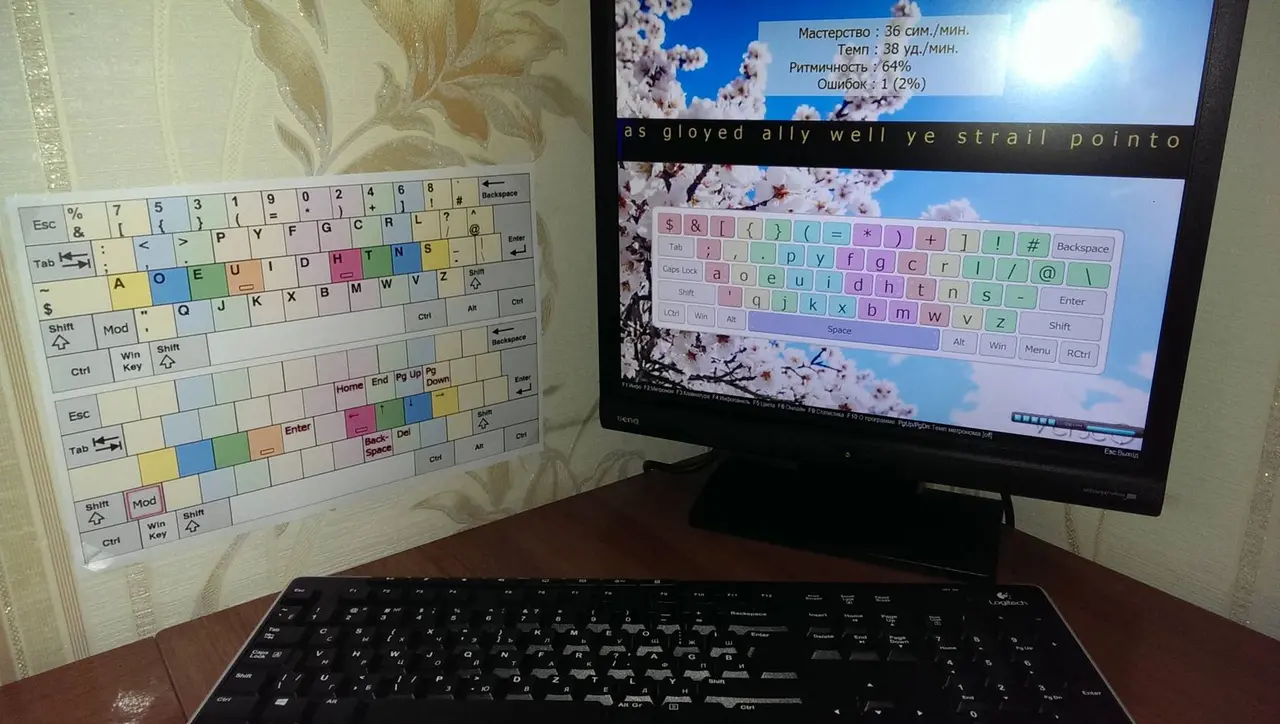
jpg
Print your layout and hang it next to your monitor — it's convenient! It's better to look up the character you need on a piece of paper, and so memorize the layout better, than to let your brain relax and have the computer prompt you where the next character is.
And after reaching 150-200 CPM (30-40 WPM) in this trainer, I advise you to move to Klavogonki, start reading the forum and watching how other people progressed. 300 CPM (60 WPM) will come easily. Beyond that, problems may start.
Getting back to the story: when I was touch typing, I noticed that it was somehow awkward for my left hand to press the С key in Russian (the key that is C in QWERTY): you have to move the finger in an unnatural direction. Then I looked at the keyboard and realized I had been blind all my life: it turns out the keyboard is crooked.
It's crooked, come on!
The keyboard is crooked. And my favorite at the time, the UHK, turns out to be crooked too! So I googled and found out about the ErgoDox EZ, and made a mental note to definitely buy this keyboard when I had the money.
#2My first slim keyboard
Before that I typed on a membrane keyboard with tall keys. And I hated flat keyboards, because they felt disgusting. Plus I was annoyed by the trend of making everything touch-sensitive and flat, removing tactile feedback. It still annoys me. I hate whoever made the touch-control stove in the apartment I'm renting. The downsides of touch-sensitive things are false triggers from spilled water, and sometimes just not triggering at all.
But for some reason everyone on Klavogonki wrote that the best keyboard for fast typing is a slim keyboard. That is, one with flat keys and a scissor mechanism. And even the best of the best wrote that. This is especially relevant for the Russian ЙЦУКЕН layout, where a lot of letters are pressed by the index fingers, and to type them faster with touch typing you need to use sliding (in Russian). And that's only convenient on a flat keyboard. This was a heavy blow for me, and a reason to check whether it was true.
When I started reaching speeds of 400 CPM (80 WPM), I noticed that I was catching keys by accident, and their height was to blame, and I finally understood why people recommend flat keyboards.
So I bought a cheap Rapoo E9070 slim keyboard. At first it was unpleasant and uncomfortable, I often missed because there was no separation at all between the keys, but at 400 CPM (80 WPM) I already know where each key is at the level of reflexes, so I got used to it quickly. I can recommend slim keyboards that have at least some gap between the keys: it's nicer with one.
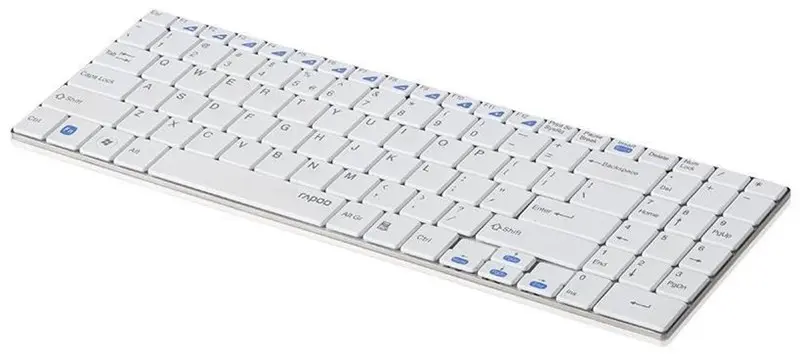
jpg
And when I got used to it and started typing fast, I realized it was all true. A flat keyboard really is convenient specifically for fast touch typing.
That's how I went from a flat keyboard hater to a fan.
#2Buying the ErgoDox EZ
In parallel I kept practicing touch typing on Klavogonki, and by the time I bought the ErgoDox, I'd learned to type at a maximum speed of ≈550 CPM (≈110 WPM).
To avoid cluttering my Klavogonki stats with relearning, I created a new account right after the purchase: ergozorax (in Russian).
When I was a second-year student and had a scholarship and a little income from writing university assignments for other people, I was able to buy myself a used ErgoDox EZ.
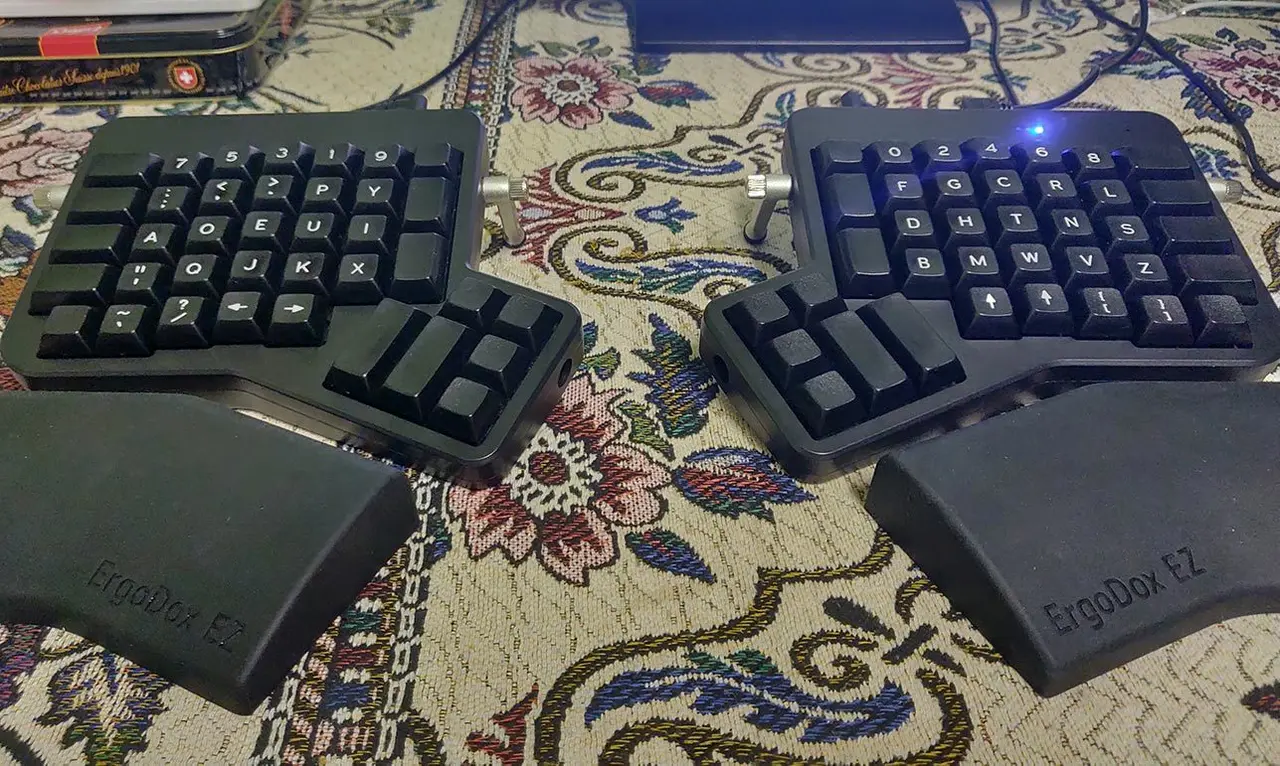
jpg
I received the ErgoDox on February 19, 2018. Only at that moment did I find out that, as it turns out, there's a visual configurator, and the firmware is written in C. Before that I was buying the ErgoDox only for its physical key arrangement and because it has lots of thumb keys.
20 days later I programmed the following layout and flashed it into the keyboard:
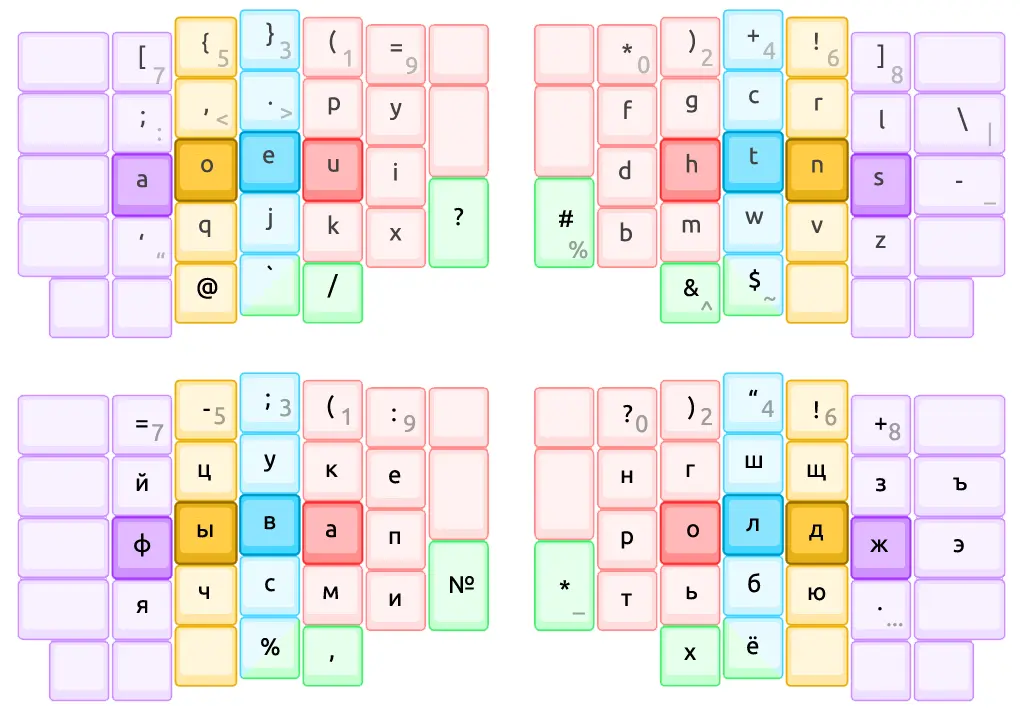
png
I drew the picture in Photoshop :D.
Even then this layout worked without any drivers or software settings, and the only thing it needed was the most ordinary QWERTY and ЙЦУКЕН layouts on the computer.
Once I finally made this layout, I could go back to Klavogonki and break records.
#2Getting used to straight columns
But first I need to talk about getting used to the keyboard. This is an important topic for those who switch to a keyboard like this.
It took me two weeks to get used to straight columns (ortho). I often missed, but eventually got used to it, and then realized that on straight columns I even make fewer mistakes, because it's more comfortable to type. A clear example: there's Khrust's exercise 12 (in Russian), which looks like this:
по-любому облюбовать облюбовал любовь любой любая любви полюбив любое любимое любимая любой Любляна любая любой любви любимый любойы
You're supposed to practice this exercise and build up speed on it. On a regular keyboard this exercise gave me trouble, and my top speeds on it were as ordinary as everyone's. But after switching to straight columns, this exercise became much easier to type than before, and I started setting records in it that were incredible for my level.
And that's despite the exercise being mostly for the right hand, for which the SK supposedly provides a comfortable row offset. Let's recall what the row offset on the SK looks like:
png
And here you can see that for the part where the letters Ю and Б are (the . and , keys in QWERTY), the row offset is 1/2 of a key. From which we conclude that it was precisely the 1/2 offset that slowed me down and confused me. I'm not sure whether typing would have been as hard for me with a 1/4 offset there, but about 1/2 I can say for sure that it's uncomfortable.
The strange change in row offset, and the 1/2 offset in general.
#2Getting used to tall keys
But it turns out that relearning for straight columns wasn't the main problem with the ErgoDox! Judging by what I wrote in messengers back then, the biggest problem for me was switching from low keys to tall ones.
Straight columns aren't the main problem when switching!
So if you consider tall mechanical keyboards manna from heaven, switching to straight columns will be easier for you than it was for me.
And do you know why proper keyboards are all mechanical? Because mechanical switches let you build a keyboard one key at a time, and you don't have to go to any factories to manufacture a membrane keyboard in your form factor. And they won't make one anyway, judging by how vanishingly few membrane proper keyboards there are on the market. So I'm on mechanical keyboards not by my own choice, and I still miss flat keys.
(Of course, there are low-profile switches, but you have to solder those, and I'm not going to spend time learning to solder.)
#2The ErgoDox EZ story continues
So, 4 days after introducing this layout, I broke my record and did 559 CPM (112 WPM) in normal mode on Klavogonki. And then 570 too.
Then, 15 days later, I implemented a sticky Shift — a Shift that works as usual when held, but when pressed and released once, it automatically applies to the next key.
And just a month later, on April 20, 2018, I joined the @klavaorgwork chat (in Russian), where there are people who, like me, are into creating layouts and keyboards. In particular, Volka ibnteo (in Russian) was there — he was one of the first in the Russian-speaking community to create a proper keyboard, the Catboard (in Russian).
By the time I joined this Telegram community, I had roughly this layout, whose description is now here: optozorax/keyboard_layout (in Russian).
It looked exactly like this:
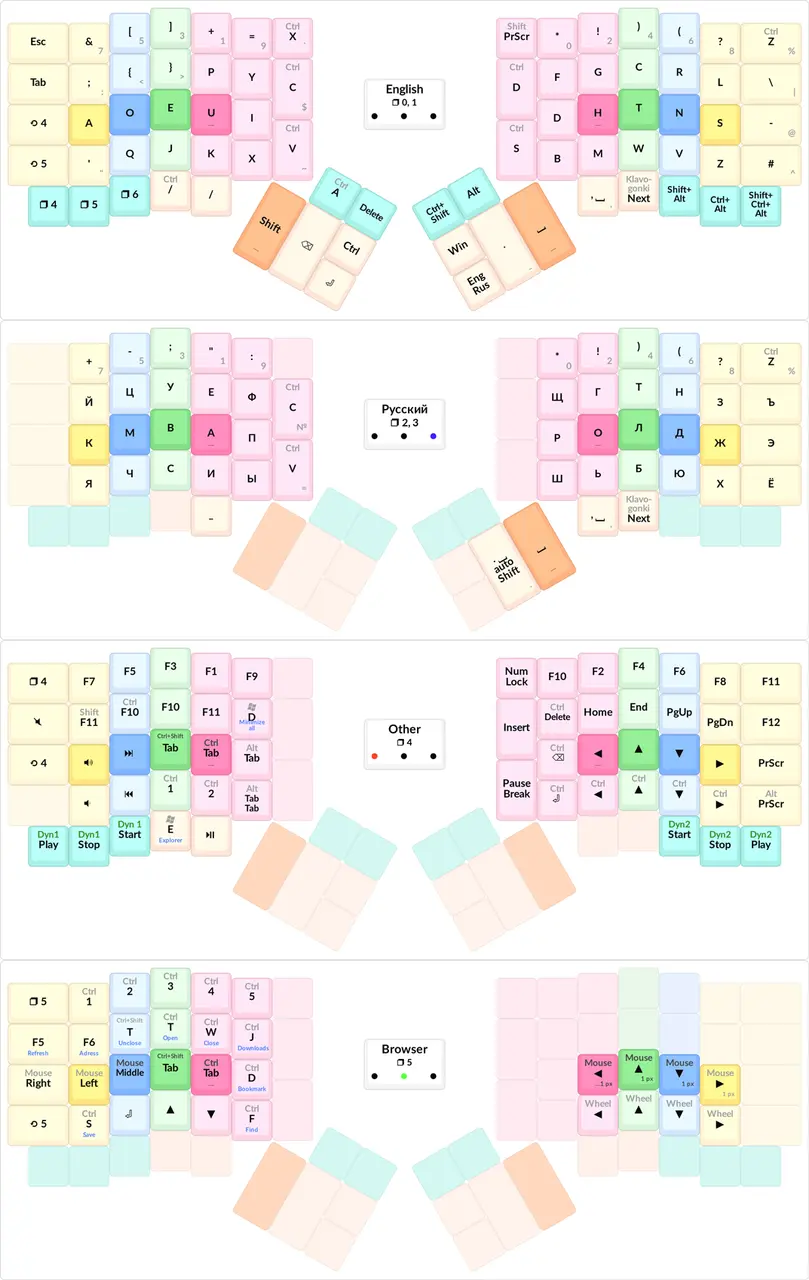
png
#2Rearranging letters
I always understood that ЙЦУКЕН isn't the height of perfection and isn't very comfortable to type on, and I kept trying to create the Perfect Speed Layout, but it didn't go very well.
In the keyboard makers' community I met Kanazei (in Russian), who kept modifying his layout by swapping a couple of letters and relearning. When reworking his layout, he relied more on his own feelings than on all sorts of programs, and didn't try to create the ideal right away. Accordingly, through this manual work he learned a lot, and thanks to that, I think, he's now the main expert on letter layouts in our whole community.
Roll — I don't want to repeat it here; better read the thread about rolls on Klavogonki (in Russian).
Inspired by his example, I decided to rearrange a few letters too. Namely, I swapped Щ⬌Н and Ш⬌Т. This rearrangement was supposed to bring the most frequent Russian two-letter combination, ТО, into play as a comfortable and fast roll. And to increase the number of rolls in general.
That was on May 9, 2018. 2 days later I managed to reach a speed of 400. 8 days after the swap — a speed of 500. Three weeks after the swap — my old speed was restored.
Only after three weeks of getting used to it could I type normally, although even months later there were moments when I'd zone out while typing, and my hands would hit the old positions of the letters Ш, Т, Н, Щ on their own.
I didn't expect it to be so hard to get used to. Even getting used to the straight columns on the ErgoDox was much easier.
The main problem with old key-pressing reflexes is that the hands get used not so much to pressing individual letters as to pressing combinations. For example, ТЬ: at speed, the hands no longer perceive it as two letters, but as one action, like one new letter. And so, even if you learn to press Т in its new place, that doesn't mean all such actions get relearned automatically. And each key is involved in a great many such combinations, and all of them have to be relearned. That's exactly why I consider "Solo on the Keyboard" and similar trainers unsuccessful: they don't teach combinations.
Typing with ТО as a roll felt amazing; my speed potential increased.
Sometime in September I continued the rearrangements and did К⬌Е and М⬌И, and then Ф⬌К and Ы⬌М. That is, I took two more letters away from the index fingers and moved frequent vowels closer. I got even more rolls.
I no longer remember how long it took me to relearn for this rearrangement, but it seems it wasn't that hard, because these letters aren't as frequent as Н and Т.
I'm not counting rare letters like Х, Ъ here, because they were moved around a lot.
#2Key chatter
Roughly around this time, after a year of very active use, my keyboard started chattering on the most frequent letters: Р, В, Backspace. I think the keyboard being used when I bought it and the poor quality of the Gateron Clear switches were to blame. Unfortunately, I didn't manage to desolder the chattering switches and swap them with less frequently used keys.
But I managed to partially beat the problem with workarounds in software.
Unfortunately, my version of the keyboard didn't have hot-swap yet.
And somewhere around then I started thinking about buying a new keyboard that would have hot-swap.
#2Heatmap
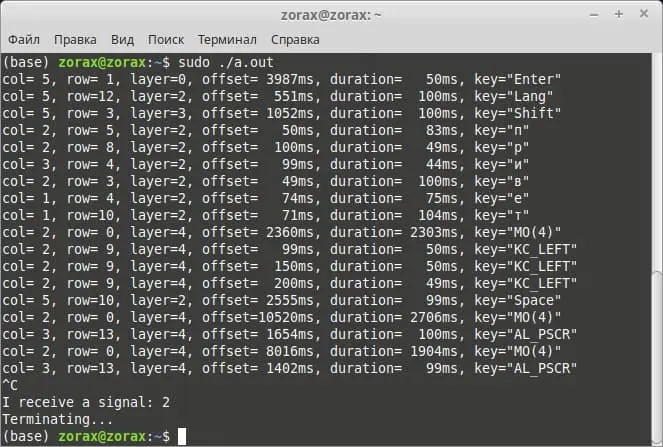
On April 8, 2019, I found out that you can do a printf from the keyboard that doesn't affect the typed text in any way. And based on that, I decided to finally implement my idea of collecting keypress statistics from the keyboard.
You can read more about it under the #heatmap hashtag in the Telegram chat @klavaorgwork (in Russian), or in the readme of the klavarog/heatmap project (in Russian). Thanks to this ability to do printf inside the keyboard, you can not only measure keypress statistics, but also debug.
To make this work, you only need to insert a single line of code into your layout's code.
Based on this, I also made a rudimentary console clone of TypingStatistics:
jpg
In the end, after a winding road, on August 13, 2019, I finished the program and all the related machinery, and published the result in the klavarog/heatmap repository (in Russian).
Then I added this program to autostart so that it would collect statistics while I worked. At some point I stopped doing that, so I only have old statistics, no new ones. I think I should rewrite this project in Rust and make it possible to measure all the same statistics for the SK too.
I also published my statistics based on 1.5 million keypresses in the same chat under the hashtag #частотность ("frequency"). If you don't want to join the chat, here are direct links: one, two.
Further on in this article I'll use the results of these statistics for demonstration purposes.
#2Kladenets
On September 7, 2019, there was the Moscow Maker Faire, where Volka and Suenot presented their keyboards. Since I was lucky enough to be in Moscow at the time, I decided not to miss the chance and finally came to meet them in person. At the same time I poked around Volka's then-new keyboard, the Kladenets (in Russian):
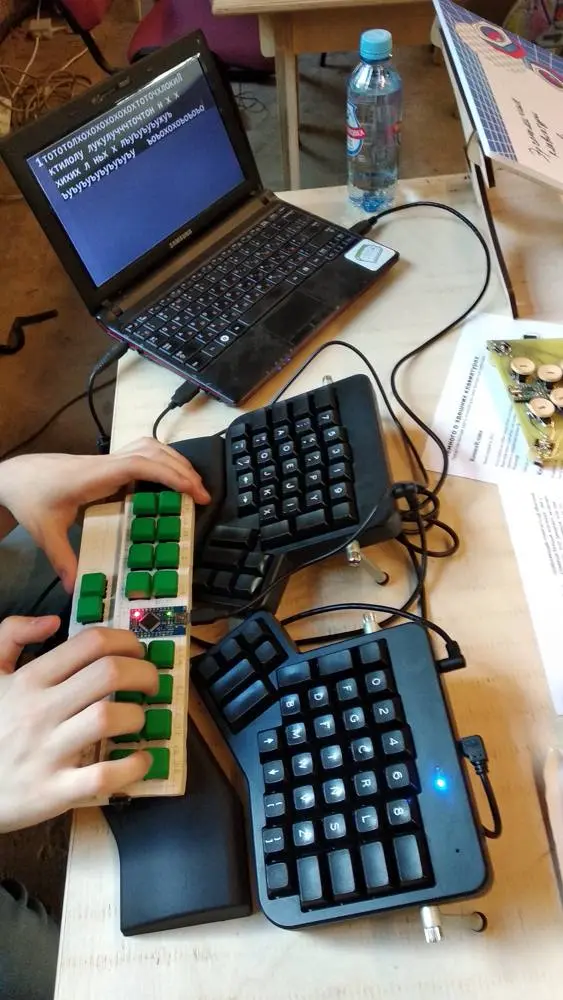
jpg
Before that, in the chat, it was hard to grasp how the Kladenets works and what it even is. But after the live session it became clearer, and I really liked it.
Then I came to the thought that I wanted to try learning to type on the Kladenets. And on September 15, Volka gave me the very first unit, and I started learning:
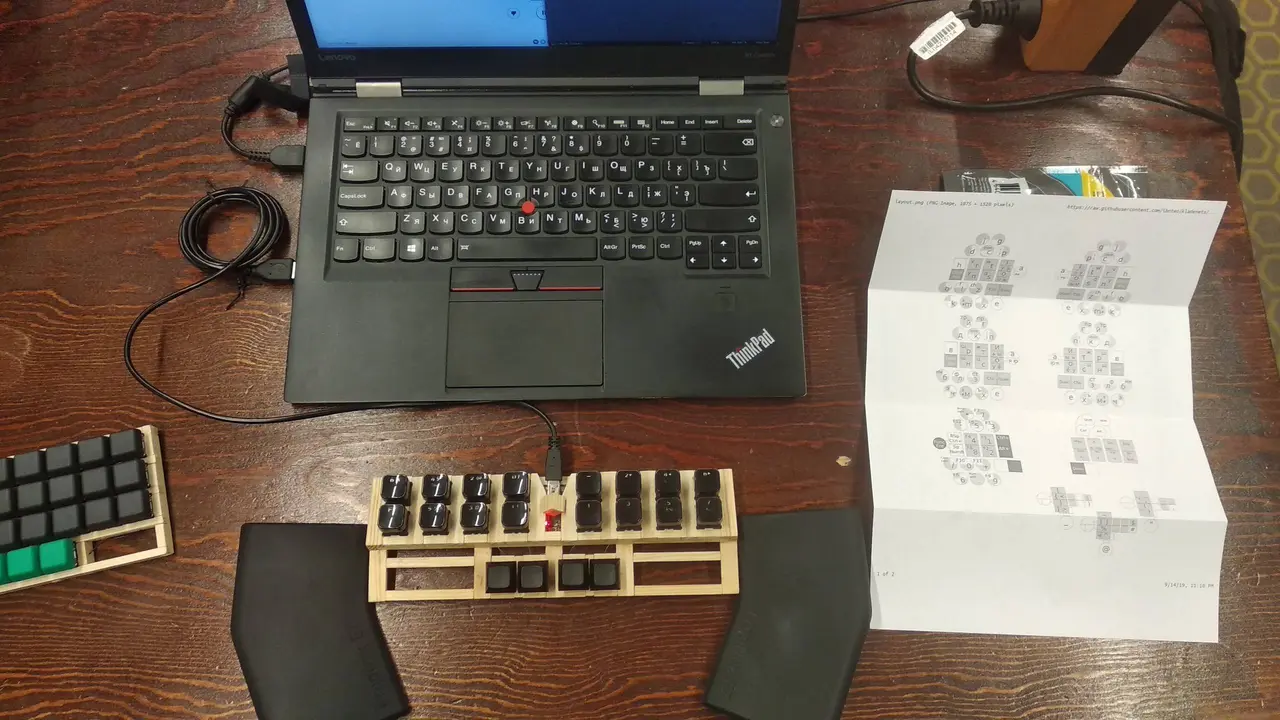
jpg
You can read in great detail about the whole learning process, my thoughts and other information in the Telegram channel @kladenets_zorax (in Russian).
When I started learning, I found the idea of multi-character input brilliant, and also how you can work entirely with one hand.
Little by little, bit by bit, I kept typing. Learning the Kladenets was much harder than learning touch typing; chords and two-key presses were hard to press and very tormenting for the brain. I also created a separate account for learning the Kladenets: kladozorax (in Russian).
The Kladenets was more of an experiment than an attempt to switch to a new typing platform.
15 days later, on September 30, 2019, I reached a speed of 100 CPM (20 WPM) on the Kladenets in normal mode on Klavogonki, with one hand!
Here's a video in which I type a simple text with one hand, and where you can see exactly how typing on the Kladenets works:
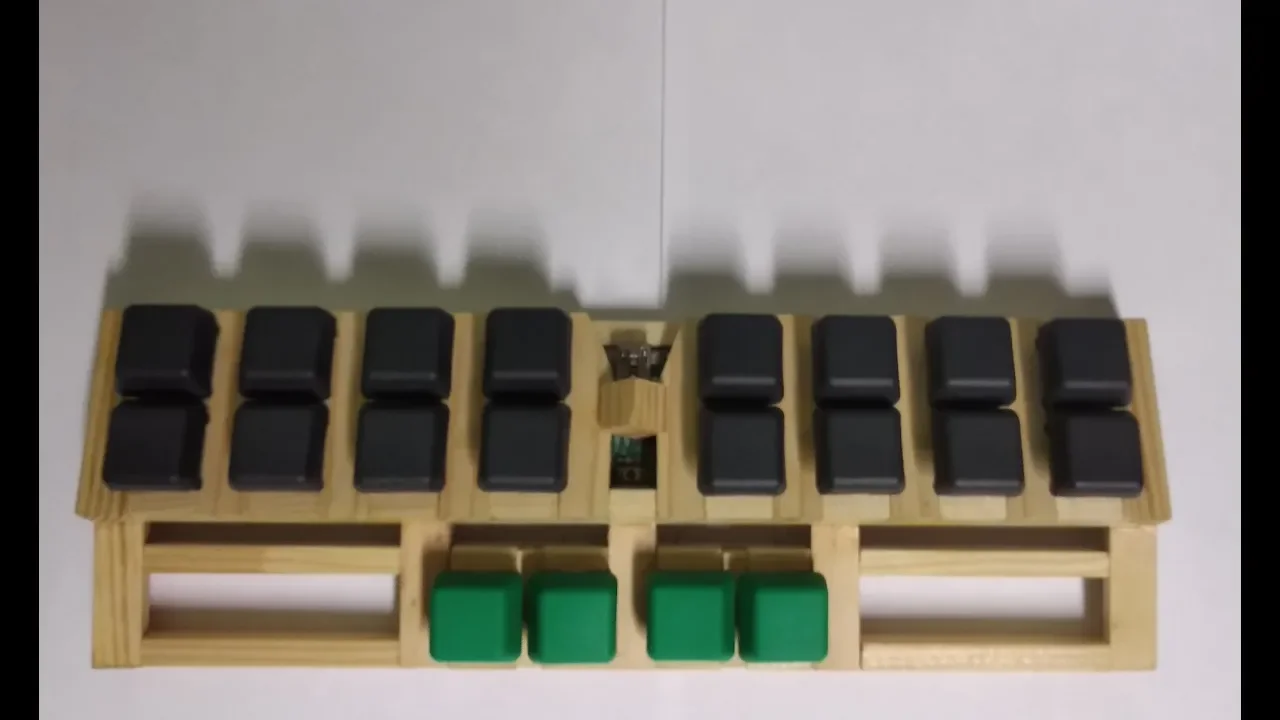
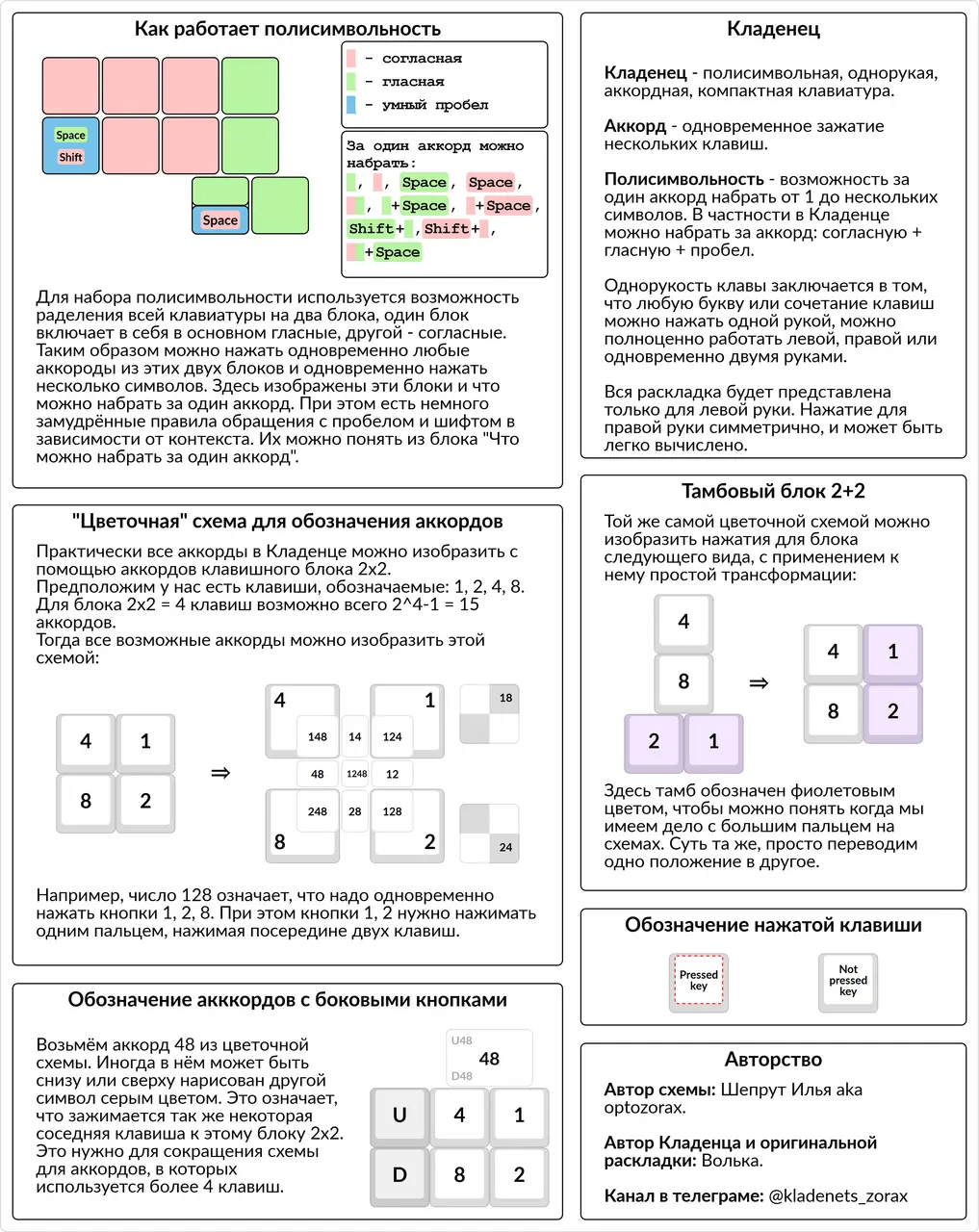
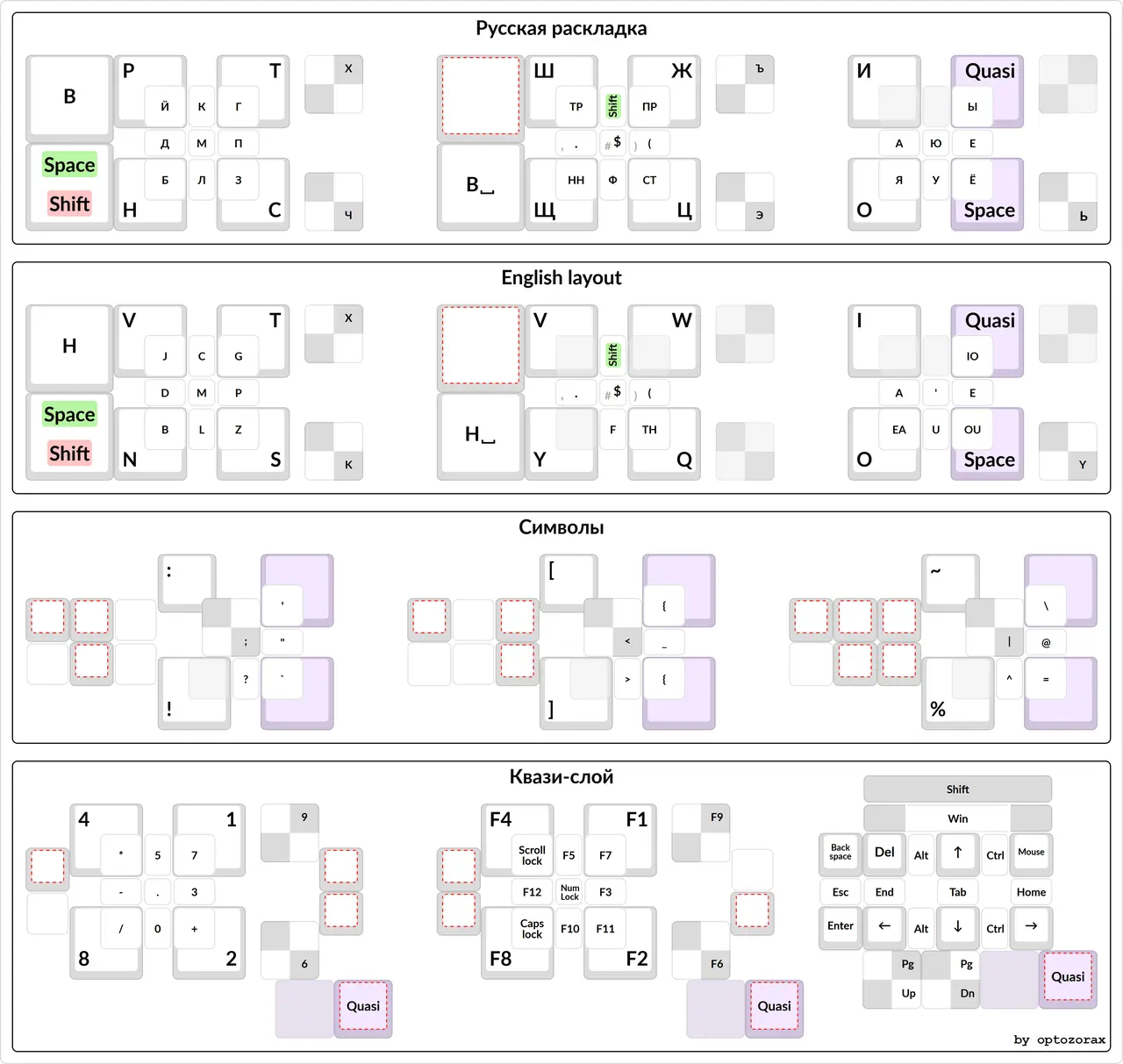
Since the Kladenets is a very interesting and complex keyboard, I started getting lots of ideas about how its layout could be visualized.
Here's the result of my visualization experiments back then: (you don't have to read it, just enjoy the beautiful complex pictures)
png
png
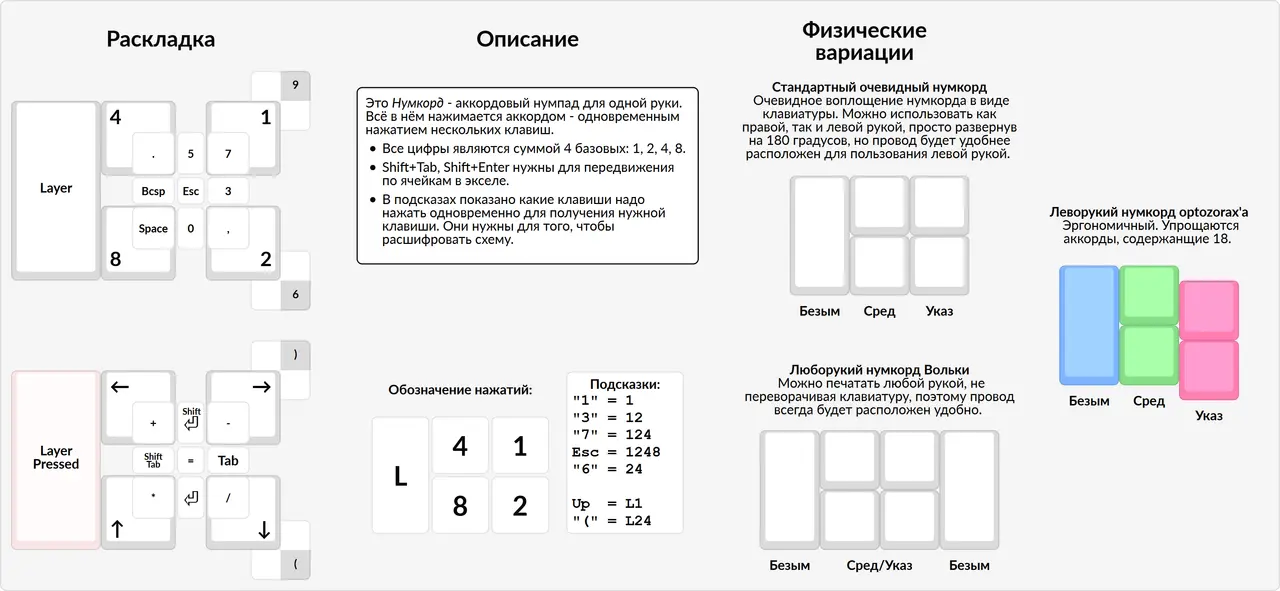
I also came up with a chorded keyboard that consists of 5 keys but implements a full numpad — the Numcord:
png
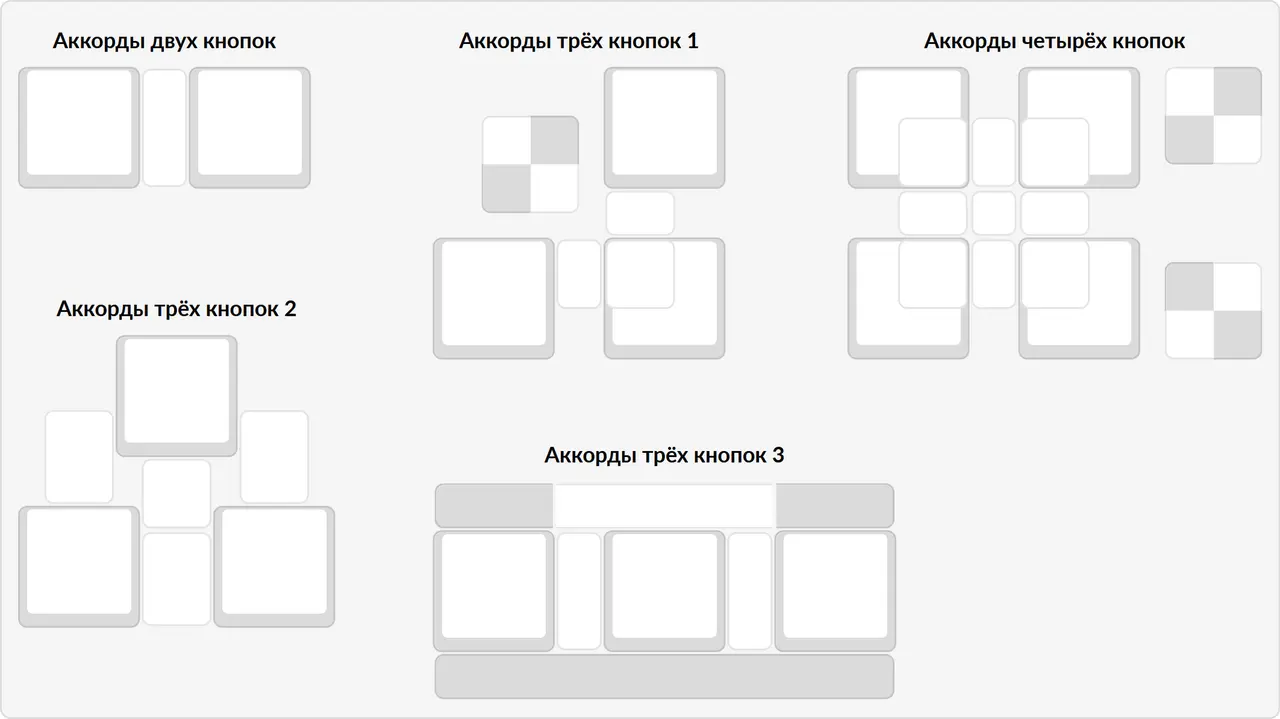
And I also came up with a visualization of chords:
png
In the end, I reached a speed of almost 300 CPM (60 WPM) in the "Sotochka" vocabulary on the Kladenets with one hand, and now I type on it very rarely.
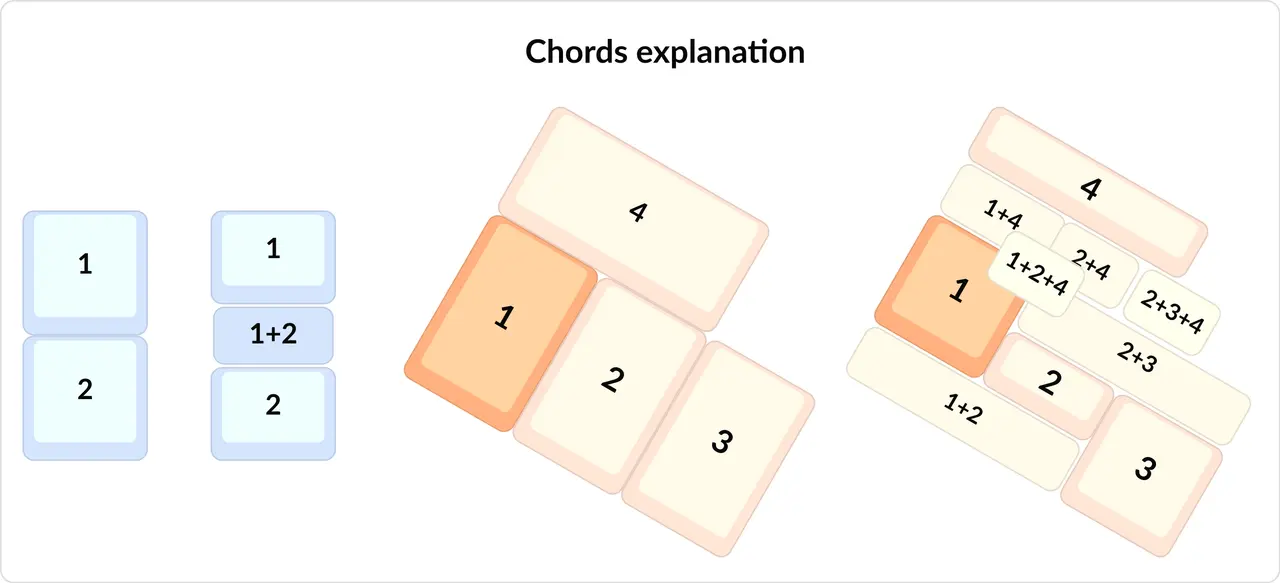
It was a very interesting experience, after which the Kladenets' flaws became clear, and thanks to which I opened up to chords and came up with lots of ways to visualize them. In particular, I use the chord visualization ideas in my layout on the base layer.
#2Buying the Moonlander
In July 2020, through unofficial sources, even before the official announcement, I found out that ZSA had released this new keyboard. After reading and thinking, I decided to order it. The keyboard was much better than the Ergodox, and I could finally get rid of the chattering keys problem.
I was lucky: I was one of the first, and on September 3 🍁 2020 I already had the keyboard. It became the inspiration to take my whole layout and redo it with a bunch of ideas in mind, and to relearn it.
Below I'll tell you exactly what new features appeared when I globally rewrote the firmware for the Moonlander. The most important ones are chords, and the same punctuation for Russian and English.
#2Building speed
All records are for normal mode on Klavogonki, in CPM, and they're mostly the ones that came with a rank-up. Unfortunately, in the days before touch typing I didn't think of measuring my speed.
You can see all the records in more detail in my Klavogonki accounts: optozorax, ergozorax (in Russian); my statistics are public.
| Date | Δt | Record | Comment |
|---|---|---|---|
| ~June 2016 | 0 | 0 | Started learning touch typing in VerseQ |
| June 27, 2016 | ~a month | 139 | Joined Klavogonki |
| July 10, 2016 | 13 days | 282 | - |
| July 10, 2016 | 0 days | 303 | - |
| August 8, 2016 | 29 days | 406 | - |
| April 19, 2017 | 8 months, 11 days | 508 | - |
| February 17, 2018 | 9 months, 29 days | 566 | Last record on the slim keyboard |
| February 19, 2018 | 2 days | - | Received the ErgoDox |
| March 3, 2018 | 12 days | 462 | First record on the ErgoDox |
| March 5, 2018 | 3 days | 570 | Beat my slim keyboard record |
| July 31, 2018 | 4 months, 26 days | 604 | - |
| July 31, 2018 | 1 year, 3 months, 12 days | 604 | In this row the time difference is counted from the 508 record |
| January 7, 2020 | 1 year, 5 months, 7 days | 718 | - |
| September 3, 2020 | 7 months, 27 days | - | Received the Moonlander |
After the records above 500 I started racing on Klavogonki less and stopped training, which is why the later records took so long. Now I hardly race at all.
To put this typing speed into perspective, I made these measurements (in CPM):
| Activity | Speed | Tested on |
|---|---|---|
| Reading | 1800 | Me and my friend |
| Talking at a measured pace without pauses | 1200 | Me and my friend |
| Writing text with a pen | 160 | Me |
| Writing text on a smartphone with a standard-size touchscreen, without T9-style autocorrect and without swipe | 150 | Me |
You can make your own measurements too: just take a stopwatch and a text with a known number of characters. For example, you can check your handwriting speed. Compare writing neatly and writing as fast as possible. And see that it definitely won't catch up with even 300 CPM (60 WPM) on a keyboard.
#Speed
The fact that I type fast and keep improving my skill is also an important part of the layout and of how I perceive the keyboard in general. As a reminder, my record in Russian is 718 CPM (144 WPM). If you count records from the Texts of difficulty 0-1 vocabulary (in Russian), it's 755 CPM (151 WPM). So here I'll talk about the pros and properties of speed.
#2It doesn't depend on the keyboard or layout
Unfortunately or fortunately, a proper keyboard doesn't give significant speed advantages over others. All the main world speed records were set on standard keyboards and standard layouts.
Although this heading isn't quite right. Speed does depend on these things. For a proper keyboard the speedup is obvious and proven by my experience, while for alternative layouts like Dvorak or Diktor, the gain in maximum possible speed is unknown. In my opinion, rolls are better for speed, but it's not a well-researched topic in layout building, and it's hard to google.
#2It's pleasant and comfortable
If you compare all sorts of sensations from mechanical switches or from lubing them, speed feels the most pleasant of all. Just the feeling of your fingers jumping across the keyboard precisely and quickly is already very cool.
Speed feels as important a factor in keyboard comfort as straight columns or my whole layout. Although it's not that important: I could live without speed, but not without my layout.
At the same time, straight columns wouldn't be so important to me if I couldn't type at high speed.
When I typed slowly, with dynamic zones, I remember it took much more effort to type a text than it does now. And at a speed of 700 it's much more comfortable than at 400.
At the same time, obviously, once you have speed, it has no downsides compared to slow typing. The only downside of speed is that you have to spend time to build it.
For some people this gain isn't worth spending time on developing speed, and I understand them.
#2When I have to type slowly
One such case is when I use my phone and have to type slowly. And that's when I fully realize how important speed is to me. When typing messages on the phone, I can't express my thoughts as clearly, because they slip away from me faster than I can type them, and in general it's very painful to type that slowly.
I also can't refactor text quickly on a phone.
I feel equally uncomfortable when writing something on paper with a pen. That's why I first wrote all those essays for literature classes on the computer, and only then copied them into a notebook (what nonsense!). And that was even before I learned touch typing. Apparently back then, with dynamic zones, my speed was about 200-300 CPM (40-60 WPM), which is already 1.5-2 times faster than writing on paper.
#2The road to speed is pleasant too
Initially I thought 300 CPM (60 WPM) would be enough for me, so I wanted to stop there. But while building speed on Klavogonki, I got hooked and started enjoying it. So I kept building speed simply because it's pleasant: it's pleasant to race in exercises, in different vocabularies, and see yourself grow.
Also, building speed is much easier than even doing sports. Here you only move your fingers, and you get near-instant feedback on your performance, unlike in sports.
#2Speed and accuracy
The higher the typing speed, the easier it is not to make typos. This is very noticeable on Klavogonki: when I typed at around 400-500, I had 2-3% typos. When I started typing at 600-700, my typo rate became about 1.5%.
Of course, you can specifically learn not to make typos, train accuracy, and I even tried doing it, but I didn't like it. So my error rate went down precisely because of speed, not because of special training.
Since this happens by itself, with high speed you can type sloppily and not control yourself at all, and your fingers will still move more precisely.
#2Moving the hands
It's also important to note that when I type at speed, my hands move. That is, they don't stay absolutely still.
They don't move as much as the hand moves when pressing Backspace on the SK. My hands move much less.
This can be seen in the example of the combination СЫЙ in ЙЦУКЕН (C S Q in QWERTY terms), which is practiced in Khrust's exercise 10 (in Russian). This combination can be pressed as a roll, with three fingers. But it's very uncomfortable to press because of the SK stagger, which is made worse by the awkward direction. So on the SK this combination is usually pressed letter by letter, or two letters at a time.
From the hand movement point of view, this problem is solved differently: you can move your hand off the home position in advance and place it at such an angle that СЫЙ is typed as if all these keys were on the home position.
Also, after I got the ErgoDox, I started making significant progress in this exercise 10, and typed it too well for my rank. I think that's also precisely because the zones for the left hand became more adequate and comfortable.
I discovered that my hand moves to my own surprise, and I didn't learn it on purpose. And my hand moves like this for a lot of different rolls and combinations. So there's no need to restrict yourself by keeping your hand absolutely still.
#2Automaticity
For those who don't know how speed works, let me explain: I'm not a superhuman with super reflexes, super attention or anything special; that's not how speed works. Speed works because the brain learns to perform the most frequent movements faster, through automaticity.
For example, almost everyone can speak. Have you ever thought about what movements your lips and tongue make to produce a sound? Did you know that you can speak at 1200 CPM (240 WPM)? Yes, the tongue also makes precise, complex movements at enormous speed, but we don't notice it. It's all thanks to automaticity. As children we spoke very clumsily and very slowly, because we didn't yet have control of our mouths, but over the years, with hundreds of hours of practice, the neural connections needed to pronounce words get burned into the brain, and we can speak automatically. Speech comes to us so easily that it feels as if thought flows straight from the brain into sounds.
It's the same with typing. Interestingly, the amount of effort typing takes is always the same. When I type at 700, I put in the same amount of effort I did when my top speed was 500 and my average was 400. And the same amount of effort I put in when my top speed was 300 and my average was 250.
Building speed is more about teaching the brain a motor skill than about typing as such.
Also, to type at 700, your fingers don't have to strain hard and your muscles don't need training; it's more a matter of technique.
Or you can describe how speed is built in terms of the comfort zone. When you reach a speed of ~350, further automatic speed growth becomes difficult; from here on, to achieve something higher, you need to step out of your comfort zone. And by stepping out of the comfort zone, its upper bound keeps shifting, along with the lower one.
As for the comfort zone, I can say that once I typed a text at 612 CPM (122 WPM) while typing at an absolutely calm pace, without straining my hands.
And the same principles apply here as when learning any other motor skill: rest systematically and step out of your comfort zone.
Interestingly, these two principles apply to muscles too.
It should also be noted that automaticity is easier to develop for touch typing than for dynamic typing. Obviously, with dynamic zones there are many more combinations for different fingers than with static ones. And with dynamic zones each finger presses more keys.
This also means that over time the automaticity of static zones improves better than the automaticity of dynamic zones. With dynamic zones, because of the larger number of variants, there's no guarantee that the brain will be able to memorize it all automatically; accordingly, there's no guarantee that speed will grow by itself, or that typing will become easier.
That's exactly why touch typing is closer to the truth than dynamic zones.
In practice, it can be observed that with touch typing, after long breaks in training, people usually start growing in speed by leaps and bounds.
#2Long messages
Thanks to all of the above, as you build speed, typing becomes less tiring, and you can type long texts with practically no strain. The only strenuous part of typing long texts is, actually, the thinking itself. Thanks to this, I started writing much more detailed messages on social networks and messengers.
#2Speed and layers
It seems to me that you can't type fast when something your speed depends on is on a layer. For example, Shift, Ъ (the Russian hard sign) on a layer, or Ctrl+Backspace. I think it's all about how easily automaticity develops.
Let's take Ctrl+Backspace as an example. I used to have it on a layer activated by the left pinky, and the key itself was on the right index finger.
Since this key is used very often, especially during fast typing, I constantly made mistakes:
- Either I held the layer longer than needed, and extra keys were pressed on the layer instead of without it
- Or, on the contrary, I didn't press the layerficator early enough, and a letter was typed instead of Ctrl+Backspace.
I call this phenomenon the synchronization problem: when an error happens because a layerficator/modifier was pressed or released at the wrong time, so that an extra key gets pressed, or the needed key doesn't get pressed.
When I moved it to its own key on the base layer, life became much easier. For this reason I don't accept punctuation and letters on a layer. That is, this is why I choose a keyboard with a number row, but more on that later. And for the same reason I try to use a sticky Shift, which applies only to the one next key, so that such a Shift feels more like a letter than a layerficator, but more on that later too.
#About the Moonlander
#2The shape of the keyboard
#3Having a number row
First of all, the number row is the top row on the SK, which has the digits, and the punctuation when Shift is held.
If you google ergonomic and ortholinear keyboards, you'll notice that most of them don't have a number row; a vivid example is the Corne keyboard:
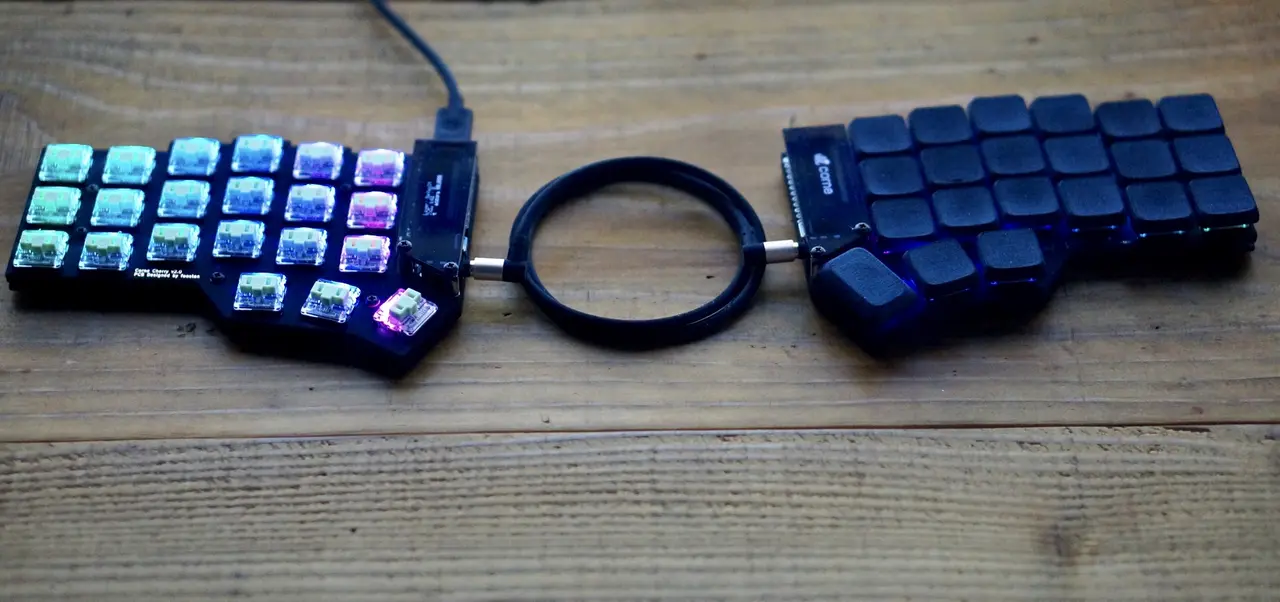
jpg
To the uninitiated, such a keyboard looks insane: it has none of the usual arrows, F-keys, or number row.
People say the number row is too far to reach, while punctuation and numbers on a layer are very close. Although, for example, for the middle finger the number row seems to be within easy reach, without moving the hand.
Since the number row is too far to reach, they prefer to put the digits and symbols on layers; for example, on the similar Jian keyboard, the layers in its default layout look like this:
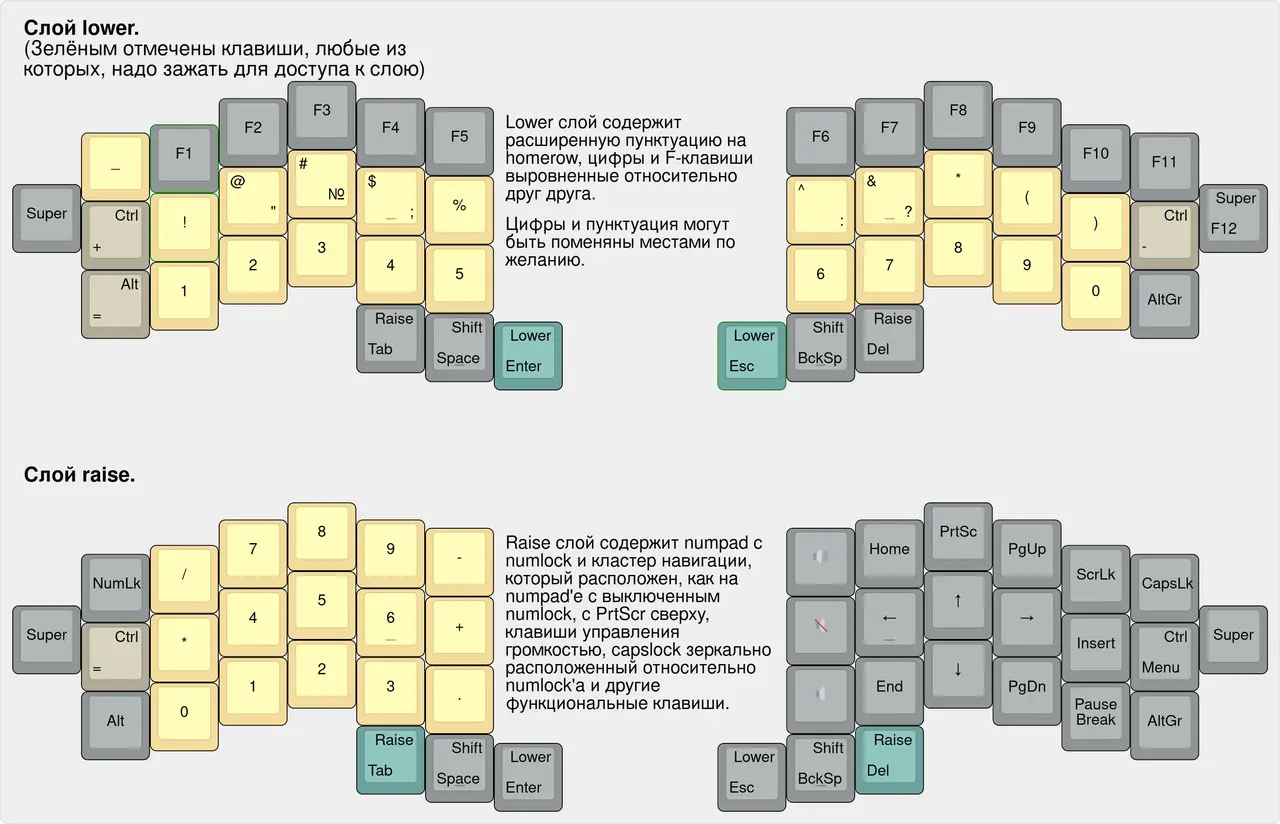
png
There's even a video about this approach:
I, on the other hand, really dislike pressing the Shift key at speed, and accordingly I won't like pressing a layerficator either.
Although, probably, for those who are leaving the SK and have never tried Programmer Dvorak, it makes no difference whether symbols are on a layer or typed with Shift held. For them all the symbols were typed with Shift anyway, and here it's the same, only the Shift is different and the symbols are closer.
But I, as someone used to symbols without Shift on Programmer Dvorak, can no longer give up this convenience. Plus, it seems to me that the number row is much easier to use at speed.
I use the number row not so much for digits as for punctuation.
So if there's a programmer typing >600 CPM (>120 WPM) without a number row, I'd be very interested to hear their opinion.
So I choose keyboards with a number row, and this decision significantly narrows down what's available to me.
I prefer keyboards with a number row.
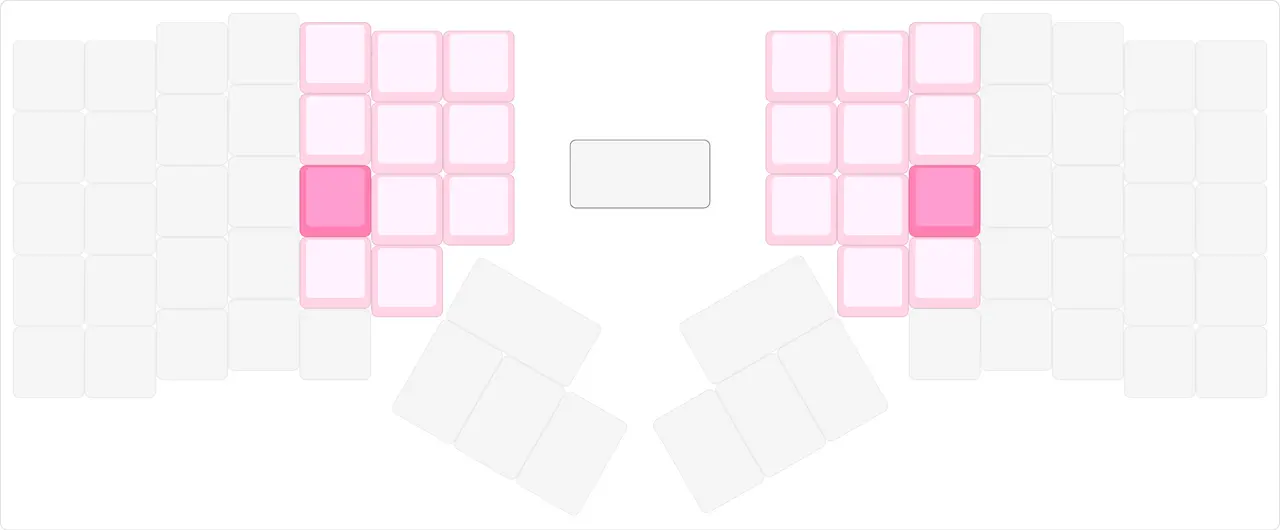
#3Two columns for the pinky, three for the index finger
When people look at a proper keyboard, they see that it isn't standard, and so they don't understand how the standard layout could fit into this keyboard. A very vivid example: people want a third column for the pinky so that the ЭХЪ keys (the Russian letters on ', [, ]) and Enter supposedly fit. That is, for example, my keyboard with a third pinky column would look like this:
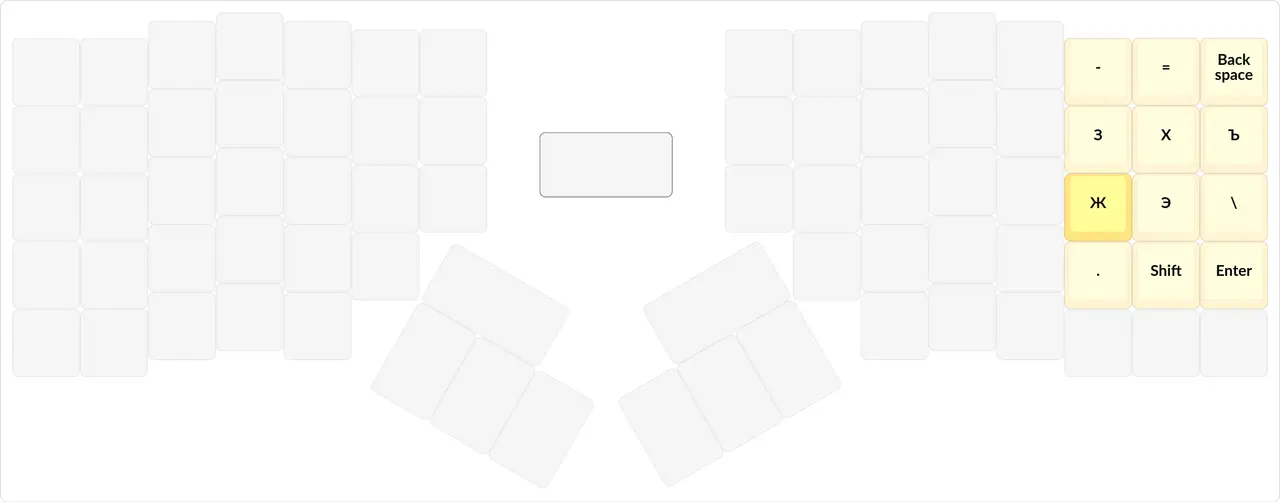
png
In fact, all the keys that the SK places in the pinky's third, fourth and fifth columns can be placed much closer. And the third pinky column isn't as necessary as it may seem. You just need to design the layout more sensibly.
The SK uses very distant keys for the pinkies, even though you can get by with just two pinky columns.
So I don't see any loss from not having a third pinky column. A third column for the index fingers, on the other hand, is a rather handy thing, but you can live without it too.
png
The pinky needs at most 2 columns, while the index finger can have 3.
Although I've heard that there are people who want a 3rd pinky column on a proper keyboard to be compatible with the SK. On that front, I can't help them.
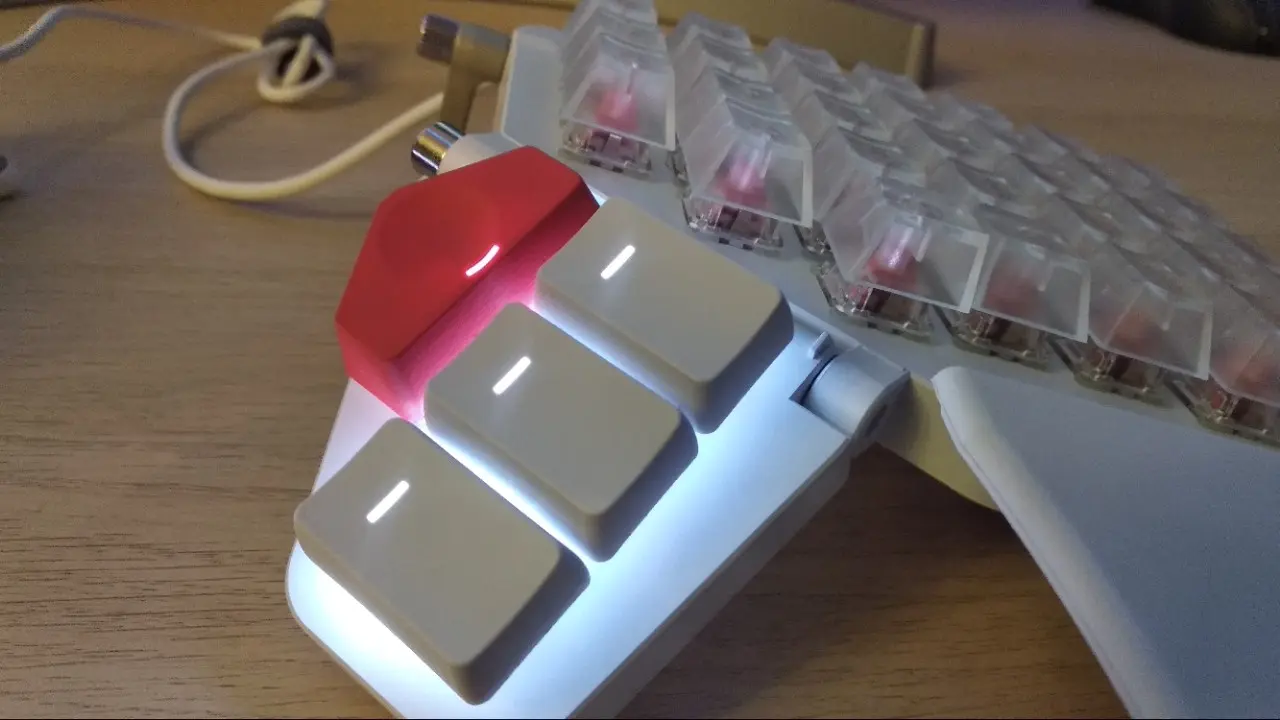
#3A good thumb cluster
jpg
Thumb — in Russian I use the borrowed word "тамб" instead of "большой палец" ("big finger"), because it's shorter. 4 characters vs 13.
Thumb cluster — the area of the keyboard pressed by the thumb.
I choose a keyboard that has at least 3 keys for each thumb. On the Moonlander I have 6 keys for each thumb.
No thumb cluster.
On the Moonlander it's good for several reasons:
- It can be tilted, so the keys are pressed with a more comfortable movement of the thumb.
- Thanks to this tilt, the red key is also comfortable to press.
- Relatively few keys, and all of them are reachable from the home position.
- All the keys are right next to each other and have rather wide keycaps, which makes chords possible.
- It looks stylish and recognizable, partly thanks to the red triangular key.
#3Outer thumb keys
Let's recall that same Corne:
jpg
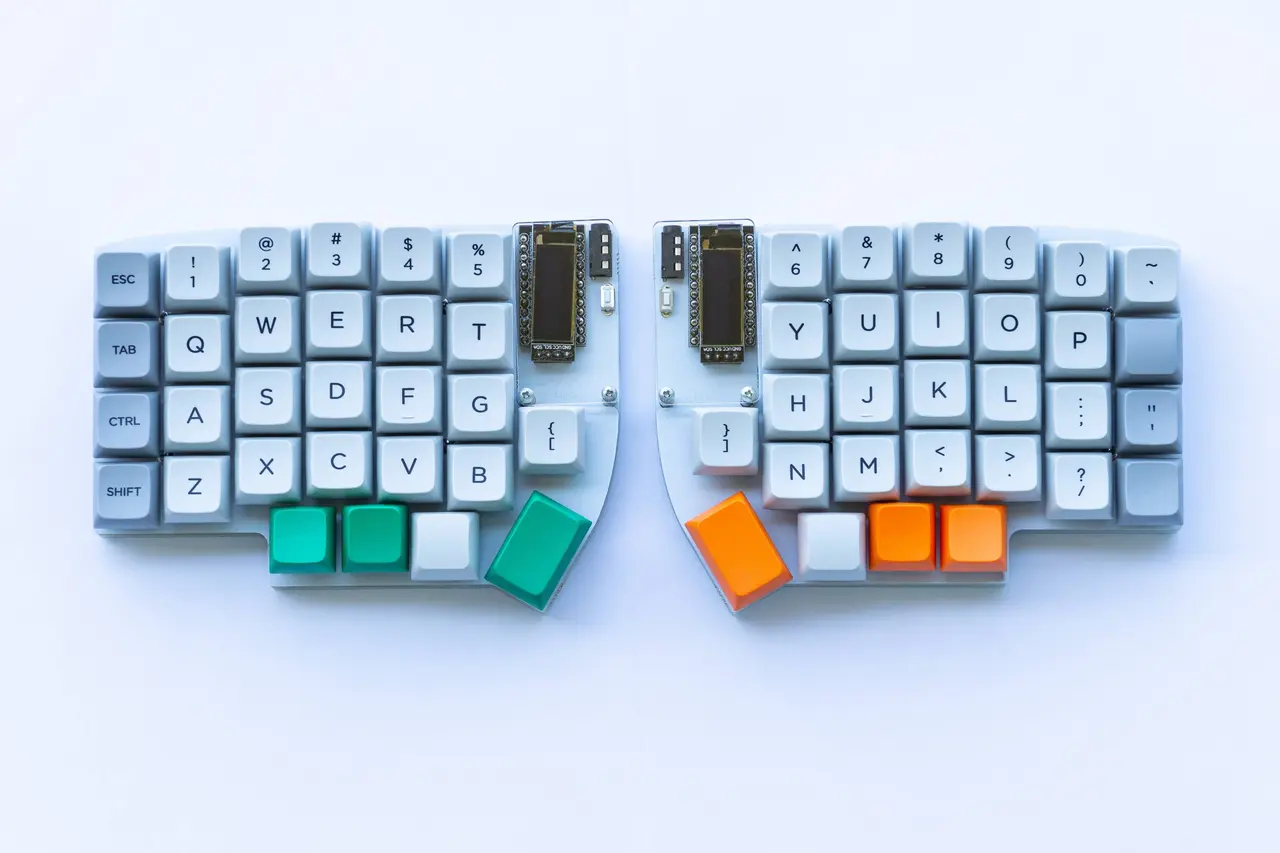
Or let's look at another popular keyboard, the Lily58:
jpg
On the Moonlander I type in such a way that my thumb's home position is where these keyboards have their outermost thumb key. And you can see that for some reason these and most other keyboards have no more keys beyond the edge. But you can see there are plenty of keys towards the inside. It's a trend of making "inner" thumb keys but not "outer" ones. I don't understand this trend, because the thumb bends outward so well. I also don't understand why there are so many distant inner keys, because personally I find it uncomfortable to bend the thumb inward.
I prefer a keyboard that uses outer thumb keys more than inner ones.
For about two years I typed with Shift on the thumb in place of Alt, which is as far away as my farthest thumb keys, so I know what I'm talking about. Bending the finger inward is less comfortable than outward.
And this again narrows my choice in favor of keyboards with a good thumb cluster pulled outward.
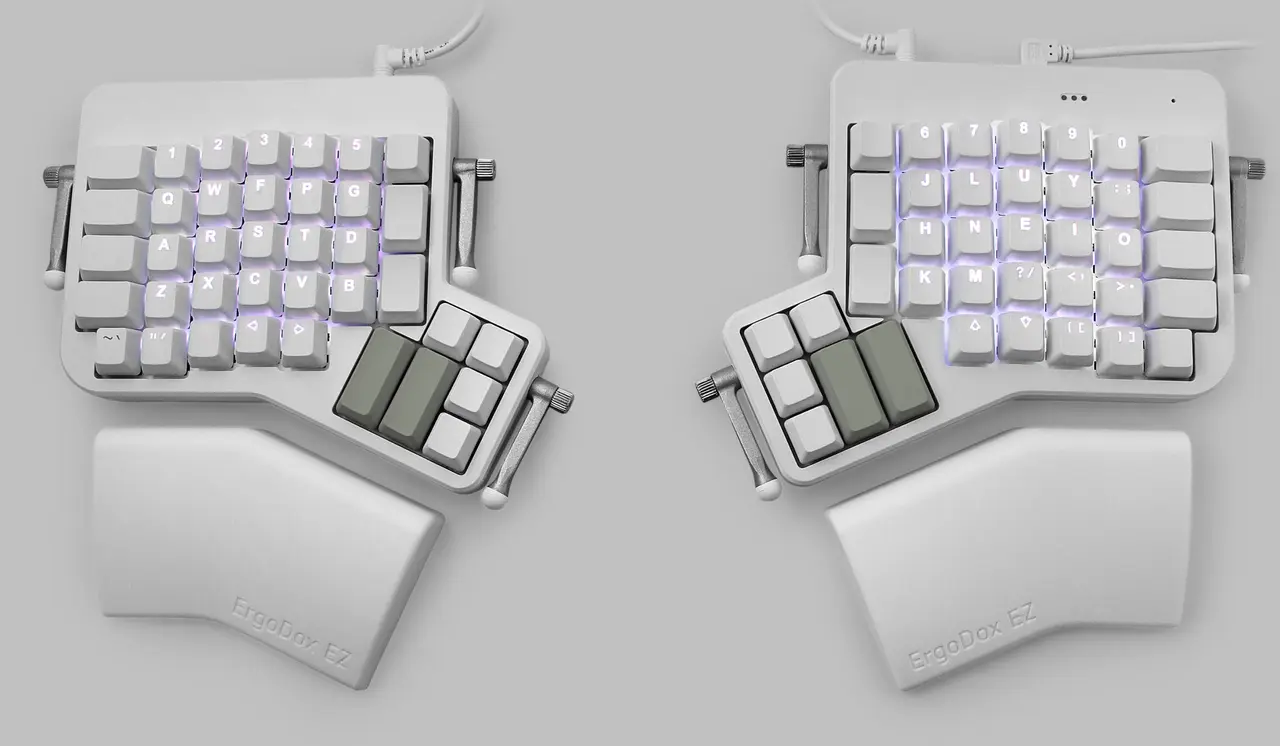
#2Comparison with the Ergodox EZ
jpg
I'll compare it with the latest model of the Ergodox EZ.
- Half as thick.
- 256KB of flash memory instead of 32KB.
- An ARM processor instead of AVR.
- Backlighting works on all keys.
- A better thumb cluster. On the Ergodox it's just copy-pasted from the Kinesis Advantage, and it has keys you can't really press with your thumb.
- Each half has only one leg for adjusting the height instead of three.
- There's a carrying case.
- The wrist rests fold under the keyboard and take up very little space.
- USB-C.
- All keycaps outside the thumb cluster are 1u. Thanks to this it's easy to buy other keycaps. The Ergodox, for some reason, has lots of 1.5u keycaps and 4 keycaps of 2u, which makes it harder to find a set.
- The price.
- If you put something else in place of the triangular key, it won't look very nice.
- The switches aren't low-profile.
#2Portability
Respect to ZSA for how they approached the package contents and the design of the Moonlander in general. If you look at the official website, you can see that a case is included, and the wrist rests fold under the keyboard.
Another huge plus of the Moonlander is that it has only 2 legs. Unlike the Ergodox, which has 6 legs. And if you carry the Ergodox around, you have to adjust all 6 legs and sync them with each other so the keyboard doesn't wobble. It's impossible to use. On the Moonlander you set the leg and that's it. Then all that's left is to set the thumb cluster to match the leg, and done, the keyboard stands perfectly.
And one more nice little thing: the cables have Velcro straps you can use to coil the cable and fix its length.
You can see how the Moonlander is set up in this video:
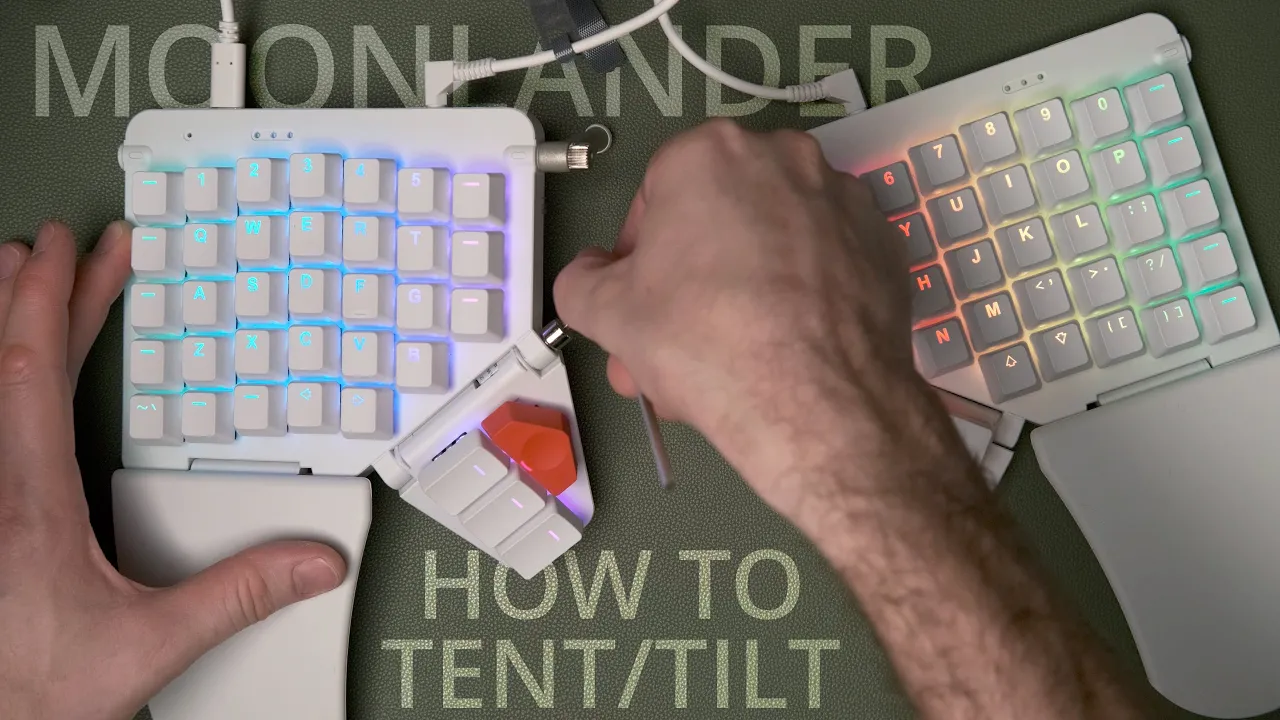
Although the Moonlander is huge, thanks to the way it's made, it's extremely convenient to carry. And yes, since I go to work at the office, I always have to carry it with me, to work and back home. I'm fine with that, and I'm not going to buy a second keyboard.
#My physical setup
A keyboard can be modified not only in software but also physically. In this section I'll talk about exactly that: my physical setup.
#2Transparent blank keycaps
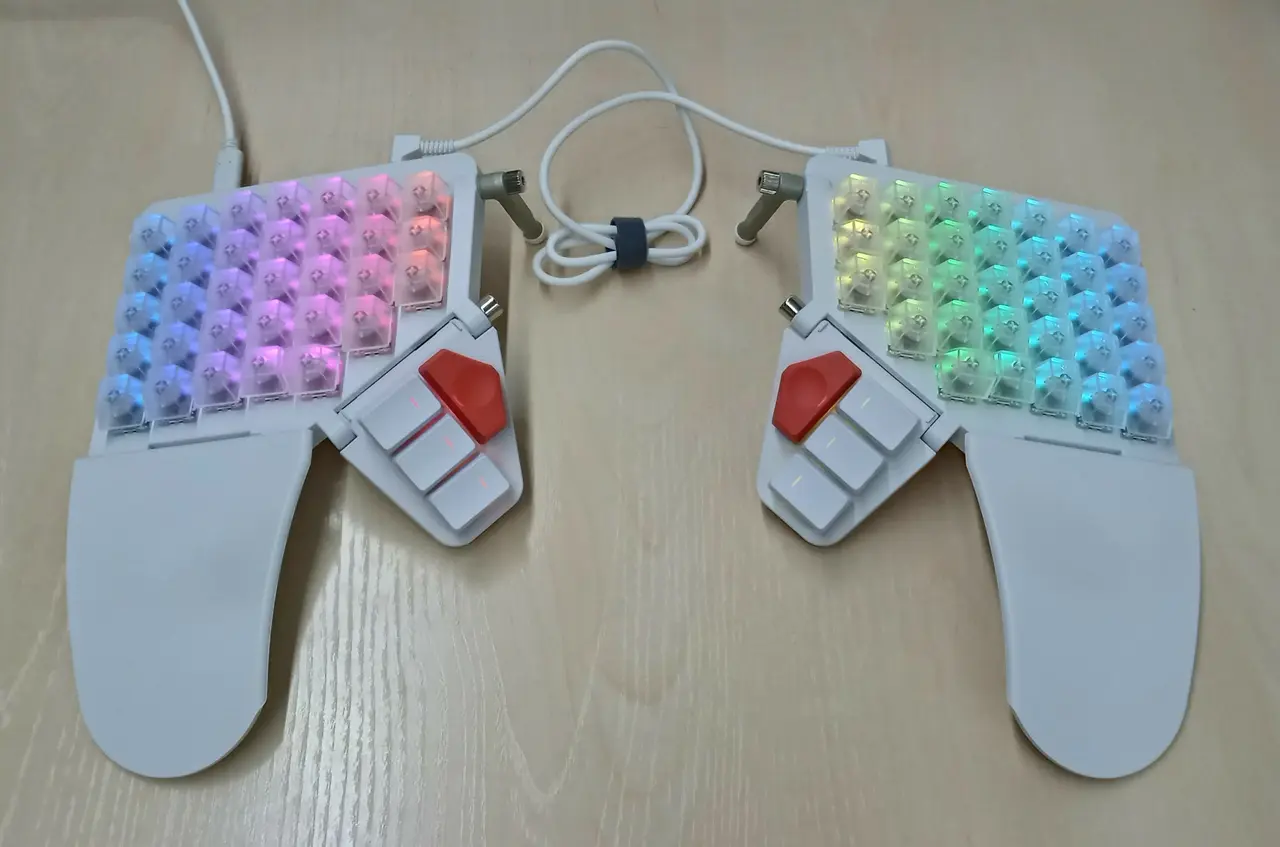
jpg
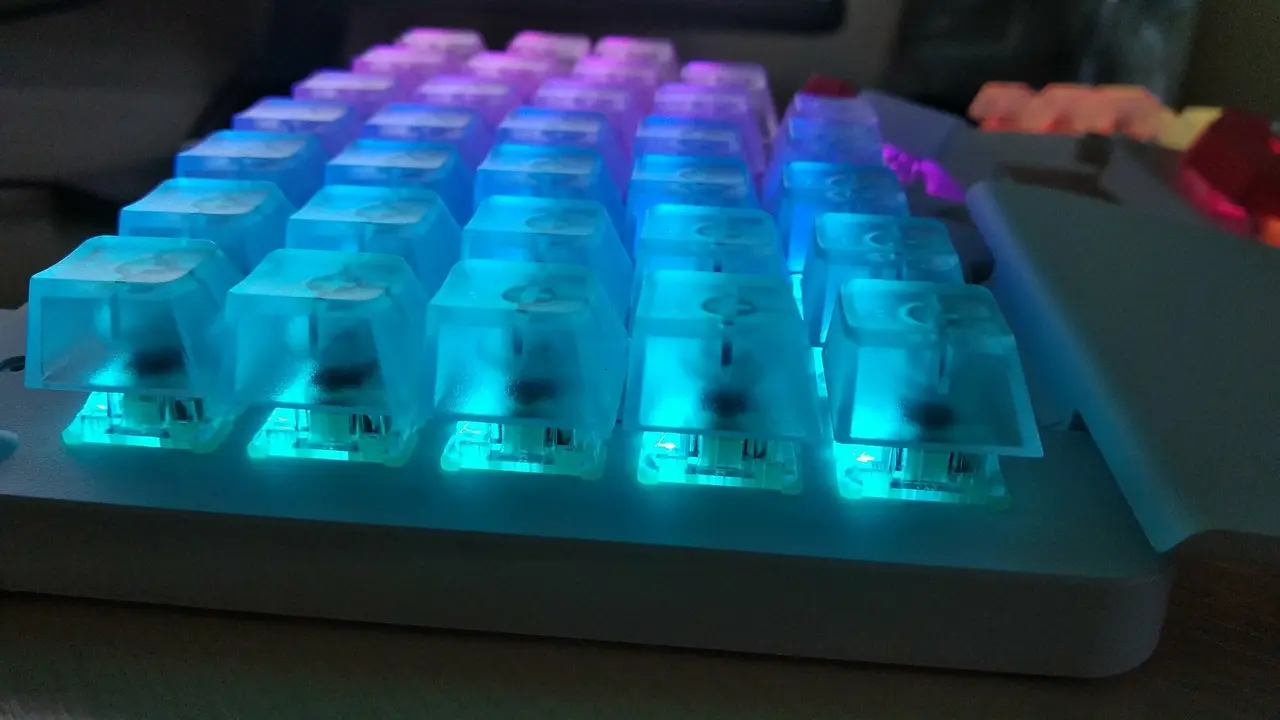
jpg
A proper keyboard should have blank keycaps.
I think legends on a keyboard are a vicious idea, because a person gets used to looking at the keyboard instead of pulling the layout from memory. With that approach, no automaticity will develop! Besides, why have legends if you need to learn touch typing, and you've gone so far as to buy yourself a proper keyboard? And if working at a computer is your main job, it's all the more useful to remove the legends.
And second, keeping the legends on the keyboard in sync with the layout isn't very pleasant either, and isn't always possible. So why have these legends at all if you won't use them and they won't reflect the real picture? Nobody else will be able to type on your keyboard anyway, so you can let it go. Besides, blank keys look solid: you can see right away that you're not an ordinary mortal.
Nobody but me should type on my keyboard.
As a last resort, you can print a picture of your layout and carry it with you, in case someone wants to type on your keyboard.
Or you can buy colored keycaps to mark the zones (especially relevant for something huge like an XD75RE). Or you can print keycaps, but with the most abstract symbols possible, purely for looks. For example, this symbol can be placed on the fingers' home position: ⛶.
And my keycaps are transparent precisely so that the backlight shows through better. And it really does! I bought the cheapest ones on AliExpress, 70 rubles for 10. There are some expensive ones from the US, but these are fine for me for now.
For some reason, some people write their entire layout on the keycaps so they can peek. I'll never understand them. I don't even print my layout on paper: once I've designed it, it's already stored in my brain.
AliExpress link: transparent keycaps.
#2Backlight
#3In general
At first I used a rainbow backlight and showed it off at work, but then it started to get a bit distracting, and I switched to a more neutral option: lighting up only the keys that were just pressed. Together with the transparent keycaps it looks wonderful.
This kind of backlight for recently pressed keys can also be used when typing passwords. If you feel you accidentally pressed the wrong key, you can quickly glance at the keyboard before the light fades and see what exactly you pressed.
#3Layer indicator
jpg
Also, the thumb cluster always shows the color of the current layer. In the picture you can see it as a blue light; blue means Russian is currently on. White means English. The other layers are named after their colors, and all the colors will be shown below.
It's insanely convenient. Before, on the Ergodox, I used the small LEDs at the top side of the keyboard to indicate the current layer, but they only had 3 colors and weren't that visible with peripheral vision:
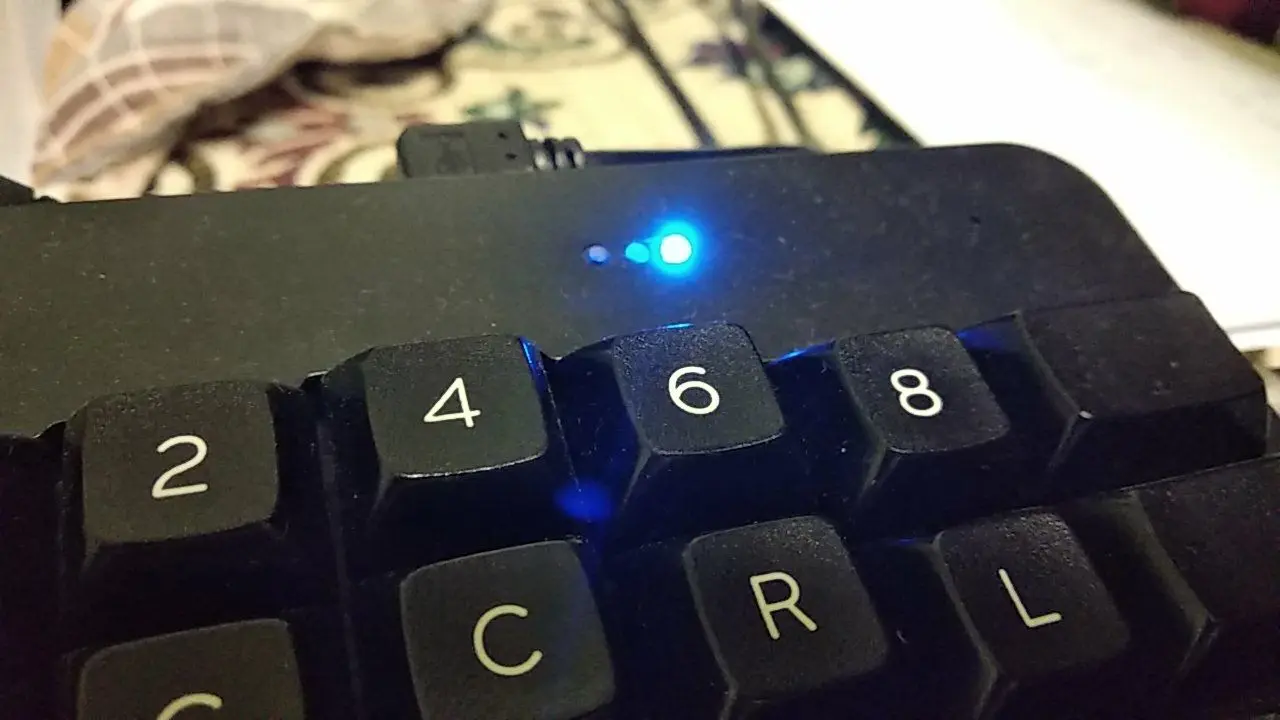
jpg
Without a current layer indicator, it's sometimes very hard to understand what's going wrong if some layer has been activated by accident.
Any proper keyboard must have physical means of reporting the current layer, be it a backlight, a screen or small LEDs.
All pressed keys are also lit in the color of the current layer. That is, if Russian is on now, all pressed keys are blue too. In my opinion, it's very beautiful. You can see what it looks like live here:
Actually, I could give up lighting every key if there were an alternative for indicating the layer. Three colored lights are not an option, I already tried that on the Ergodox. But a single RGB LED is the way to go.
You could put in a single RGB LED and some plexiglass, and make it so that this one LED lights up the whole bottom of the keyboard. Then it will be visible even with peripheral vision.
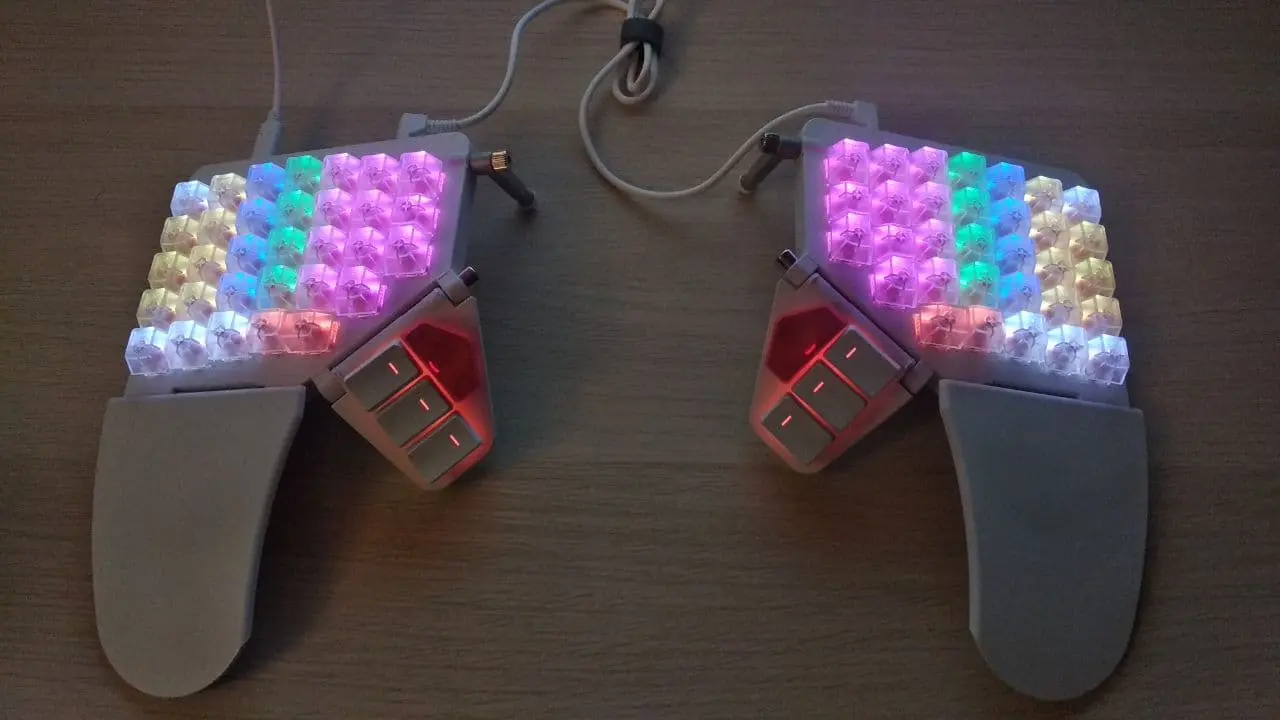
#3Zone lighting
I also flashed a zone lighting mode into my keyboard, to show people my zones IRL.
jpg
#3Heatmap
There's also a cool backlight mode where the current keypresses are lit up like a heatmap; it can be used to record videos for Klavogonki:
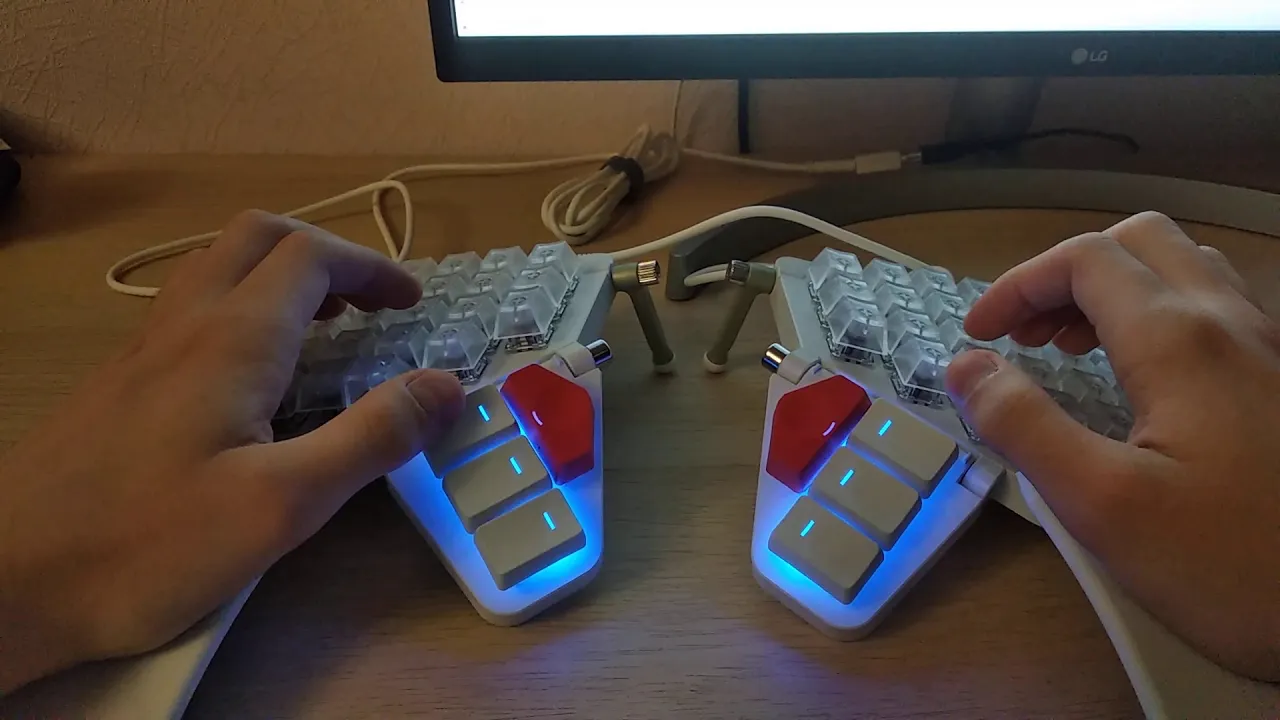
#3Explanation using the backlight
There's also a video (in Russian) where I use the backlight to explain how some of my Shift-related keys work:
#2Sounds
This keyboard has a simple piezo speaker built in, so you can play various fun sounds when certain keys are pressed.
In particular, I have sounds on:
- Switching the language.
- Pressing the key that kills a program in the console, and the screenshot key.
- Turning on a layer in
TGmode. - Pressing the key that changes the language switching method.
You can hear almost all of these sounds here:
And by default there's also a startup sound:
As for the sound when a layer is turned on in TG mode: it's a very important feature, because it often gets turned on by accident, and with such accidental activations it's better to hear a sound than to accidentally press all sorts of keys and send God knows what actions to the computer.
I haven't come up with what else to put sounds on, but in general it's very cool when some of your actions make a sound. I'm already used to a sound playing when I press the keys to kill a program in the console.
The keyboard also has a music mode, where every key makes a sound, but I haven't figured out how to use it, so it's a play-once toy:
#2Switches and lubing them
Originally I bought the keyboard with Cherry MX Brown RGB switches. They're quite noisy, and I didn't feel any particular tactility, especially when typing at speed. Plus, I don't need tactility anyway, since I prefer flat keyboards.
Luckily, this keyboard has hot-swap!
With keyboards, hot-swap means that the switches can be replaced without desoldering:
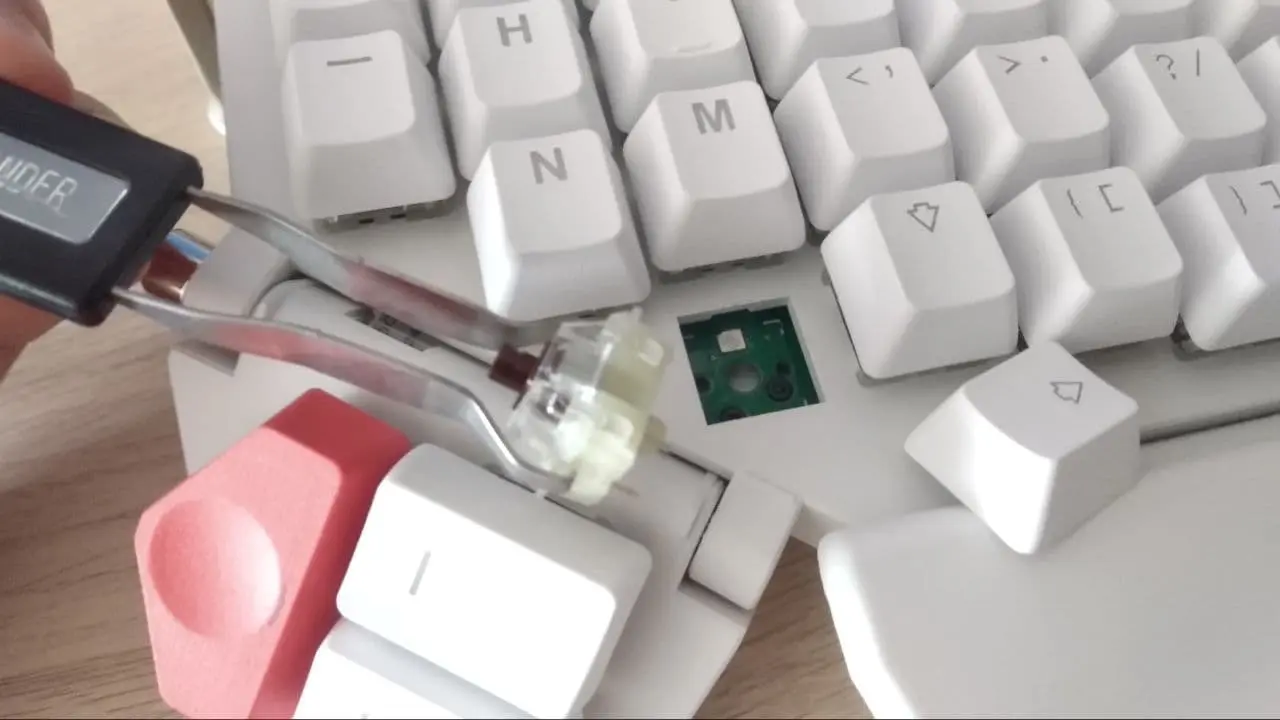
jpg
So I immediately went to AliExpress and ordered Cherry MX Silent Red RGB switches. I took 100 of them so I'd have spares, and it cost me 5k rubles.
It's worth noting here that I wanted to use rubber O-rings that go under the keycap to reduce the travel and make the keyboard quieter. I used transparent rings, of which you can put at most one under a keycap. With two, the key won't press anymore. On the Browns it was fine, but on the Silents keys often stopped registering. And now it became noticeable that the actuation point of the Browns and the Silents is different after all.
Plus, the guys from the Mechcult community hated on me for this, like I was destroying the very essence of mechanical keyboards, their tactility, with my rings. But on the whole I don't care about mechanical keyboards. And I had to remove the rings anyway because of the Silents. And I want to note that now that I have to press keys all the way down, my number of errors went down, and overall it started to feel like I'm typing more precisely. Also, after lubing, the keyboard became quiet, and with this silence it feels like the travel isn't that long, but more on that below.
I also ordered lube and so-called switch film — a thing that goes between the halves of the switch housing to make the switch quieter. I also bought a switch opener tool for 700 rubles.
When the Silents arrived, I noticed that they were just a tiny bit quieter than the Browns. You could especially hear the spring squeaking, it was impossible to listen to. But then, when I lubed them and tested how they sound, it was incredible! All my life I'd been extremely skeptical about all these things like lubing switches, tactility, etc., but lubed switches really do sound quieter. Plus this film gives a liiittle bit of quiet, yes.
Below is a video where you can hear how lubed switches sound compared to unlubed ones. These are Silent Reds. The bottom row is lubed, the top one isn't. The right column has film, the left doesn't. You can hear that lubing made the switch quieter, and the spring doesn't squeak. And the film also made it a bit quieter, and the faint clicking/clacking sound disappeared.
And here I put a couple of lubed switches into the keyboard:
Typing text on fully lubed Silent Reds:
So if you care about quiet typing, the first thing you should do is buy lube and lube your switches. Be ready for it to take a long time.
Also, if you're going to buy Silent Reds anyway, I don't recommend buying the Moonlander with Browns, since they're basically useless. Better buy the keyboard with at least the clicky Blue switches, so you can play around and put clicky switches on some rare keys.
Plus, a long time ago I bought a switch tester on AliExpress, and it left me with a plastic stand that's perfect for holding disassembled switches; I recommend buying something like that too. Trust me, assembling these switches in midair isn't the most pleasant activity, plus there's a risk of bending the pins.
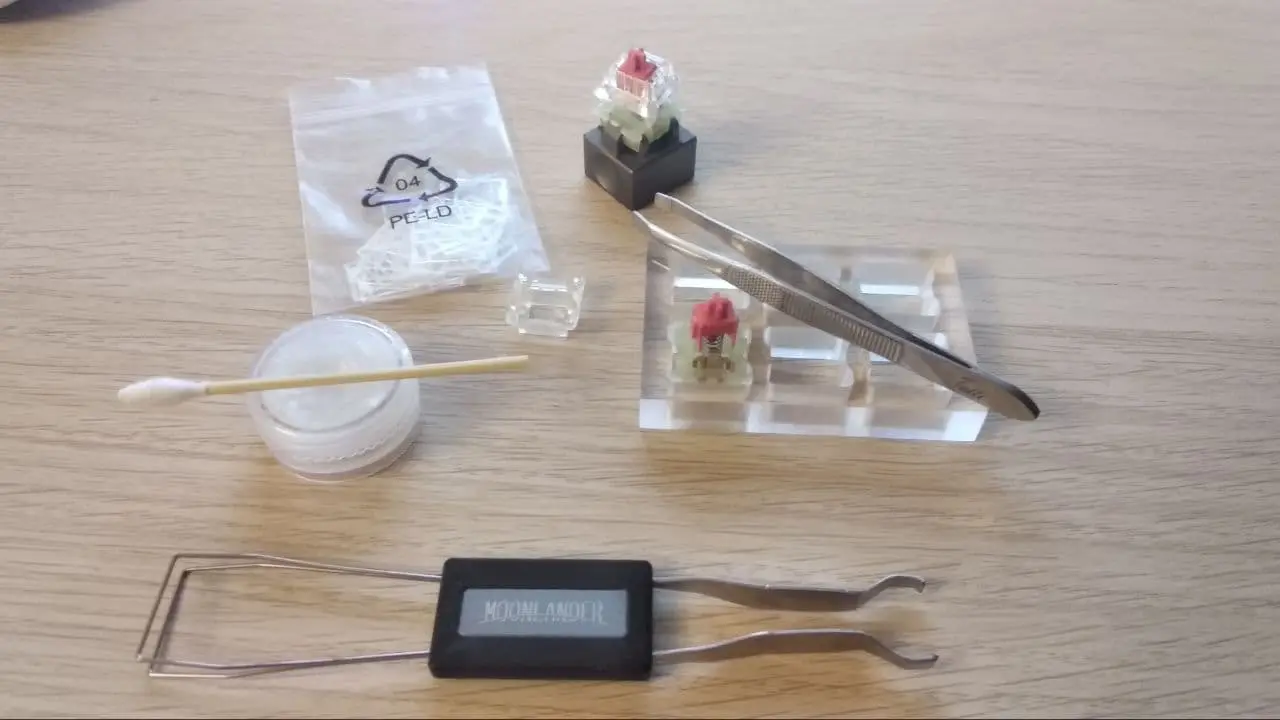
jpg
Links to everything I bought:
- Switch tester — 404, look for a new one :( Or you can just buy a Lube Station.
- Switches
- Lube
- Switch opener
- Film
#Layout
#2Zones
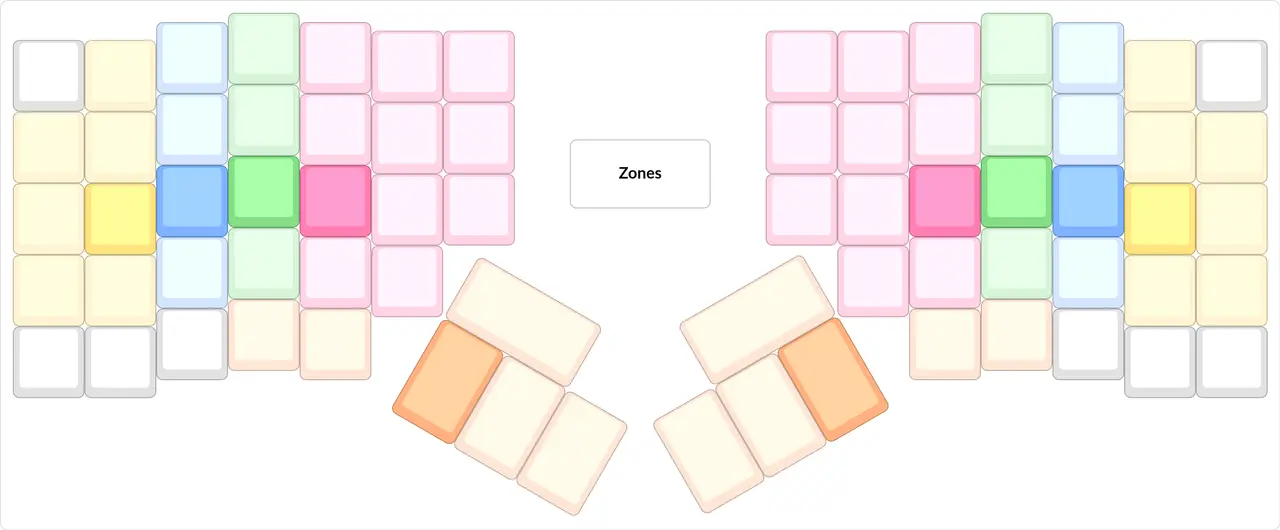
png
I prefer to mark zones with color instead of black-and-white outlines, because I think it's more visible that way.
The colors here show the zones — which finger should press which key according to touch typing. The darker color shows the home position keys, that is, where the fingers rest by default.
You can see that the index finger has the most keys, then the pinky, then the thumb.
Orange shows what the thumb presses, and you can see that the thumb presses not only keys from the thumb cluster, but also two keys on the main body of the keyboard.
White shows the keys that can't be pressed from the home position, and you have to move your hand to press them. Plus, these keys can be pressed with any finger, be it the pinky, the ring finger or the index finger.
Lots of white keys on a keyboard indicate that the keyboard isn't very good, because you have to move your hand too often. Or, if there are only a few white keys, you can put infrequent layerficators on them, for example, the "in case of nuclear war" layerficator.
Since I touch type, each of my fingers presses strictly the zones meant for it.
I use a separate picture for the zones so that in the later pictures I can color keys based on their type. I used to keep the zone colors on every layer.
#2General principles of layout design
#3The left hand and the mouse
The things that are most likely to be needed while using the mouse should be on the left hand.
Since my keyboard is split into two halves, I have a clear division of what's on the left hand and what's on the right.
This principle will be perfectly clear to everyone. You should aim to make it comfortable to work with the mouse in hand.
Some people take this principle to the extreme and make it possible to do absolutely everything with one hand, including typing text and pressing hotkeys. For example, Volka does this in his keyboards. The Kladenets is a clear example of that.
If you move the process of solving a math expression to the computer, you can use this setup: a graphics tablet in the right hand, and in the left the Kladenets or another one-handed keyboard with chords for typing the most frequent symbols, Greek letters, copy-paste and other hotkeys.
Below, each individual key that should be on the left hand will be covered separately.
I hold the mouse in my right hand, so the whole layout is built with that in mind. If you hold the mouse in your left hand, you can mirror all the instructions.
#3Decomposition
To explain this point, let's take the Ctrl key as an example. On my keyboard it's most often used as Ctrl+Arrows, and in hotkeys that are on the base layer and on other layers. This key is also used by itself for selecting with the mouse.
Obviously, Ctrl is an incredibly frequent key. But by stealing so many of its uses and decomposing all of them into arrows and hotkeys that live on layers and in other places, I reduced the remaining use of Ctrl to a minimum, making it a rather useless key by itself. That's exactly why it's no longer in the place of Backspace for me, but in a slightly harder-to-reach place.
This stealing of uses and moving them out separately is what I call decomposition. If I hadn't done this decomposition, my layout wouldn't differ much from the SK, and I'd have to put Ctrl and the other modifiers in the most comfortable place, since it's so frequent.
Thanks to this decomposition, I can make the layout much more comfortable for myself while saving the choicest spots.
#3Mental fuel
Among competing solutions that let you do the same thing, choose the one that consumes less mental fuel.
There's this concept of "mental fuel", introduced by Maxim Dorofeev in his book on personal productivity, "Jedi Techniques", and I often like to use it when thinking about which layout design decision will be better.
If I say that something consumes less mental fuel than something else, it means that it's easier to develop automaticity for it, and that it generally consumes fewer brain resources when you apply it automatically.
Other definitions of mental fuel, especially unscientific ones, don't concern me.
For example, let's compare the Alt+Tab hotkey with unconditional switching to windows. The thing about Alt+Tab is that it keeps the most recently used programs in a stack, so when you want to switch to the browser, you have to remember which programs you opened before. And of course, it's impossible to remember, and you constantly make mistakes and switch to the wrong program. Another problem is that when you press Alt+Tab, you have to look at the screen and watch which program you're selecting to switch to (because it's impossible to remember what you visited to press Alt+Tab Tab Tab right away).
With unconditional switching to the needed program, on the other hand, you don't have to remember anything, just press the hotkey, for example the "go to browser" hotkey.
If you compare Alt+Tab with unconditional switching, Alt+Tab consumes a lot of mental fuel, and while you use it, it also requires you to look at the screen, think about what you need, recall the icon, parse the icon, etc.
With unconditional switching, the only thing you need to develop automaticity for and spend mental fuel on is pressing the hotkey.
So I gave up Alt+Tab completely in favor of unconditional switching. The hotkeys for it will be shown on the violet layer.
And for the same reason I consider the Shift and space rules bad ideas.
#3Logic beats three percent
If I have to choose between two solutions, where the positive properties of one are justified by a logical idea, and the other is justified by counting statistics and improves some properties by 3%, I'll choose the one justified by a logical principle.
That is, logic > 3%. This is one more reason why I reject the Shift rule and the space rule. All their possible gain in speed and accuracy falls exactly within these limits. On the other hand, there's a logical principle that says you can put Shift on one finger, and it will be more comfortable than pressing it with the pinkies, with less learning and less mental fuel.
On the other hand, someone says they need two space keys because their hands hurt less that way. That's also a good logical principle.
Some people chase these three percent so hard that they want to count the press statistics of all non-character keys like the arrows and other control keys, and place them according to those statistics.
Obviously, this will give some gain, maybe in speed, but clearly not in comfort and simplicity. An automatic arrangement of the arrows would most likely put them in a complicated order, and so for me it isn't as attractive as the option "make the arrows flat so that their Ctrl+ versions can be placed under them".
#3Everyone has their own layout
In the world of proper keyboards there can be no such thing as a "standard layout"; everyone has to make their own layout.
That's because there's no single right way to fit the SK into a small keyboard while taking into account a particular person's comfort. You have to make lots of compromises and sacrifices.
Also, each person's layout depends very heavily on the programs they use and on their typing style.
For example, I put the F-keys on a layer, practically don't use them, and don't even think they'll ever be pressed with anything as a hotkey. Meanwhile, Minecraft has the hotkey F3+G, which would be extremely hard for me to press.
If I needed this hotkey fairly often, I could redesign my layout to make this and similar hotkeys convenient, or I could create a layer and put it there as a macro. This is an example of how my layout has to change when it meets reality.
Or there's the AltGr key: some people absolutely need it for typing typographic symbols, but I don't even have such a key. So a person who needs this key has to decide for themselves where to put it. Or they can forget about this key and create a layer where every key is already pressed with this modifier, and arrange all the symbols conveniently for themselves, especially if they use only a few such symbols.
Now, if everyone had typed on proper, compact keyboards from the start, Minecraft wouldn't have created hotkeys that are inconvenient to press on a proper keyboard, and you wouldn't have to make so many compromises, and there wouldn't be such a need for personal adjustments.
That's also why, when creating my layout, I don't even think about other people, and do things the way that's comfortable for me first and foremost. Because I'm unlikely to understand the wishes of all people and create something that satisfies everyone.
#3Overengineering
When designing a layout, add only what you use now, or what you're 100% sure you'll use later. Also, regularly clean the layout of unused keys and layers.
When designing a layout, there's a temptation to create the perfect layout right away, think everything through, and force yourself to use some features.
That's why you can't create a good layout on the first try. Creating your own layout is an eternal, iterative process.
If you follow this principle, the layout won't get overgrown with useless features, and over time it will become clearer what the ideal should look like.
Also, a layout can change a lot when new software comes into your life that turns upside down the assumptions the layout was built on.
So none of the layout ideas in this article are presented as the ultimate truth; they're offered as one of the options that you can steal and rework for yourself.
Also, for this reason, I don't move forward in giant leaps with my layout, but try to change it bit by bit, to notice what brought comfort and what didn't.
#3Dislike of modifiers
Instead of putting the Ctrl, Win, Alt modifiers in comfortable places, I try to put layerficators in comfortable places, which turn on layers that hold ready-made hotkeys with these modifiers.
The upside of this philosophy is that you don't need to remember which modifier is pressed how; you only need to remember the action of each key, and use it as something high-level.
You know, on proper keyboards people usually put the modifiers on the thumbs, and may even duplicate them on both thumbs, so that it's comfortable for them to hold hotkeys in their favorite IDEs.
I don't like this idea for several reasons:
- I don't want to press many keys at once with two thumbs.
- I don't want to waste prime spots on the thumbs or put modifiers on the pinkies for the sake of a small number of hotkeys.
- I don't want to remember hotkeys.
- I don't want to get into synchronization problems.
- I don't want to press frequent hotkeys in places that are uncomfortable for me, and I don't want my letter layout to depend on how comfortable hotkeys are to press.
So I came to a different philosophy, where I try to make my work at the keyboard such that hotkeys built from modifiers are used approximately never. This can be achieved if you put the most frequent hotkeys on macros and create layers specifically for them. That is, by decomposing their uses.
And since I no longer depend on where the modifiers are, I don't have to put them in the choicest positions; now the choicest positions should hold only layerficators.
I can also move hotkeys wherever I want and make them convenient for me, without modifying programs.
Also, I don't have to press many modifiers at once to perform some complex action; at most there can be one held key — a layerficator.
The next step is to put all the useful hotkeys on the right layers. I'll talk about that further on when I go through the following layers. It all worked out great for me: I don't have that many hotkeys, and I feel wonderful.
I do still have modifiers on the thumbs, and I even put their most frequent combinations into chords, but I've never used them; still, let them stay just in case, since I don't have any ideas yet for what more useful thing to put there.
You can't stick to this principle right away. New hotkeys will keep coming up that you need to add to the layout. To automate this process, you can write a program that will track all modifier presses and write the most frequent hotkeys to a file. You can take what my heatmap program (in Russian) is built on as a basis.
#3Down with right-side modifiers
Down with right-side modifiers!
In general, the right-side modifiers have never been useful to me in my life. Usually all hotkeys worked with the left modifiers too, and I threw the right ones out back in my SK days.
Actually, life hasn't changed now, and the right-side modifiers still aren't needed. So they're absent from my layout altogether, and all the modifiers are left-side only. Plus, it saves a lot of space.
Generally, I think the right-side modifiers appeared only for symmetry with Shift, of which there were two, and which nobody thought of putting on the thumb back in the typewriter days. So from a historical point of view they don't make much sense either.
Right-side modifiers.
#2About layers
#3Layer notation
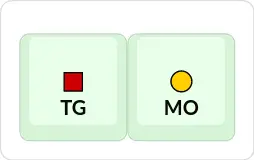
png
In my pictures every layer has its own color, so I use colors to denote layers. Here:
- Layerficators with a colored circle work via
MO. - And layerficators with a colored square work via
TG. - If you press a layerficator with a circle three times, the layer is activated in
TGmode.
A layer should be activated in TG mode by triple-pressing an ordinary MO layerficator. This saves space and mental fuel: you don't have to put a separate key for permanently turning the layer on somewhere else.
#3Turning a layer off
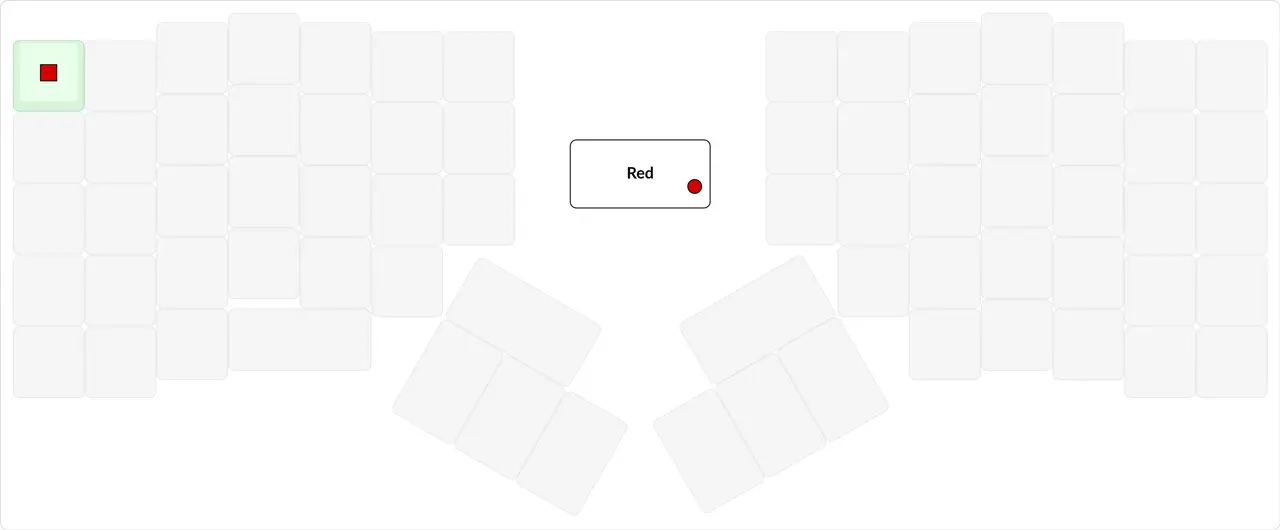
png
Turning a layer off should be in the place of the Esc key.
If you look at all my layers, starting with the red one, you'll notice a filled square on the top-left key.
This key turns the layer off if it was turned on in TG mode.
It very often happens that a layer gets turned on via TG by accident, and when you keep hammering at the keyboard on autopilot, keys from that layer get pressed and something weird happens.
In that case you want to undo it as fast as possible, without thinking about which layer was turned on, and just move on — so I put the layer-off key in the position of the Esc key, because that key is often pressed in an "aaaaaa just cancel" situation.
Remember the times when Caps Lock gets turned on by accident. In that case you don't want to think about what exactly got pressed and started messing everything up; you want to press a universal cancel-everything key.
All my layers are built on this principle, except Game and the language layers, because they need a regular Esc.
#3Each layer gets its own picture
If you look at an SK with Russian legends printed on it, then without knowing the keyboard it's rather hard to understand which legend is for which language, and what is typed with Shift held.
People who draw their layout for a programmable keyboard, where besides the two languages there may be two more layers, follow roughly the same style. Because of this, they have to stick the legends in exotic places, and sometimes color the legends differently for different keys.
For example, the layout of the Koryaga keyboard (in Russian; the name means "snag"):
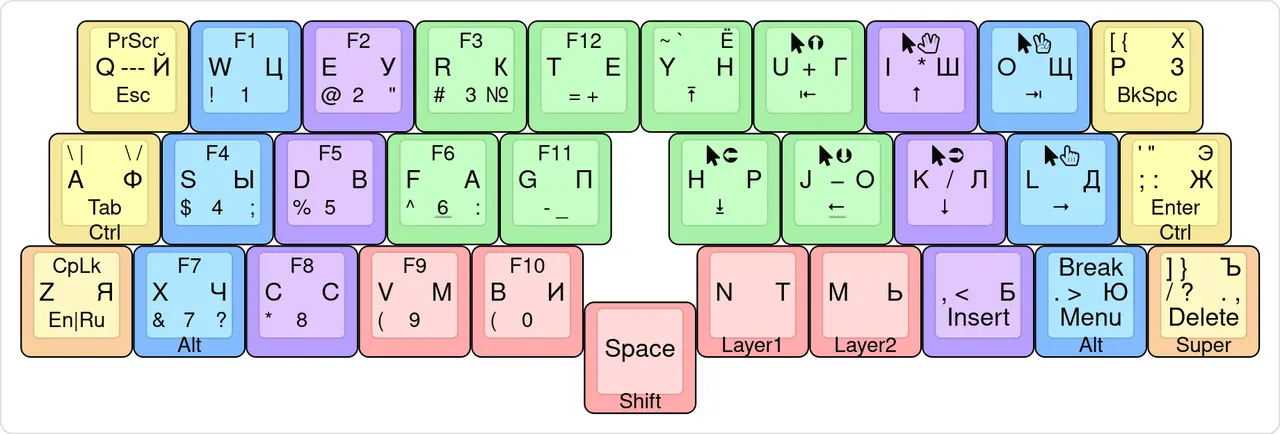
png
Of course, such layout pictures are extremely compact and easy to print. But I don't like such pictures at all, because:
- You have to learn to read what the position of a character means from the picture author's point of view (and there's nothing uniform here, everyone does what they want).
- If you want to see what a particular layer looks like, there will be a lot of noise around it, and you'll have to put in a lot of effort to read and understand that layer.
- Nobody will spend time reading your layout if it's that hard to read.
This approach becomes especially unworkable when you need to add a comment to a character, or when you have lots of layers. That's exactly why I follow this philosophy:
Each layer gets its own picture.
Technically, the keys with Shift held are essentially a separate layer too, but they differ only by a single character, so the Shift layer can be placed together with everything else. It won't make much noise. In my pictures, what's typed with Shift held is shown in gray in the bottom-right corner of the key. You may notice that some hotkeys turn into other hotkeys when Shift is held — that's my trick: I track Shift and cancel it on these keys so that the hotkey is pressed correctly.
Now, even though my layout description will be a mile long, everything in it will be clear, and it can be evaluated piece by piece.
#3Layerficators on the thumb
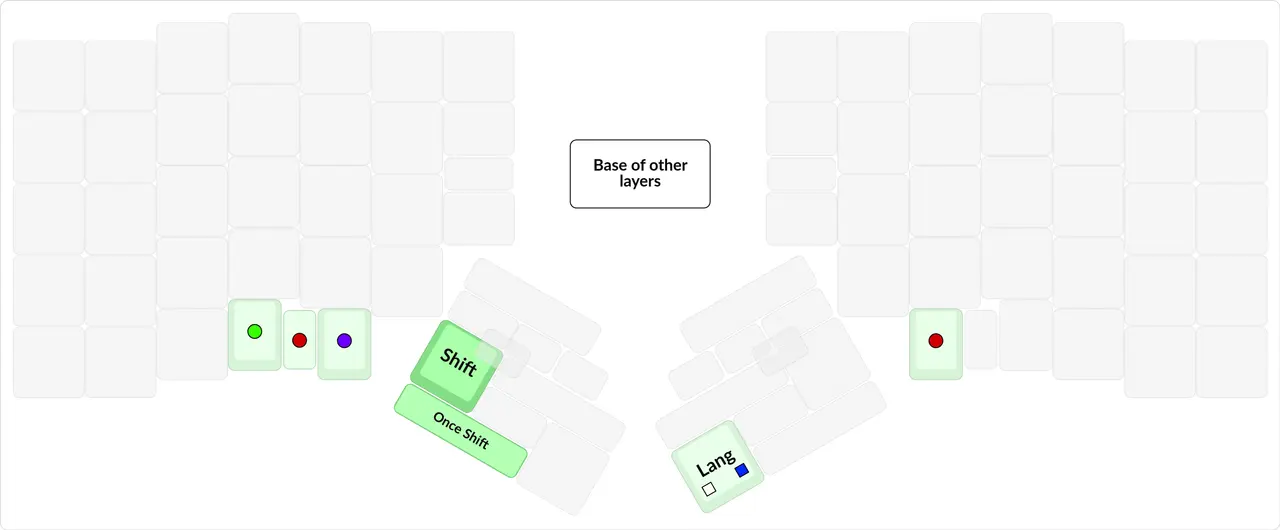
png
All my frequently used layerficators are on the thumb. This is done precisely to minimize blocking keys that I then can't press.
The main layerficators should be on the thumb.
My less frequently used layerficators are in the area that can't be pressed from the home position.
First I should talk about the red layerficator — the most important layerficator on the keyboard overall, because that's where the arrows are. It's on the right thumb. This is done so that I can hold Shift and press the arrows at the same time, both of which are on my left hand.
You have to think about how Shift and the arrow layerficator combine. They should be either on different thumbs, or in a chord on one thumb, or on a thumb and a pinky.
The red layerficator can also be pressed as an awkward chord on the left thumb. This is needed so that I can press the arrows with just my left hand in all sorts of editors, or skip ten seconds forward while watching a movie or video.
Then comes the violet layerficator — for turning on the window management layer.
And also the green layerficator, for controlling the browser and with media keys.
All of these layers will be covered in detail below.
I used to have the red and green layerficators on the left pinky, in the far column, for historical reasons, because on the SK I had made a layout where the Mod key was on the left pinky.
In general, there's nothing wrong with putting layerficators in the pinky's far column; you just have to take into account that on that layer you can't put keys on the pinky that presses that layerficator, and preferably you shouldn't put anything on the ring finger either, since it shifts a little because of the pinky. But on the index and middle fingers of the same hand you can put whatever you want.
Also, the red layerficator on the left pinky combines well with Shift on the left thumb and arrows on the right hand.
#3Switching the language
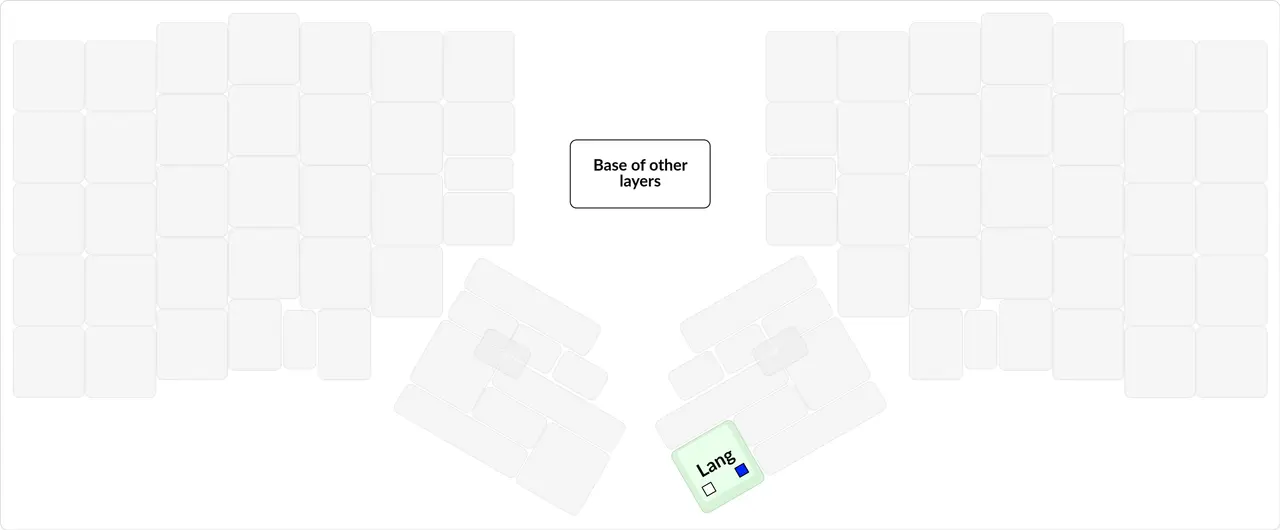
png
One of the very first things anyone should do after buying a proper keyboard is to put the language switching hotkey on a single key.
When I used the SK and dynamic typing, I switched the language with Ctrl+Shift, since I was on Windows. And it was very unpleasant when this combination didn't register and нщг ензу ыщьу штсщьзкурутышиду пфкифпую Шеэы уызусшфддн зфштагд црут нщгэку тще дщщлштп фе еру ыскуутб щтдн фе еру лунищфквб фтв нщгэму ензув ф црщду ещт ща еучеб фтв ерут нщг дщщлб фтв фдд нщгк еуче шы шт such gibberish. Luckily, there are services like swopper (in Russian). I hope you knew about that and didn't retype this ton of text?...
In short, when you want to switch the language and it doesn't work, it's very unpleasant. And since that happens very often,
Language switching should be on a single key.
All sorts of useless keys like Pause Break and Scroll Lock get their own keys, but switching the language doesn't.
But the question arises: which hotkey should you switch with when you're using another OS or another computer? Well, you can simply program all possible language switching hotkeys and put the choice between them into the keyboard, on certain keys. For example:
- When you press some key 1, the language switch key will send Caps Lock
- For some key 2, it will be Alt+Shift.
- And similarly for Ctrl+Shift, Win+Space, and so on.
I have these keys on the "in case of nuclear war" layer.
I also mark the language switch key in green. It shows that it permanently turns on either Russian or English. It's green because switching the language is also a kind of layer change. Plus, formally, in my layout the layers do change when the language is switched.
So my layer switch key does two things:
- Switches the layer.
- Sends the language switching hotkey.
Another option for languages is to make two separate keys, ENG and RUS, which unconditionally switch the current language to English and Russian respectively. If Russian is currently on, the RUS key does nothing. And with such keys you don't even need to remember which language the system currently has: every time before typing text, you just press the key of the language you're going to type in, and don't spend mental fuel on keeping the language in your head.
But personally I think keeping one of two languages in your head doesn't take much mental fuel, so you can do without unconditional language switching.
The idea is taken from Volka's keyboard, the Catboard (in Russian).
#4Desync
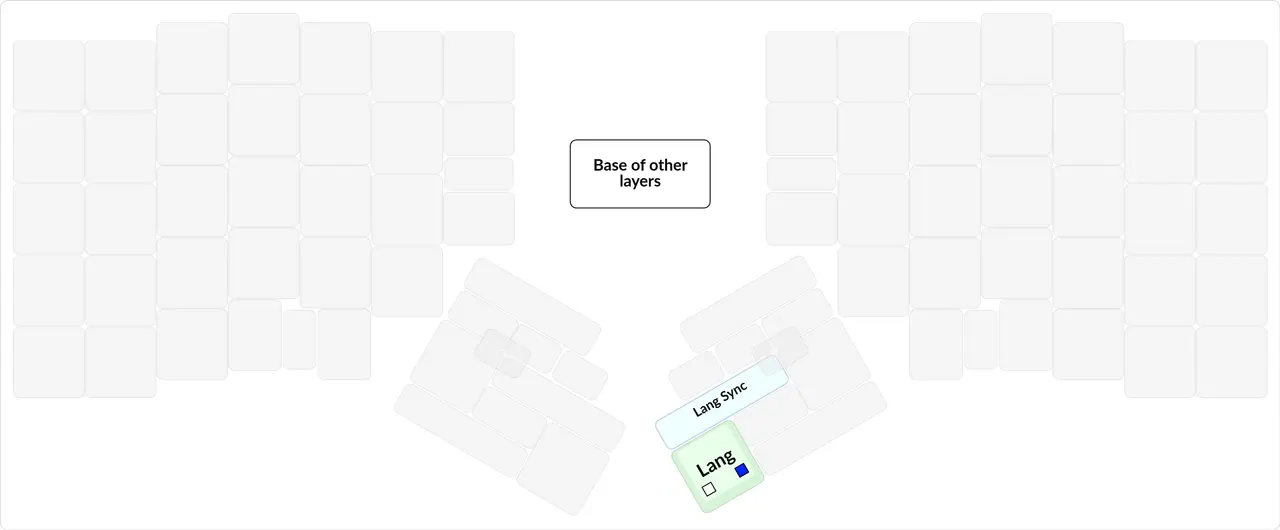
png
Next to the layer switch key there's also the Lang Sync hotkey. It sends the language switching combination to the computer, but doesn't switch the layers in the keyboard.
This key is needed to fix the desync phenomenon.
Desync — when the language inside the keyboard doesn't match the language on the computer. This only happens on keyboards whose firmware tries to emulate alternative letter and punctuation layouts differently for several languages.
The key that only sends the language switching hotkey is pressed as a chord with the full language switch key.
Unfortunately, by default a keyboard doesn't support sending Unicode characters directly to the computer. That can only be done by installing additional software. A keyboard can only send keycodes, that is, the position of the current key, which the operating system then translates into a specific character depending on the current language. So the keyboard has to know which language is currently on the computer, so that it can fake the current character according to the current layout.
Another unfortunate thing is that the current language can't be found out inside the keyboard. Again, you'd have to install some software to find it out through workarounds (namely the Scroll Lock indicator).
So the only way to tell the keyboard which language is on now is to tell it personally, by pressing the right keys.
You can read more about all of this in lang_shift (in Russian).
Of course, in most cases the keyboard can change the language internally on its own when Lang is pressed.
But sometimes the language gets out of sync between the keyboard and the computer for various reasons: an accidental press of the language switching hotkey, bugs, and reasons unknown to science. That's why the Lang Sync key exists.
#2The base layer
So, the most complex and most fundamental layer:
png
A little about the colors, now and later:
- Red — the keys on a regular keyboard that are neither letters nor punctuation. In other words, function/control keys.
- Yellow — punctuation.
- Blue — macros that press some hotkey.
- Green — layerficators.
- Bright green — modifiers.
- Violet — keys that only affect the keyboard. For example: the backlight.
- White — English letters.
- Light blue — Russian letters.
- Gray — mouse control.
#3Chords
There are some small keys here that overlap each other, so I'll probably start with them. These are chords.
Chord — pressing several keys almost simultaneously, where the order of pressing doesn't matter. More details on the wiki: Chord (in Russian).
The simplest chords are the ones in the index finger's zone, with colored dots. The key that sits between two keys is a chord, and it's activated when those two keys are pressed simultaneously.
Much more complex chords are on the thumb cluster, and they need a separate explanation in the form of a picture:
png
The keys are labeled with the numbers 1, 2, 3, 4, and the chords are labeled as the sum of these numbers. In general, if you look at the picture, you can understand the logic of the chord placement: they're between all the keys being pressed.
I came to chords after the Kladenets.
The Kladenets actively used chords where two keys are pressed with one finger. We call this a two-key press. After the Kladenets I realized that two-key presses aren't as scary as they may seem at first glance.
You can also put chords on different fingers, for example: a chord of two keys pressed with the index and middle fingers. Essentially, you can't really put these chords anywhere except on letters. And it's better not to put them on letters, because there may be a chance that some word contains a bigram I've put a chord on, and since I type very fast, I can't control when I press keys almost simultaneously, so I could get lots of false chord triggers. One solution to this problem is to type slowly in the first place, or to slow down on chords. And since slowing down isn't an option for me, I preferred not to make chords on letters or across several fingers.
Although now, while writing this article, I realized that you could put chords on the punctuation at the top, since there are never combinations of punctuation like #?, so you can put something cool on their chord. Thanks, rubber duck article.
Before I wrote this article, I had decided that all my chords would be pressed with one finger, so that there would be no collisions when typing letters.
And chords pressed with one finger demand something else from the typist: to aim precisely at the middle between two keys, so that one finger pressing down can press both keys almost simultaneously. So chords on two- and three-key presses are a geometric problem, not a synchronization one. And at speed it's much easier to learn to aim correctly than to synchronize fingers.
Chords should only be on pressing several keys with one finger, to avoid synchronization problems.
For the same reason I don't use the QMK feature called Mod-Tap, because it requires slowing down and synchronizing the fingers.
Plus, since QMK is weak when it comes to chords, I had to write my own library to implement them. For more details, see the combo repository (in Russian).
I used chords on the thumb cluster to fit as many useful things as possible close by, and on the base layer, so that I don't have to switch to some layer and synchronize two fingers with each other. And also because the spots on the pinkies are taken by Russian letters and punctuation.
I also use chords a little on the index finger, because it has many keys that aren't letters, and chords on it shouldn't slow typing down much.
In general, these chords are quite comfortable to press, because on the Moonlander the thumb cluster keys are wide by default.
As for the ones on the index finger, I put the keycaps back to back there, so when I press between the keys, two keys get pressed at the same time easily.
I also tried to buy springs with a lower weight than my current switches, to make chords easier to press, but unfortunately they never reached me... And I got tired of going to the post office once a week and asking whether there was anything in my name. I advise you never to buy goods from abroad without a tracking number. And if you don't know whether there will be a tracking number, write to the seller in advance. If they don't answer, it's better to assume there won't be a tracking number.
Of course, for chords there's a huge field of research in creating special keycaps that would let you press two keys at once much more reliably.
Or there's another option: switches could be made much smaller, for example 30% of their current size — then you could place lots of small keys, each with the area of the part of the fingertip that touches the keyboard. And thanks to that, instead of chords you could just place lots of keys between the current keys. By the way, this is also an incredible field for research. In the area that these huge keys take up now, you could place lots of small keys with bigrams or autocorrections. It would be interesting to see how much the speed of a person typing on such keys would increase.
Here's an example of where proper keyboards could grow, and where nobody is digging. At least because it's not technically possible.
Or there's the option of making keys 1x0.8 or 0.8x0.8 of the current size, because our fingers press a key not with a circle but with an ellipse, and this ellipse has roughly these proportions. With such keys, the number row would be very close, and there'd be no need to remove it in keyboards like the Corne or Planck. After all, when creating keyboards like the Corne, people follow logic like "the number row is far away, better put all its keys on a layer".
I once even made a concept of such an ideal keyboard for myself:
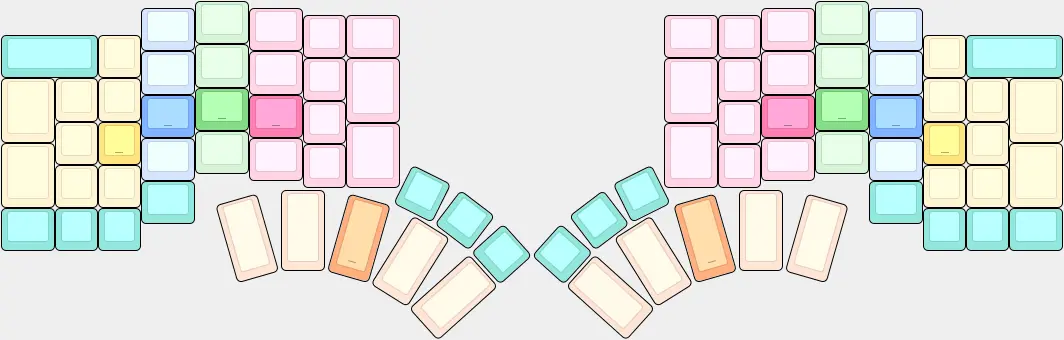
png
You can see that here the key height is 80% of the original, and all the pinky keys are small, because the pinky itself is small.
Plus, back then I still used the old colors, and in them turquoise marks the keys that can't be pressed from the home position.
#3Shift cluster
#4Shift
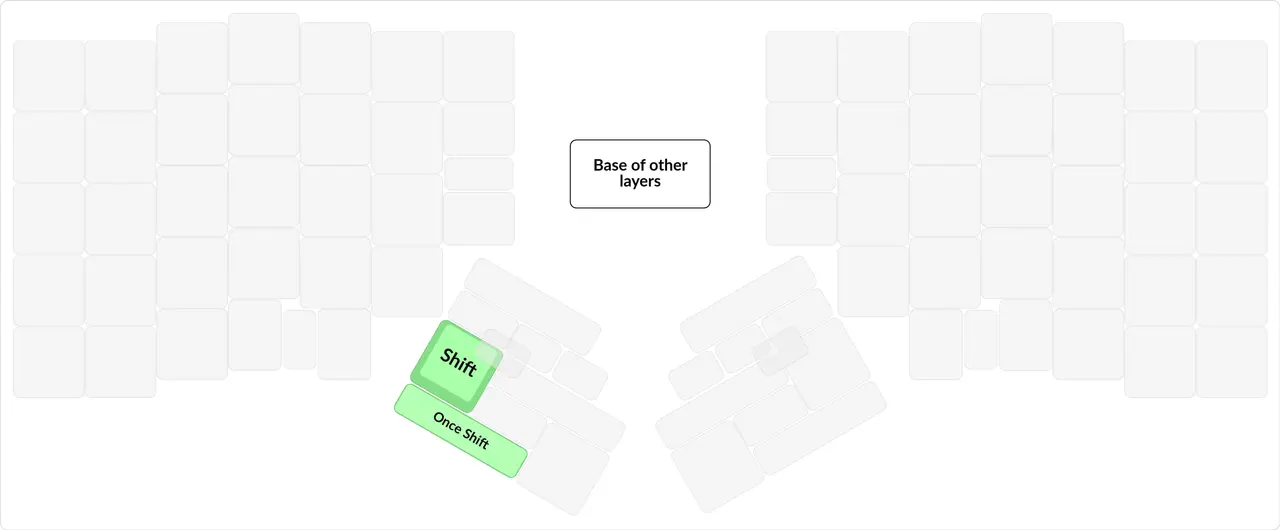
png
This is a very important point. And it's one more massive reason why the SK is inadequate for touch typing.
First, why exactly on the left hand. Because you'll very often be using the mouse and need to select something, and the Shift key is used for that very often. For a similar reason you should have a bare Ctrl somewhere on your left hand. Having Ctrl on the left hand is even more important than having Shift.
And now why Shift should be on the thumb specifically. Originally, on the SK, everyone got used to Shift being on the pinky — you press it there and that's it. And unfortunately, a lot of people who buy a proper keyboard leave Shift on the pinkies, putting all sorts of useless junk on the thumbs.
png
The main downside of Shift on the pinkies is that when Shift is pressed with one pinky, all the keys pressed by that pinky are blocked, and you can't press them according to touch typing. And here there are three options:
- Always press Shift with the left pinky, pressing the blocked keys with the ring finger.
- This is bad because you have to unlearn your simple life, where the ring finger presses only 4 keys, and learn to press a few more keys in certain situations. And the whole hand shifts, so hitting the new places gets harder.
- Use the right Shift only when you need to type capital letters in the left pinky's area.
- This is bad because the right Shift is used very rarely, and it will be infuriating to learn to press the right Shift just for some cases. Plus, because they're rare, mistakes may happen quite often. All in all, it's nothing but a hassle.
- Learn to fully follow the Shift rule: press Shift only with the hand opposite to the hand of the capital letter that's about to be pressed.
- Well, this one is just cruel. Even if it gives speed or accuracy, the gain is somewhere around 3%. But it consumes much more mental fuel and nerves.
And now, if we put Shift on the thumb, no letters get blocked, and we also get a feature: we can TYPE IN ALL CAPS WITHOUT USING THE CAPS LOCK KEY.
The position of Shift has to be coordinated with the position of space — they should be on different hands, so that typing in caps is comfortable.
There are two Shifts, and they're on the pinkies, not on the thumb.
There should be one Shift, and it should be on the left thumb.
By the way, I've never understood the Caps Lock key. If you need to type one word in capital letters, turning this key on and off is very hard from the habit-forming point of view. Especially when you type fast. Personally, all my life I've used Shift for typing in caps, and never Caps Lock. So that's one more reason to throw this key out of the keyboard and make life even simpler by reducing the number of modes (plus, it sometimes gets pressed by accident, and that's really infuriating).
Caps Lock isn't needed, and a more useful key could be in its place, for example Backspace.
Of course, layouts with letters on the thumb are a separate case, and I'm not considering them.
And I understood all of this even before I started learning touch typing, so back on the SK I made Shift take the place of the Alt key in my layout. Of course, it was a bit of a stretch and uncomfortable, but it was much better than learning the Shift rule, and more comfortable than pressing it with the pinky. So if you type on a regular keyboard, I advise you to make your life easier and put Shift on the thumb too.
The principle above also says there should be only one Shift, because why would you need a second one if one on the thumb is enough? Plus, that's the topic of the next section.
#4Once Shift
png
In the picture you can see Once Shift, which is pressed as a chord. This Shift is both sticky and single-use.
Once Shift is pressed as a chord with the regular Shift.
Sticky key (a one-shot key in QMK terms) — a key that works like a normal modifier/layerficator when held together with other keys, but when pressed and released once, applies to the one next key.
Sticky keys can be handy, for example, for pressing very complex hotkeys without playing Twister with your fingers (Twister the game, not the KFC wrap).
A sticky Shift is a very handy thing: it lets you treat Shift as a letter rather than a modifier. Hence the corresponding typing comfort bonuses.
But that's not entirely true: what distinguishes a sticky Shift from a letter is that if you hold Shift too long, it applies to several keys at once: "HEllo". This is a synchronization problem. So you need to make it so that even if Shift is held during the whole word, it applies only to the first letter. That's the single-use property.
Now Once Shift counts as a full-fledged letter and can be typed the same way. And it's completely free of synchronization problems.
Thanks to the lack of synchronization problems, a single-use sticky Shift can be used perfectly well on Klavogonki.
Plus, this kind of Shift can be handy when typing camelCase and PascalCase identifier names.
My regular Shift is completely regular, without any stickiness or single-use behavior. It's needed for typing IN CAPS and selecting things with the mouse.
Some people make a sticky non-single-use Shift in place of the regular Shift, and this becomes a problem in the following cases:
- When you select files in the file manager with Shift and then press the delete key, Shift gets applied to that key, and the files get deleted permanently, bypassing the trash.
- When you accidentally press this Shift and then press an arrow somewhere in the text, one character of text gets selected instead.
I use a separate key for the single-use sticky Shift for typing text, so that it doesn't overlap with the regular Shift.
Originally, as soon as I bought the ErgoDox, I made a sticky Shift. But I only came to the single-use sticky Shift in 2020, when I started programming the layout for the Moonlander from scratch.
This thing can be implemented without a programmable QMK keyboard, with AHK software, but I don't know how; ask in the chat.
#3Backspace cluster
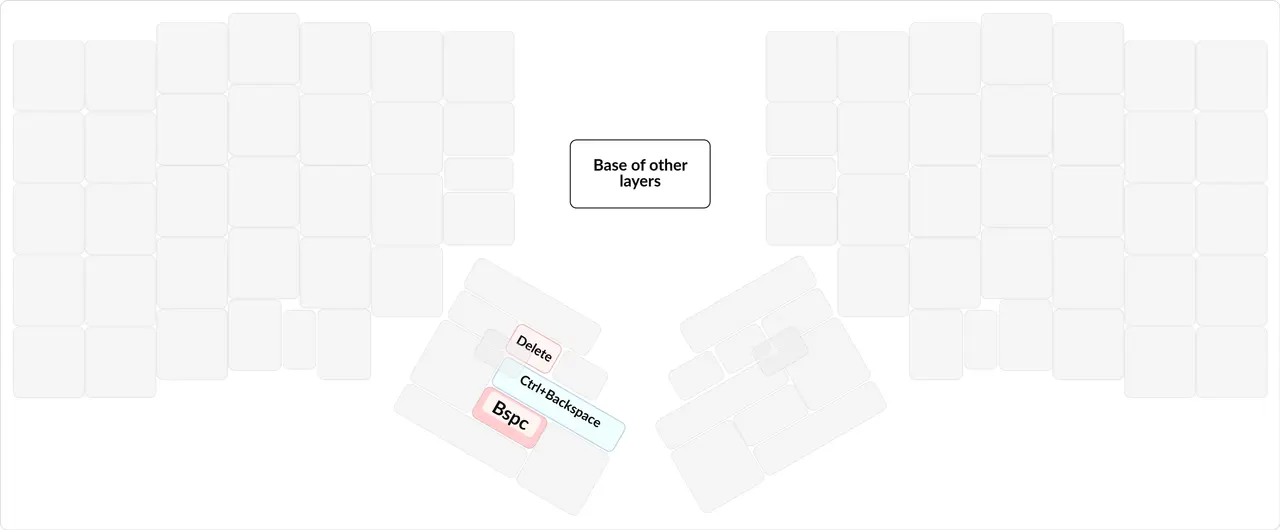
png
All the deleting keys are close to each other and on chords with Backspace.
#4Backspace
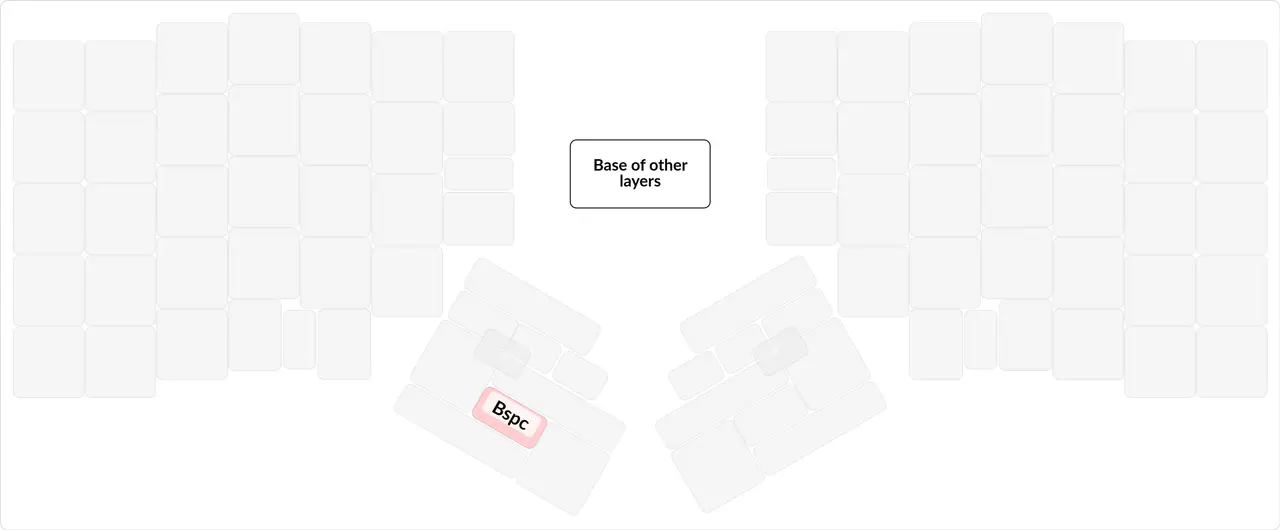
png
Backspace should be close. I have it on the thumb.
Backspace is a very frequent key. Unfortunately, the accurate statistics are lost, but I can guarantee that for me it's in the TOP 10.
As I've already said, touch typing doesn't like it when you move your hand far from the home position. So it's harmful to put such a frequent key as Backspace as far from the home position as the SK does.
I put Backspace on the left thumb. But it could just as well go in place of Caps Lock, which is what I did in my first layout on the SK.
#4Delete
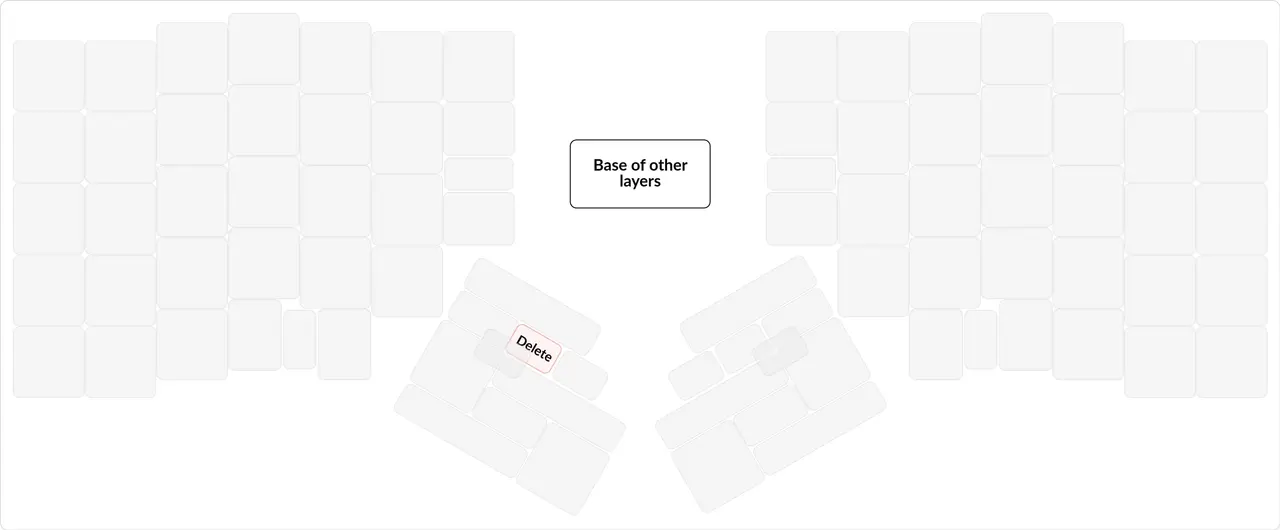
png
Delete should be on the left hand.
Delete comes in handy when working in editors with the mouse in hand, where deletion is assigned to this very key.
By the way, I never use this key when typing, because I'm used to doing everything with Backspace. If I need to delete the next character, the arrows are there to help. So I'd be all for removing this key altogether, reassigning all deletions to Backspace, and renaming Backspace to Delete. But what can you do, history threw a wrench in the works.
Before, on the ErgoDox, I had Delete and Ctrl+A next to each other, without chords.
And because of that, once at work I accidentally deleted all the files in a Google Drive folder I'd been given access to. I wanted to press Ctrl+A and download them all.
Recovery attempts:
- The "undo" button on the deletion notification failed with an error.
- The trash was empty.
- Google support couldn't restore anything.
Lessons I learned from this:
- Don't put the Ctrl+A and Delete keys next to each other
- When sharing a link, don't give edit rights to those who don't need them
- Don't use Google Drive!!!
- Better not to work when you've slept 4 hours
#4Ctrl+Backspace
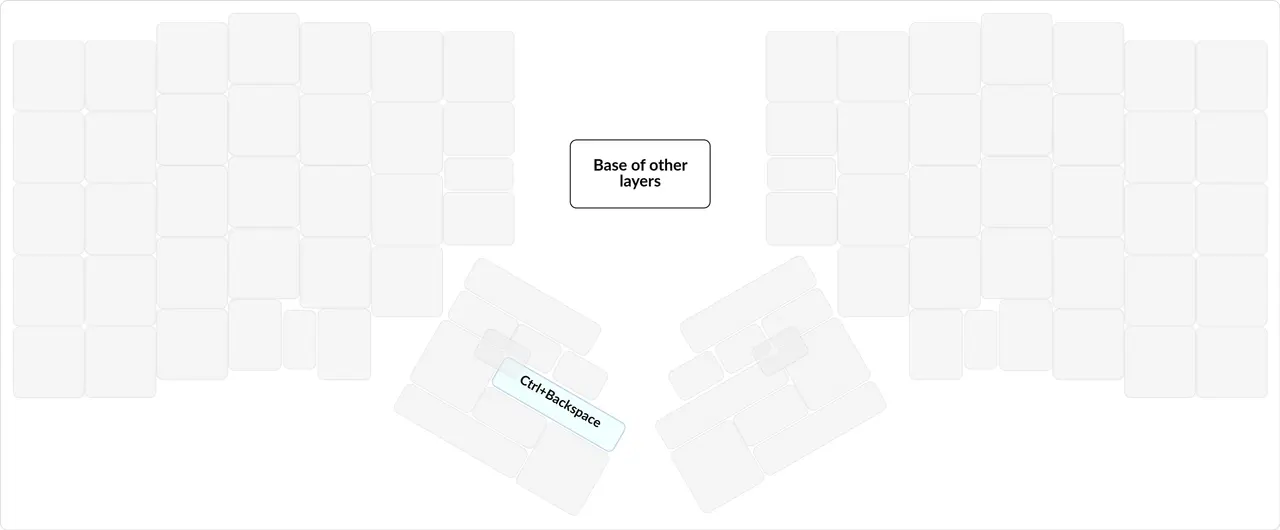
png
I have a separate key for Ctrl+Backspace.
Ctrl+Backspace erases the whole word at once. This key is an unknown necessity. I especially realized its value when I started using it on Klavogonki, which sped me up a lot. I press this key about as often as the regular Backspace, if not more often.
Ctrl+Backspace is sometimes more convenient than the regular Backspace, because often the mistake in a word isn't in the last character but in the middle. And erasing three characters with Backspace already takes long, because pressing the same key three times is slow in itself. And then you also have to read what you wrote, figure out where the mistake is and how to fix it, and all of that at speed. It's insanely slow! And it consumes a ton of mental fuel. And as paradoxical as it may sound, most often it's faster to erase the whole word and type it again. Erasing a word takes one press, and retyping is very fast, because 99% of typing practice is precisely about typing words fast.
You can see that when typing fast, Ctrl+Backspace saves a lot of mental fuel compared to the regular Backspace.
The main thing is that pressing Ctrl+Backspace should be as easy as pressing a single key. In this case, I have it on a two-key-press chord. And thanks to that, there are no synchronization problems, because with frequent keys synchronization problems are very painful. Plus, I've already explained, using this key as an example, what problems I had when this key was on a layer.
#3Hotkeys
#4Copy-paste
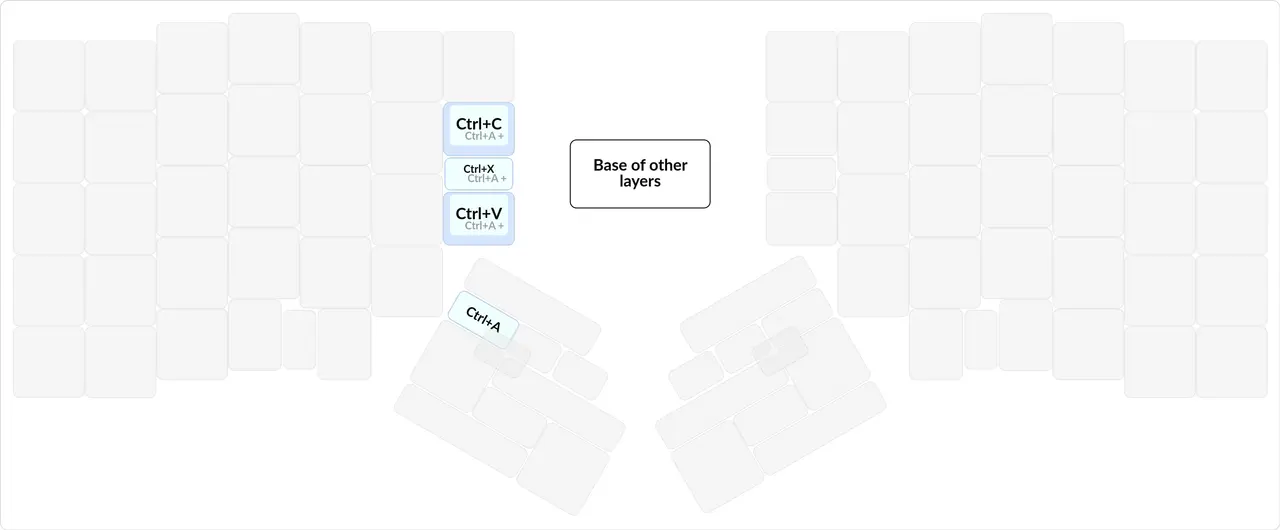
png
Separate keys for copy-paste and select all.
Copy-paste is done so often that it alone can significantly affect how often the Ctrl key is used. So copy-paste can be moved out to hotkeys as separate keys, for example on a layer, or on the base layer. Which is what I've done ever since I got the ErgoDox. I had copy-paste on those far index finger keys.
Nowadays copy-paste works fine with Ctrl+C/V in almost all programs. But some especially gifted programs (the terminal, emacs) do something completely different on these hotkeys, and that's unpleasant. Luckily, it can be configured. I only use the terminal, so I configured it: you can reassign copy-paste to Ctrl+C/V in it, moving program killing to another combination. I chose Ctrl+J. Here (in Russian) is how you can do it. (But it doesn't work on the especially gifted Docker.)
I also keep a separate key for Ctrl+A to select all text; it comes in handy in graphics programs sometimes.
You may also notice that with Shift held, the copy-paste keys get a Ctrl+A + ... added, which means that when Shift is held and the Ctrl+C hotkey is pressed, Ctrl+A is done first, and then Ctrl+C itself is pressed. This lets me select all the text and copy it in two presses. Same with Ctrl+A + Ctrl+V and Ctrl+A + Ctrl+X. And copying everything and pasting over everything are incredibly frequent things, especially when copying from one small field into another small field.
My Ctrl+X is on a chord between Ctrl+C and Ctrl+V.
#4Ctrl+Z
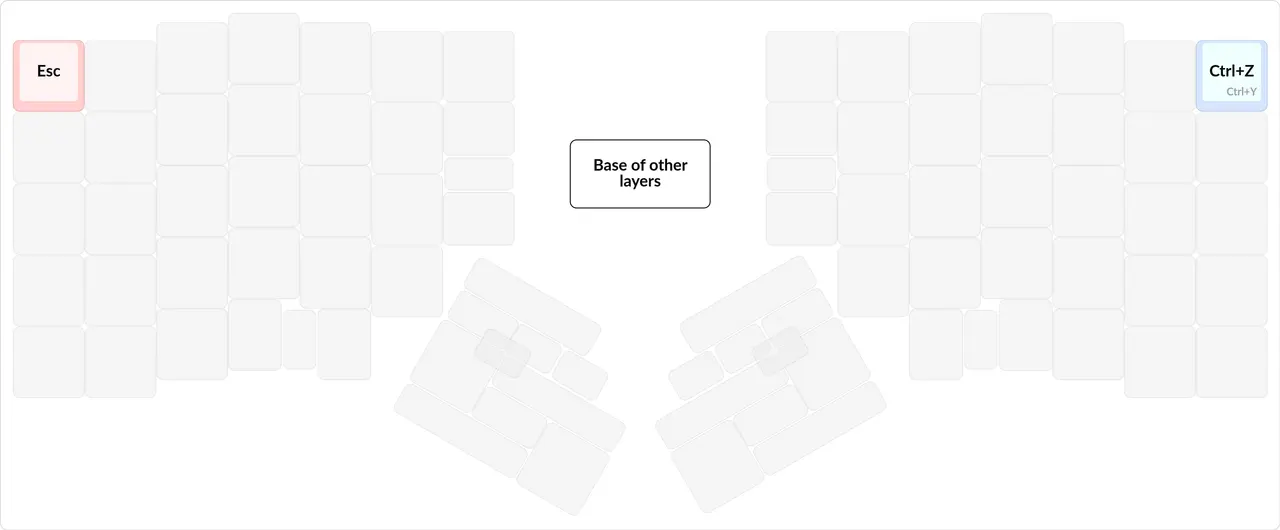
png
Esc and Ctrl+Z do similar things — they undo.
That's why I think it's very elegant to place Ctrl+Z symmetrically to Esc.
Ctrl+Z should be placed symmetrically to Esc.
Also, with Shift held, the Ctrl+Z key presses the "redo the undone action" hotkey — Ctrl+Y. Very handy when you've undone too much.
#4Ctrl+S
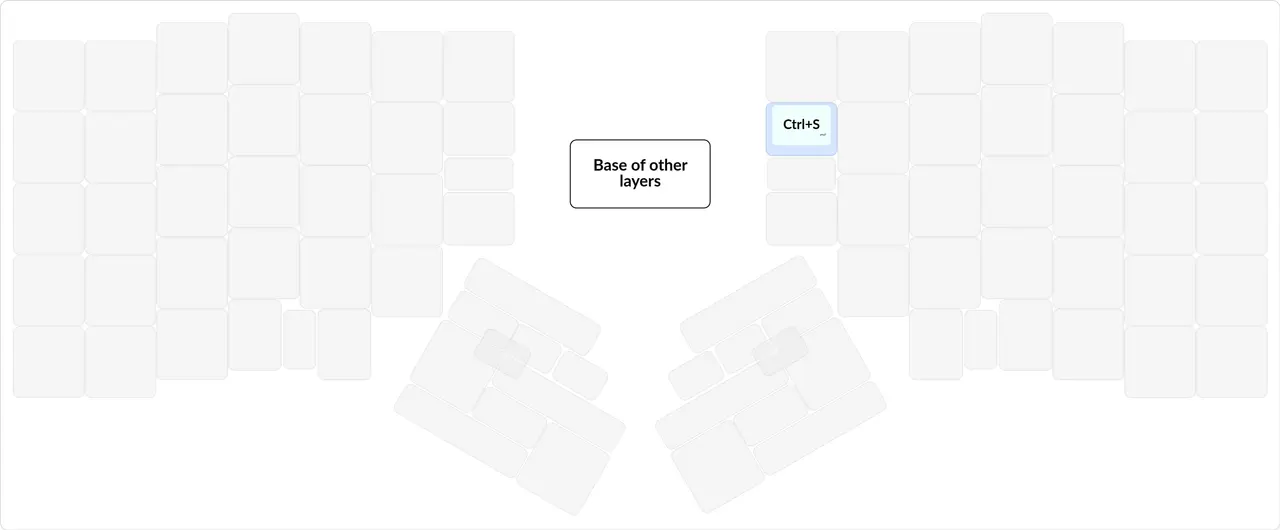
png
This may seem crazy, but this combination made up 1.5% of all my keypresses. Apparently I'm very nervous, since I save files so often. To calm my nerves, I decided to move it to the base layer.
Plus, lately it has come in handy for me in the Rust Enhanced extension. When I save a file, the compiler checks the code, and errors are shown right in Sublime Text 3. I think this is much more convenient than errors being underlined and annoying you while you write code in an IDE.
#4Screenshot
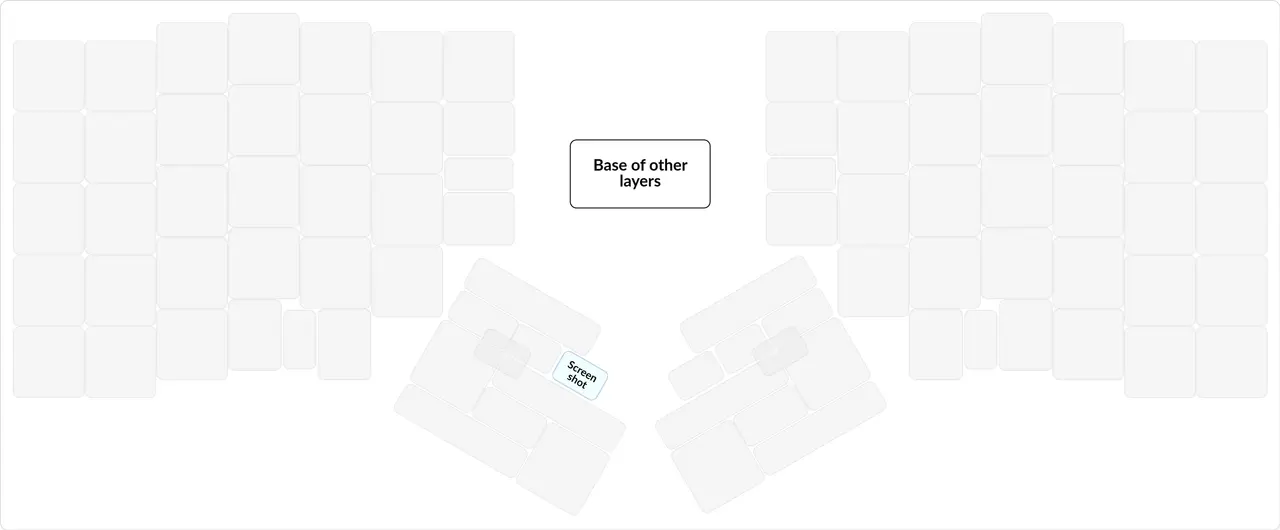
png
You may notice that on my left thumb, on a three-key chord, there's a Screenshot key. This key takes a screenshot of a selected area.
According to my gut feeling, I'd roughly say that in 95% of cases you need an area screenshot, in 4.9% a window screenshot, and in 0.1% a full-screen screenshot. That's exactly why my base layer has a key for an area screenshot. And for this reason the Print Screen key is present only on the "in case of nuclear war" layer, that is, for those 0.1% of cases.
The area screenshot key should be on the left hand, because right after pressing it the mouse in the right hand is used to select the area.
There should be an area screenshot key on the left hand, in a comfortable place.
This key uses the information about which hotkey is currently used for switching the language, because from the language switching method you can tell which system you're on — Windows or Linux.
On Windows I use the standard combination for capturing an area — Win + Shift + S. On Linux I downloaded the flameshot program and set up a hotkey that runs the flameshot gui command.
#4Other hotkeys
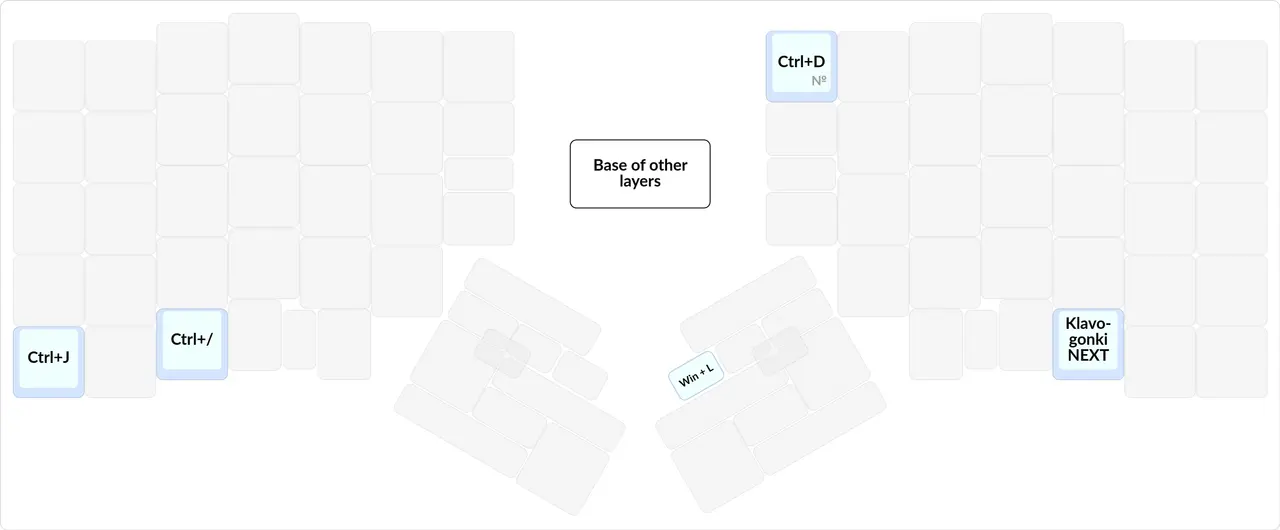
png
Nothing particularly interesting here. I'm describing them just so it's clear.
- Ctrl+J kills the current program in the console.
- Ctrl+/ in
Sublime Text 3comments out the selected piece of code. - Ctrl+D is used in
Sublime Text 3to create multiple cursors from the current selection. - Win+L locks the computer. Usually used at the office when going out for lunch.
- Klavogonki NEXT goes to the next race on Klavogonki. This key simply presses: Tab Tab Ctrl + →.
#3Punctuation
#4Space
png
I denote space as ⎵.
As for which hand space should be on, I don't know; the right one seems fine. I used to press space with my left thumb, because I played games, but then, when I created my first layout for the SK, I relearned to press it with the right one, so that there would be no collisions with Shift, which back then was on the left Alt. And it has stayed that way ever since; it also lets me TYPE IN CAPS WITH SHIFT HELD AND WITH SPACES. For games I have a separate layer where space is on the left hand.
As you remember, on the SK the space bar is very long, and in general it's the only key for both thumbs. And that's one more important reason why the SK is inadequate for touch typing: one key for two very strong and very mobile fingers is a gross mistake.
The space bar is absurdly large. It needs special keycaps, it needs stabilizers, it's noisy and often breaks. And most importantly, apart from it, everything else is far away for the thumbs.
And this gross mistake of the SK leaves people with nothing much to do with the thumb. So they came up with another cruel rule — the space rule. By analogy with the Shift rule, it makes you press space with the hand opposite to the last key pressed. Accordingly, the same criticism as for the Shift rule applies to it.
By the way, since some people don't press space with both thumbs, for them touch typing on the SK formally can't be called a 10-finger method.
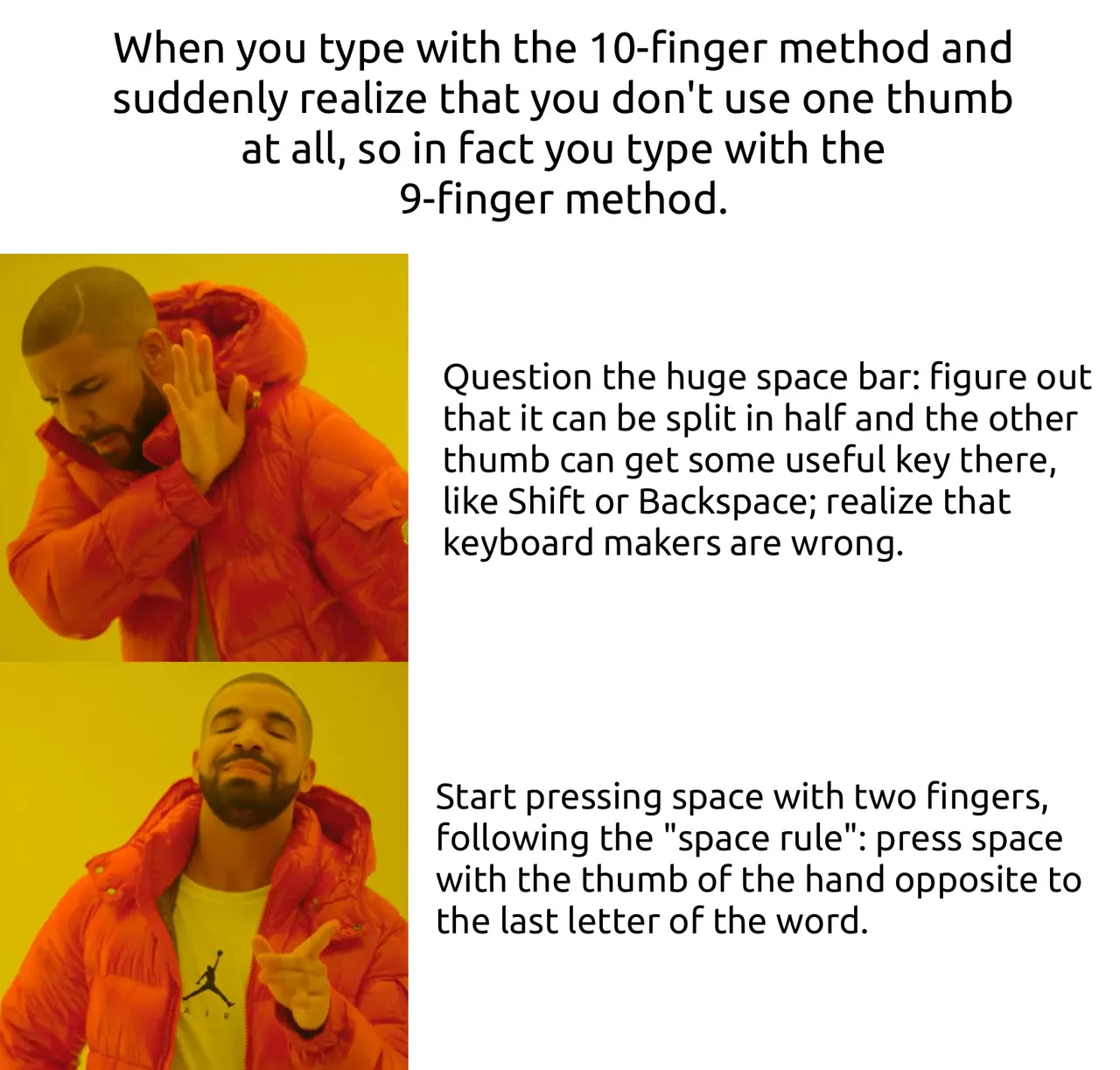
png
On the one hand, this rule may seem reasonable once you learn that space is the most frequent key on the keyboard. According to my statistics, it accounts for 8% of all presses.
But actually it's not that scary, and all speed typists press space with one finger, and everyone's fine. As a typist at 700, I fully support them. Space doesn't pose any problems. The thumb is strong.
Take, for example, the "Sotochka" vocabulary on Klavogonki (in Russian). The frequency of space there is even higher because the words are much shorter. But people still reach sky-high speeds there, pressing space with one hand. If you feel that space in particular slows you down in this vocabulary, that quickly goes away with practice.
And if the space rule can give you anything, the effect will be within the measurement error (or 3%), or within the placebo effect. There's no real practical advantage to it.
So it really hurts me to see people buy a proper keyboard and waste a prime thumb spot on a second space for the other hand.
There should be one space.
#4Comma
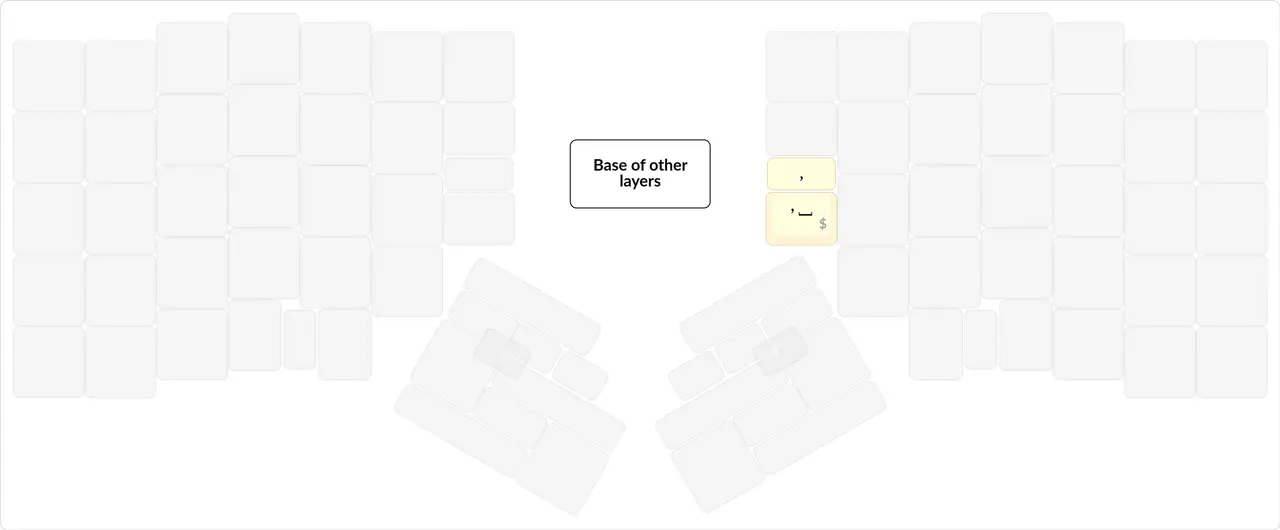
png
On the standard ЙЦУКЕН layout, the comma is typed as Shift + ., and that's very painful. The comma occurs very often in text, more often than some letters, and pressing Shift every time and getting into synchronization problems is bad. So I think the comma should be typed without Shift, on a par with the period. By the way, that's exactly how it's done in the Russian (Typewriter) layout.
The comma should be typed without Shift, just like the period.
The comma is most often written with a space after it, even in programming. So my primary comma comes with a space right away. Of course, there are cases when a comma is needed without a space, and that one is on a chord.
In terms of ease of pressing, the comma with a space should come first, and the one without a space second. It's even acceptable to put the comma without a space on Shift + ,, since it will be pressed very rarely.
#4Period
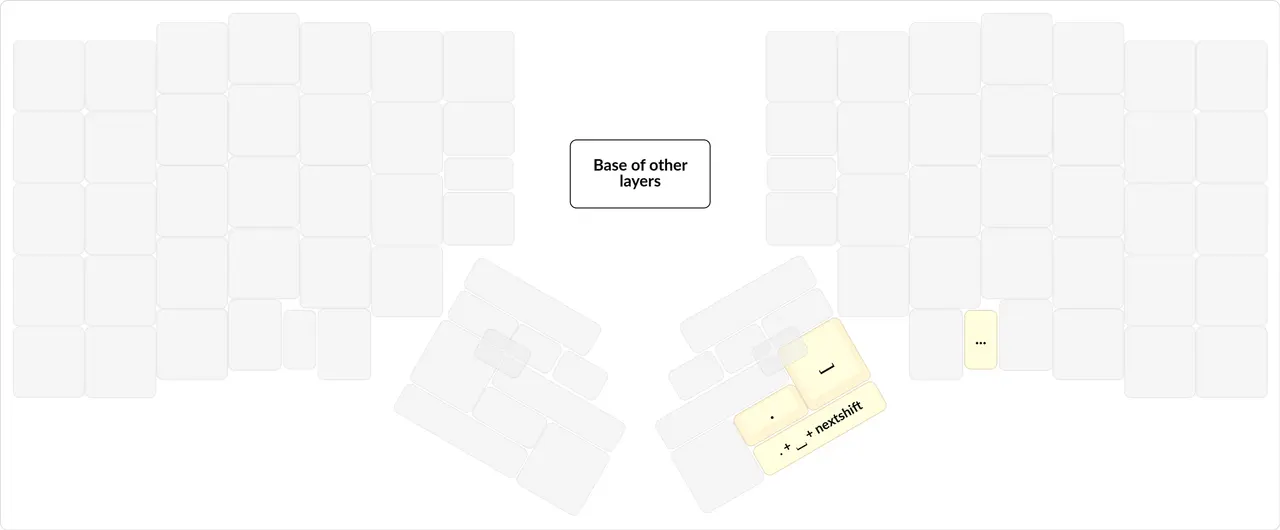
png
The . + ⎵ + nextshift key reads as period-space-autoshift. When pressed, it first sends a period, then a space, and then the keyboard records that Shift should be applied to the next key (autoshift). This is needed for typing natural-language texts, where the period most often behaves exactly like this. It feels especially nice on Klavogonki, when you press one key and it does these three actions. It really speeds things up.
For fast typing, I have a key that types a period with a space and autoshift.
But even in Russian there are periods in unexpected places: in direct speech, and in и т.д., т.е. (the Russian "etc." and "i.e."). And then there's programming. So a separate key for a plain period is needed. And it's on its own key, without a chord.
The ellipsis also has its own key, but it's rather awkward to press; I need to come up with something for it.
The . + ⎵ + nextshift key (period-space-autoshift) is pressed as a chord of the period and space.
Before the Moonlander, my period was different for Russian and for English. In Russian the period came with autoshift and a space by default, while in English it didn't. Because of that I couldn't type English on Klavogonki and didn't really develop my speed in it. Plus, in Russian I often stumbled when I needed to type a period without a space.
And now that these three punctuation marks are the same for all languages, it's a dream. Especially when typing fast. Now typing in English hardly differs from typing in Russian.
Basic text punctuation should be in the same positions for Russian and English.
#4Other punctuation
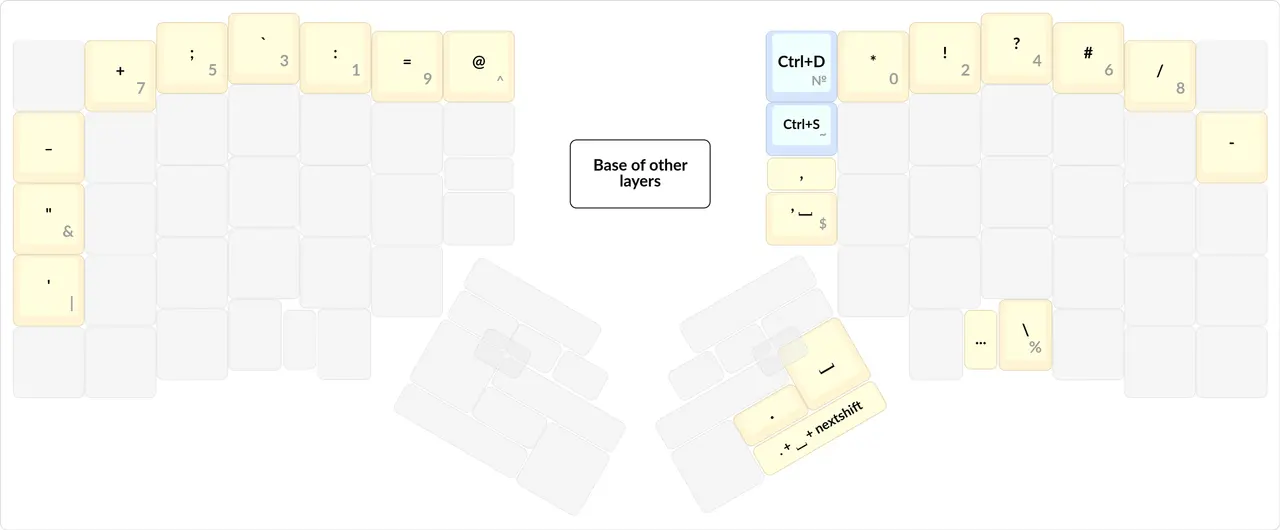
png
As a reminder, all this punctuation can be typed both in Russian and in English. That is, in English you can type № without switching the language, and in Russian you can type #.
It's important to note here that the punctuation on the number row is typed without Shift, and the digits with Shift. This is because in programming and in text punctuation is, after all, much more frequent than numbers, and pressing Shift is inconvenient, so it's better to minimize it.
The layout for Russian that simply moves all the punctuation to the number row without Shift and makes the digits require Shift is called Russian (Typewriter). The Programmer Dvorak layout does the same for English and the Dvorak layout.
Before switching to the Moonlander, my punctuation was different for Russian and for English. Of course, I tried to put things like !?* in the same places, but that wasn't enough to stop stumbling over the other punctuation every time. I especially missed the ` character in Russian, for using it in Markdown. And switching the language is unpleasant, even if it's one key.
On the ErgoDox I didn't have much motivation to do this, because I'd written my firmware very badly there and didn't want to patch it or rewrite it from scratch. And buying a new keyboard became a reason to do everything well at once.
All punctuation should be typeable from any language.
I especially want to point out the _ character here (on the left pinky), which is typed without Shift and is symmetric to -. This symmetry is very elegant, and I use it incredibly often for typing snake_case identifiers in programming.
Also, _ and - have no Shift variants, so that I can type SCREAMING_SNAKE_CASE and ALL-CAPS WITH A HYPHEN — THAT'S GOOD without releasing Shift.
_ should be separate from -, both keys should be typed without Shift, and they shouldn't carry anything else that is typed with Shift.
You may also notice that brackets of all kinds are missing from my punctuation. Unfortunately, they're on a layer; more on them later.
It's also important to note that since there's no Tab, Shift or Caps Lock, the pinky's whole second column becomes free. That's where I put more punctuation. Shift and Caps Lock are clear, and Tab I moved to a layer; I'll talk about it when I go through the red layer.
To make the punctuation the same for Russian and English, you need to do the following: if you're currently in Russian and want to type the # character, then for the moment of pressing this character you need to turn on English, press it, and then switch back to the previous language. Same for English.
That's roughly what I did, and now almost all my punctuation is on the base layer, on the number row and at the sides.
To implement this ability to have the same punctuation in different languages, I had to write a lot of code. I moved this code into a separate module, lang_shift (in Russian), which any Russian-speaking person programming their layout in QMK can use.
It's also important to note that almost all my punctuation is on the number row. That's exactly what I have the number row for, and exactly why I buy keyboards with a number row. I don't like punctuation on a layer, because it causes synchronization problems; this topic will be covered better below.
#4Digits
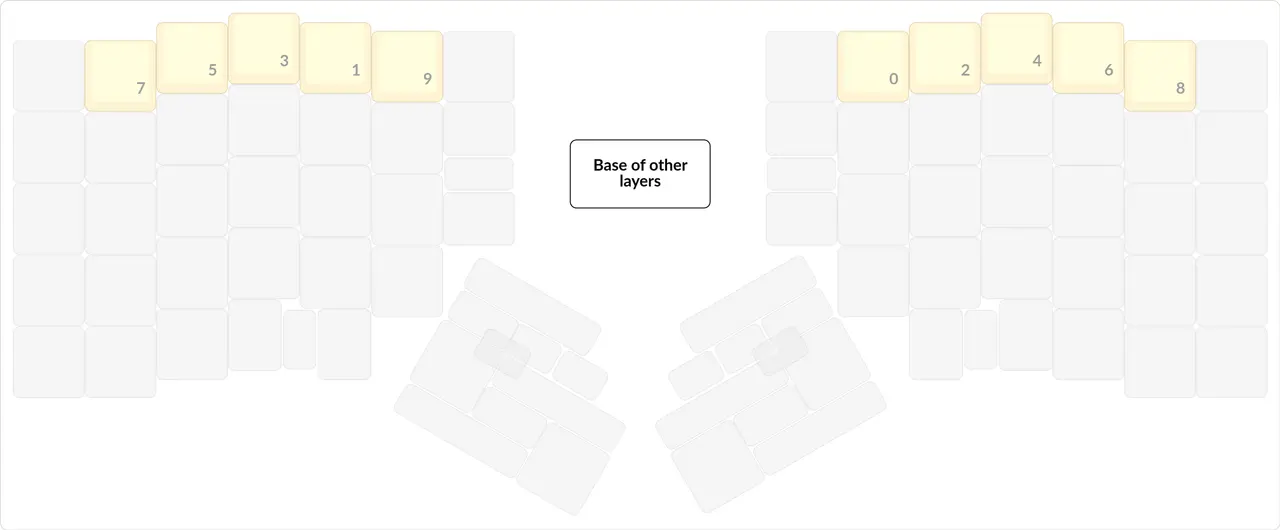
png
Yes, you may notice that my digits are arranged somewhat strangely. The Programmer Dvorak layout is to blame: the digits were in this order there from the start.
When I installed that layout, I accepted these digits and relearned for them. It isn't that hard, so it's fine.
They arranged the digits so that the even ones are on one hand and the odd ones on the other, supposedly to maximize hand alternation when typing numbers.
Another very important feature of this digit arrangement is that the most frequent digits: 0, 1, 2, 9 are on the index fingers. And that's really convenient! You know, pressing 1 and 0 with your pinkies in the farthest places is a dubious pleasure.
So I kept the same digits as in the Programmer Dvorak layout, for Russian too. I still use them and don't see any reason to relearn yet.
Digits are typed with Shift held. It's important that the most frequent digits are pressed with stronger fingers, not the pinkies.
Another option is to create a separate layer for the digits and arrange them like on a numpad, or better than on a numpad, for example like this:
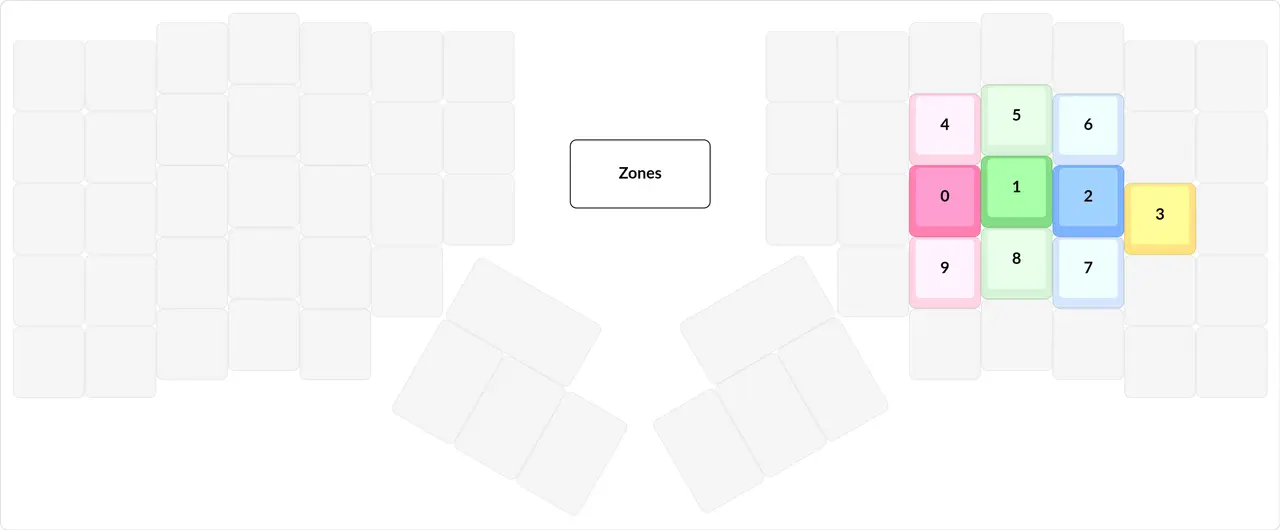
png
You can read about different ways of arranging digits on our wiki (in Russian).
#2Languages
Non-standard layouts for Russian and English are flashed right into my keyboard.
#3Phonetic layout
Phonetic layout — a layout that tries to arrange all the letters of one language so that they sound like the letters on the same keys in another. For example, there's the English JCUKEN layout (in Russian), a phonetic counterpart of the standard Russian ЙЦУКЕН.
People usually recommend using a phonetic layout to spend less time learning or relearning touch typing. As for which layout to take as the basis, everyone decides for themselves.
Of course, you probably shouldn't expect a phonetic layout to be comfortable for typing text, because Russian and English don't work the same way. But if you type in Russian or in English very rarely, you can consider this option.
I don't use a phonetic layout myself, because I only learned it existed after I'd learned touch typing at a decent speed, and anyway I'm willing to learn English and Russian separately for the sake of comfort and speed.
#3Custom layouts and modifiers
There's this problem that with custom layouts hotkeys are inconvenient to press. There are two reasons:
- In Russian, when a modifier is held, the keyboard isn't the same as in English.
- A person is used to pressing all hotkeys on qwerty, but has a custom English layout.
The first case is what concerns me, and I solved it like this: when any modifier (except Shift) is held, English and the English layer are turned on just for as long as it's held. That way, even when I press modifiers, they always behave as if English were on.
Moreover, since some programs don't recognize hotkeys while the OS is in Russian, the combination for switching the OS to English is also sent for as long as the key is held.
This is already solved in my lang_shift module (in Russian).
#3English
png
By default I have English on, as all systems do by default. I mark English in white and Russian in blue.
Originally I had Programmer Dvorak for English, then on the ErgoDox I modified it a bit in terms of punctuation, and modified it even more on the Moonlander.
Since I moved the period and comma to the thumb, space freed up in the left hand's top row. I moved the Y and X keys there, to more comfortable positions. I still had 4 free spots left; in one of them I put a capital I to minimize Shift presses. And in the other free spots I put dead keys that turn letters into things like àáâã, which came in handy once when I was racing in Italian on Klavogonki. I'd like to put programming punctuation there, but I can't, because it has to be the same for Russian and English so I don't stumble over it. And these spots hold rather important keys in Russian, so they can't be removed from Russian.
In English I currently type at a maximum speed of about 550 CPM (110 WPM).
As for the Dvorak layout itself, I don't know what to say. I didn't really race in English for speed, so I can't evaluate it from that point of view. I also can't compare it with QWERTY, because on QWERTY I only typed with dynamic zones, which is a completely different thing.
As far as I know, the Dvorak layout was optimized to maximize alternation, but in my experience Dvorak has lots of rolls, and real counts confirm this: it has even more of them than ЙЦУКЕН, but fewer than QWERTY. Proof in the table. (in Russian)
#3Russian
png
Now this language I raced in a lot for speed, and I have something to say.
The standard ЙЦУКЕН layout is wrong for touch typing. Its problem is that its most frequent keys are on the index fingers, according to the standard touch typing zones. And when lots of letters are typed with just two fingers, it's obviously a slowdown, since the other fingers sit idle even though they could be doing useful work.
SFB — same-finger bigram: consecutive presses with one finger.
Obviously, when one finger presses many keys in a row, it slows the whole process down. And ЙЦУКЕН has lots of SFBs on the index fingers.
At some point I realized what the key to speed is — ⭐Rolls⭐ (in Russian).
In TypingStatistics (in Russian), rolls look like this:
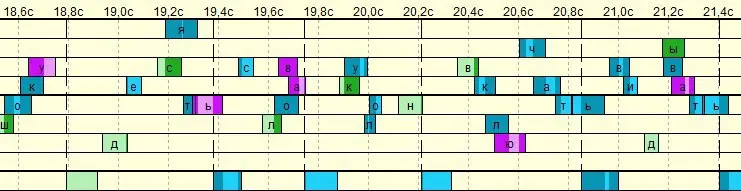
jpg
While alternations and SFBs look like this:
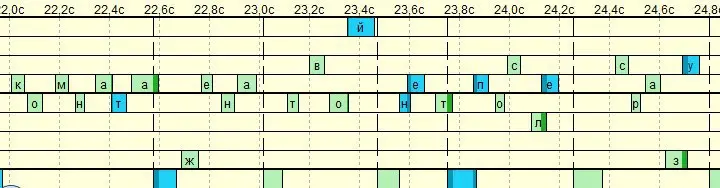
jpg
I wanted to develop my own layout with the most rolls, but when I tried, I drowned in the complexity. Now that I understand how to do it more simply, I just can't get around to it. After all, it's a big research project; creating a good letter layout takes a lot of time.
So I started small — I swapped 2 letters in ЙЦУКЕН. I've already told you about my letter swaps; as a reminder, they were all aimed at maximizing the number of rolls.
Now I have ЙЦУКЕН with small modifications that maximize rolls, and on it I reached a maximum speed of 718 CPM (144 WPM) on Klavogonki. In a specialized vocabulary consisting exclusively of rolling words, I reached 821 CPM (164 WPM) (in Russian).
#4Ё
png
I have a separate comfortable key for this letter (pronounced "yo"; in writing it's often replaced with Е). And I always write Ё where it belongs. My attitude to this letter isn't for personal reasons but for global ones. There are words whose meaning changes depending on Ё: всё ("everything") and все ("everyone"), and parsing the meaning from context isn't pleasant, and sometimes impossible. Ё must be written, because otherwise the words еж, черный ("hedgehog", "black") would need a transcription saying they're pronounced йож and чорный respectively. And I don't want Russian to turn into yet another English with these transcriptions. That's exactly why I hate English — for its transcriptions — and I believe the Beautiful Global Constructed Language of the Future 🇦🇶 must be written the way it's pronounced.
I always write Ё.
And so with the letter Ё there are only two consistent options:
- Give it up completely and write
йож,чорный,всьо. - Write Ё where it's pronounced.
I also have a feeling that in the 21st century people came to dislike the letter Ё so much because someone thought it would be better to put it in a very distant place (on the standard Russian layout it's on the ` key in the top-left corner), so that people would be too lazy to reach for it. I think if Ё were somewhere convenient, an order of magnitude more people would use it, and it wouldn't have ended up with the status of an officially optional letter.
They dragged Ё so far away!
I also think that the letter Э is wrongly replaced with Е in some words, for example: стэйк, хэдэр (steak, header). Since I believe that language can and should be changed according to your personal opinion, I always write Э where it's heard.
#4Ъ
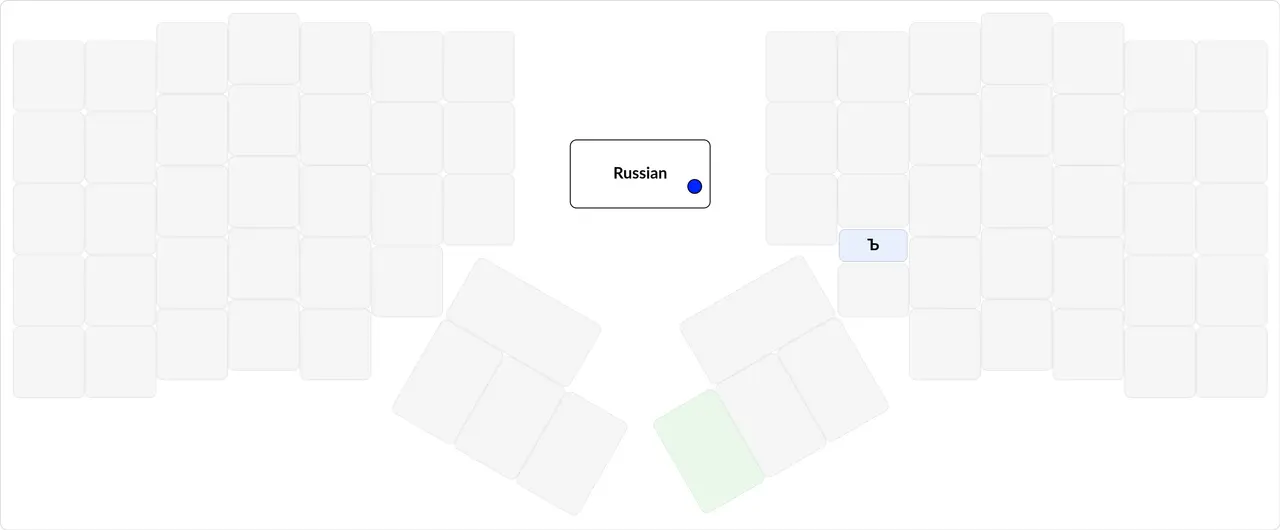
png
This letter (the hard sign) has had it rough too: another distant letter on the pinky, but at least it isn't officially optional.
The Jian keyboard respects this letter so much that it even has a special outgrowth for it in the form of a third pinky column:
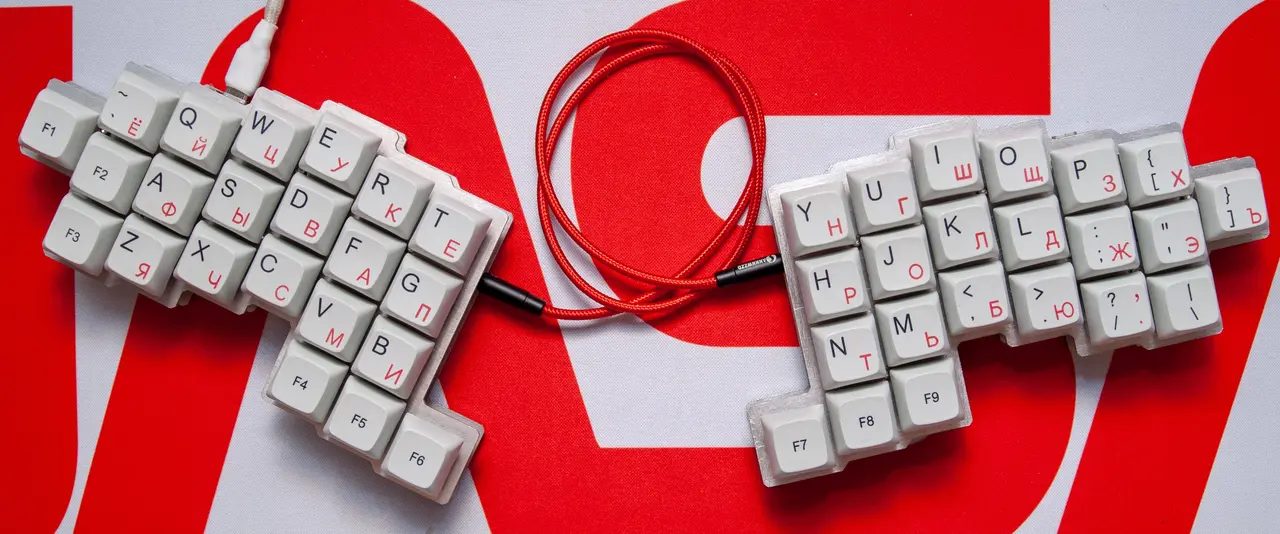
jpg
Since it's the rarest letter, people like to either throw it out completely or put it in the middle of nowhere.
Usually Ъ is put on a layer. But that's not very convenient, for several reasons:
- If you need to type a capital Ъ, you have to hold two keys! And if the layerficator is on the same hand as Shift, it's practically impossible.
- If you solve the two-layerficator problem by making two keys on the layer, a lowercase ъ and a capital Ъ, that's ugly, inconvenient, and not symmetric with all the other letters.
- If Ъ is on a layer that English has access to, that's not very nice.
- Pressing a layerficator in the middle of a word is very slow, just like pressing Shift in the middle of a word. Digits on a layer, or a capital letter at the start of a word, are a different matter, but not in the middle. So it's a huge synchronization problem.
My Ъ, on the other hand, is on a chord, and it's easily pressed with Shift, doesn't create synchronization problems, and in practice I don't slow down because of it.
I don't put a single letter on a layer, because of the synchronization problem. Not even the rarest one, Ъ, may go on a layer. But it may go on a two-key-press chord.
#2The red layer
png
The red layer is the layer for all the most useful stuff that didn't fit on the base layer.
First, the small stuff:
- I put Tab and Shift+Tab on a layer because I wanted to save space on the base layer so that all the punctuation would fit there. And in general I wanted something new.
- I also have a separate macro for typing the Rust turbofish. It comes in handy very often.
- A macro for typing #[] comes in handy sometimes
- A separate Ctrl+Enter key to conveniently send messages in messengers, because I like pressing Enter to start a new paragraph, and in general writing long messages in messengers.
- On the left hand, in the second column of the pinky and the index finger, I have hotkeys that make life easier in
Sublime Text 3.
#3F-keys
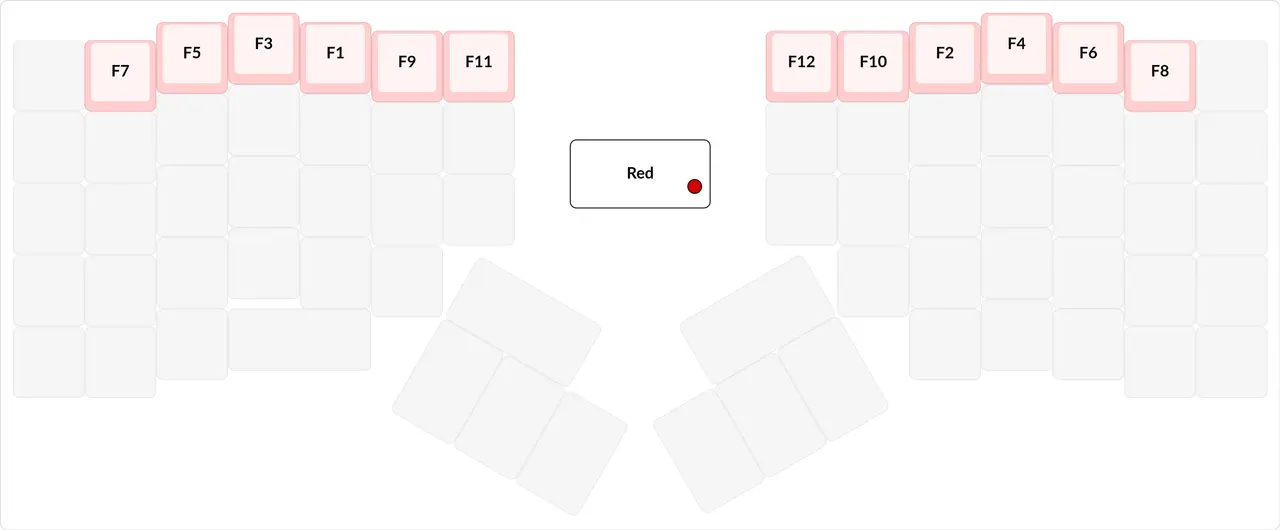
png
For some reason, some people think they need a proper keyboard not only with a number row but also with a row for the F-keys. With 99% probability you don't need that. A separate row for the F-keys isn't needed if you can put them on the nearest layer, on the number row. If you're worried about hotkeys, you can make a separate layer with hotkeys on these keys. It's that simple.
I placed the F-keys the same way as the digits, because I've already learned where everything is, and I can't peek at the keyboard.
F-keys fit nicely on a layer in place of the digits.
#3Brackets
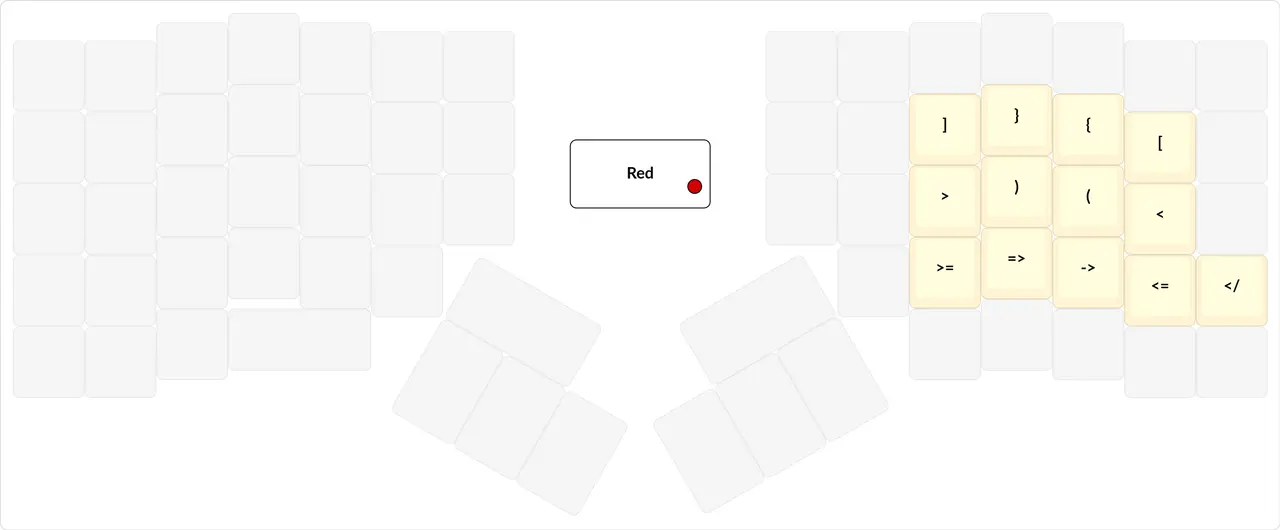
png
I always type all kinds of brackets in pairs, because that's how our computer science teacher taught us. He said you should do it so as not to forget the closing bracket, or not to have to place it manually later. And it really is convenient: after I started typing brackets in pairs, programming became easier.
I'm so used to typing brackets in pairs that typing brackets separately on Klavogonki is very inconvenient for me.
I always type new brackets in pairs.
It may seem that I've put all the brackets in the wrong order: they should be (), not )(. This thinking is correct for the left hand. If on the left hand you place the brackets visually as (), then to type them you need an inward roll, from the edge to the center, that is, a staccato movement from the pinky to the index finger.
But this visual arrangement is wrong for the right hand, so there they're placed in the other order, )(, so that it's more comfortable to type them with an inward roll from the edge to the center.
Brackets should be arranged so that their pair is comfortable to press with an inward roll (from the edge to the center).
I don't like bracket autocompletion, because it has lots of false triggers that are very annoying. I'd rather turn it off and pay the price of typing the closing bracket myself.
Also, unfortunately, I do have a synchronization problem with brackets. It often happens that I want to type a bracket, then some character, and I don't release the layerficator in time, and an F-key or a navigation key gets pressed. It's especially annoying when Pg Up/Pg Down gets pressed by accident. So I don't really like symbols on a layer, and I advise putting symbols only on a layer where other symbols are typed.
Symbols shouldn't be on a layer because of synchronization problems.
To eliminate the synchronization problem, I added the most frequent combinations with angle brackets under the regular brackets.
#3Arrows
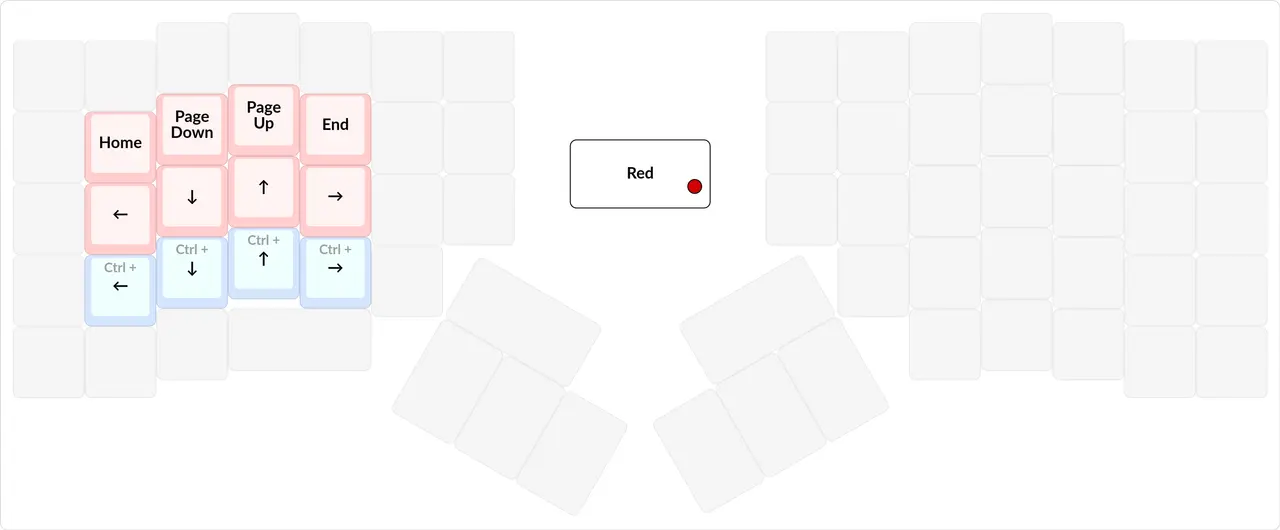
png
Being able to have arrows on a layer is one of the most important capabilities a proper programmable keyboard can give you.
The arrows are far away, and by default they aren't on the home position.
#4Home, End
Originally I didn't know at all what the Home and End keys were, and never used them. But then, in the 7th grade, we started programming, and our teacher would walk around and watch how we wrote code. When he noticed that people used the arrows to move to the end of a line, he told them to always press End. And that's how he made us use these keys, and also Home and Delete.
I'm very grateful to our teacher for this; without him it would probably have taken me a very long time to realize that these keys can be used and that they're infinitely convenient for work.
So it turns out that Home and End were an unknown necessity for me.
Instead of Home and End, you can hold down an arrow key, wait for it to speed up, and then catch the moment to stop it. That's very hard to do, so it's a synchronization problem and consumes a lot of mental fuel. That's why Home and End are good keys.
Home and End should be used.
#4Statistics
I collected the statistics from my keyboard with klavarog/heatmap (in Russian); link to the statistics: https://t.me/klavaorgwork/154628 (in Russian).
Frequency of the red layer: 17.04%.
The red layer key: 4.5%
| Name | Percent |
|---|---|
| Space | 8.13% |
| Russian lowercase 'о' | 4.80% |
| MO(4) | 4.50% |
You can see that the red layer key accounts for 4.5% of all presses and is in third place. Only the Russian О and space are pressed more often. Note, though, that while the red layer key is held, many arrows may be pressed (Down + Down + ...). That is, turning on the red layer is equivalent to moving the hand to the arrows, if the arrows weren't on a layer but somewhere far away, as on the SK.
Frequency of the arrows: 58.92% * 17.04% = 10.03%
| Name | Percent |
|---|---|
| Down | 20.83% |
| Up | 18.51% |
| Left | 10.73% |
| Right | 8.85% |
| Σ | 58.92% |
Frequency of the other navigation keys: 9.98% * 17.04% = 1.7%
| Name | Percent |
|---|---|
| End | 5.50% |
| Home | 3.84% |
| Page Up | 0.33% |
| Page Down | 0.31% |
| Σ | 9.98% |
Frequency of arrows with Ctrl: 14.78% * 17.04% = 2.52%
| Name | Percent |
|---|---|
| Ctrl+Left | 7.43% |
| Ctrl+Right | 7.18% |
| Ctrl+Up | 0.09% |
| Ctrl+Down | 0.08% |
| Σ | 14.78% |
In total, all navigation keys make up 14.25% of all keypresses.
#4Why the arrows should be on a layer
There are several options for where to put the arrows:
- On a layer
- Scatter them across both hands on the base layer
- Put them together in a certain place that the hand will always have to move to from the home position.
An example for option 2:
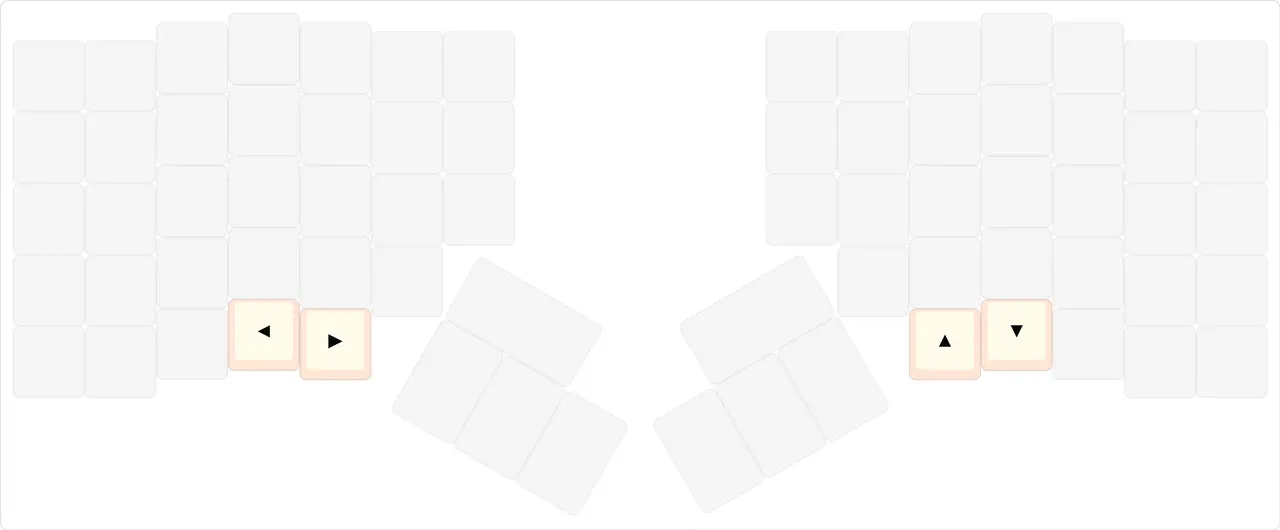
png
An example for option 3:
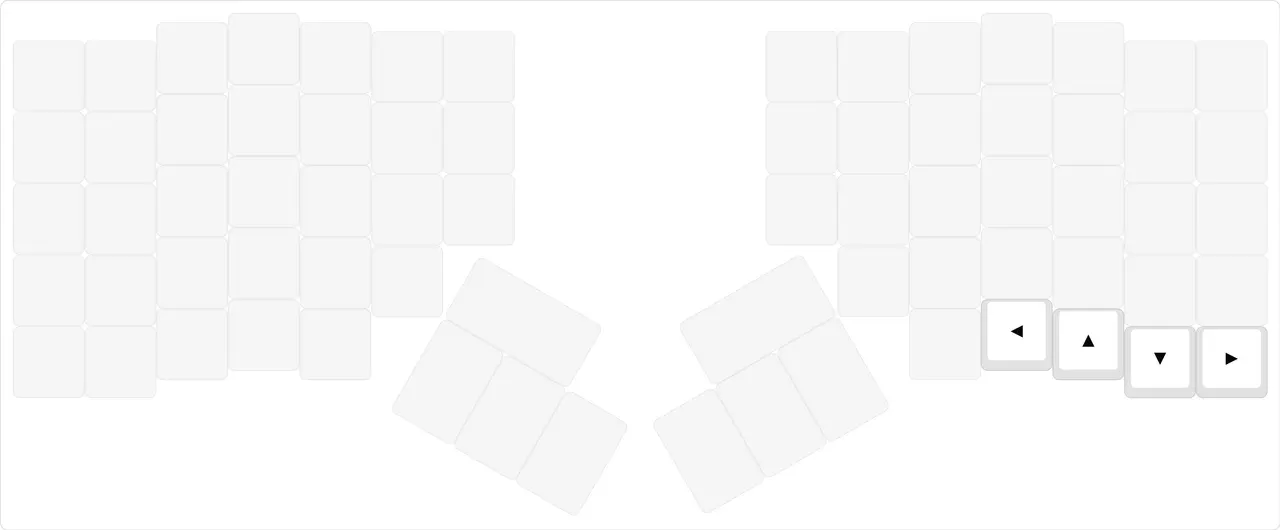
png
The Optima layout (in Russian):
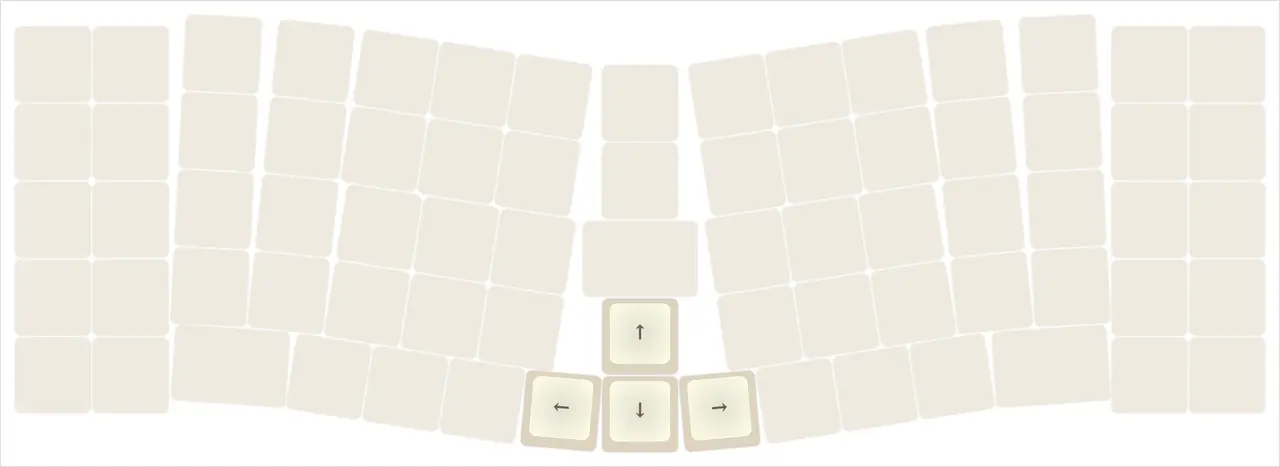
png
png
Let's start by looking at why option 2 isn't very good:
- There are many arrows, and there's nowhere much to put them except on the pinkies or the thumbs. And you have to take into account that Arrows + Shift and Arrows + Ctrl are used very often. And sometimes there's Arrows + Shift + Ctrl.
- A whole
1.7%of presses are other kinds of navigation keys, which you'll have to put on a layer anyway.
Usually, when editing text, and especially when editing a program, you very often have to move around the text with the arrows. For example, there might be a sequence of actions like this:
- move two lines up
- select text with the arrows
- copy it
- move two lines down
- paste
- move sideways
- delete
- type new text
- done.
That is, the arrows are pressed as part of typing text and hotkeys. And, as the statistics show, this happens very often, in 4.5% of all presses. And moving your hand every time for this is terrible. This example also shows why separate keys for copy-paste are needed. And in my red layer the copy-paste keys are left transparent, so that with the red layer on I don't have to release it to press copy-paste.
On the arrows layer, the copy-paste keys shouldn't be used for anything else; they should stay themselves.
So option 3 is bad too. Although the second picture for option 3 is taken from a real person's layout. He decided it would be more comfortable for him to have the arrows on the base layer, in the middle of the keyboard. But he doesn't program, and, as he says, he "just likes to move around the text with the arrows". That is, his arrows work differently from programmers'. So here too you need to look at your own workflow.
Another argument against arrows on a layer is that when watching a movie or video, you want to use the arrows without two hands, just pressing something with one.
For this case you can do a few things:
- Have the arrows on the left hand, and a layerficator somewhere on the left hand to activate them
- Have duplicate arrows created specially for this case
- Have a layer specially for watching movies, where the left hand has the arrows, subtitle sync, volume control, and whatever you want.
In particular, I implement the first option: my arrows are on the left hand, and there's a layerficator, pressed via a chord, with which I can easily press the arrows in all sorts of editors or movies while keeping my right hand on the mouse.
There should be a layerficator on the left hand that lets you press the arrows with one hand. This is needed for the mouse and for rewinding movies/videos.
The arrows should be on a layer.
#4The shape of the arrows
So, there are basically two camps of arrows on a layer. The first camp is the standard arrows in the shape of an inverted letter T:
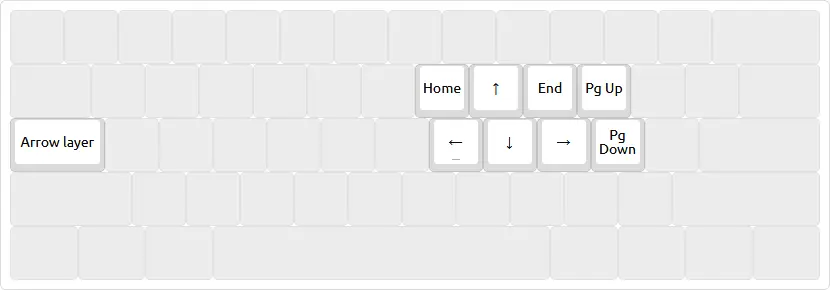
png
The second camp uses flat arrows, in a 4×1 format.
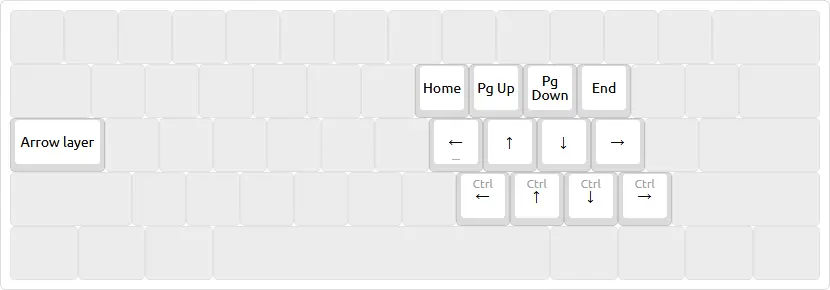
png
The second option is elegant in its symmetry with respect to the bottom and top rows.
You can see that the second option is better in every way:
- Home, Pg Up, Pg Down, End can be placed symmetrically to the arrows, below them.
- Below the arrows there's room for the arrows with Ctrl held.
The first option has neither of these properties. But the first option is familiar, although it's familiar only in the arrangement of the arrows, not of all the other keys.
As for how hard it is to relearn for these four-finger arrows, I don't remember, because I did it from the very beginning. Apparently it isn't hard, since I don't remember the process. It's certainly easier than relearning for two swapped letters, that's for sure.
For those who didn't know: if you press the arrows with Ctrl, they move by words. The arrows with Ctrl held in the second option are another example of an unknown necessity.
You might object: why do you need arrows with Ctrl held when you can, well, just hold Ctrl? Two problems come up here:
- What if you're selecting text right now — what do you press Ctrl with? The layerficator is already held, and Shift is held. Then you have to move something to the pinky, or press it as a chord. And you still have to find a comfortable place for Ctrl.
- And what if you need to move just a few times by words, and then by one character? Then you have to release Ctrl and press it again. And as we know, having to hold a key for a certain period of time slows you down a lot and is prone to synchronization errors.
But when there are separate keys with Ctrl already held, the only thing you need to do to press them is simply press one row lower. That's it. And this way you can move incredibly fast by words and by characters at the same time. This becomes especially relevant with long names in programming. Or when editing text, it's easier to press left with Ctrl 3 times than to press the left arrow 20 times, or to hold the left arrow and calculate the moment when it speeds up and stops.
Plus, when you hold the key for moving sideways by words, the movement is much faster than when you hold the key for moving by characters.
There should be separate arrows with Ctrl held.
If you want, you can also put Ctrl+Home, Ctrl+End above, on the number row. Ctrl+Pg Up, Ctrl+Pg Down are possible too, but they're such a frequent combination that we'll talk about them on the green layer.
The arrows should be flat, so that convenient arrow-like navigation keys can be placed nicely and symmetrically below and above them.
#4Arrows with repeat
Sometimes even moving by words is slow, because you run into piles of punctuation, and moving by words turns into moving by characters. In that case I'd like to have "5 times left" and "5 times right" keys.
But even if I implemented this function right now, it wouldn't work when such a key is held: that is, when held, it would work like a regular arrow, moving slowly, one character per unit of time, not 5 per unit of time. And plain QMK is too weak for such features. So I need to make the feature Volka made long ago in the Catboard — the keyboard's own key repeat, rather than the OS's. So far it's only in the plans.
#4The pinky for arrows
The next thing to talk about is using the pinky. Some people fear that the pinky is too weak a finger to press something as frequent as the left arrow. As a reminder, in all my pictures the arrows are entirely on the home position, that is, the pinky presses one of the sideways arrows, and the index finger presses the other.
There are vim arrows that don't use the pinky:
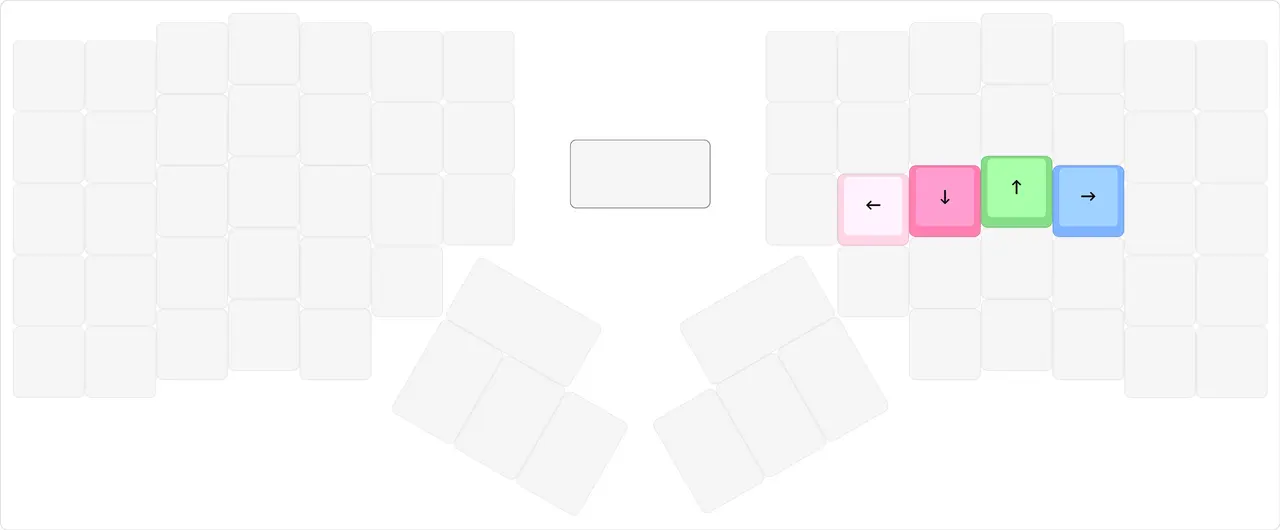
png
That is, two arrows are on the same index finger, and the pinky presses none.
As far as I know, these arrows came about for historical reasons, but their arrangement is justified precisely by the fact that the pinky isn't used, so let's assume that's exactly why they're like that.
I think it would be inconvenient to move the index finger sideways every time you need to move left. And left-then-down is probably a real pain with these arrows when touch typing.
Pinkies can be strong; it just takes a little practice. I too thought at first that these fingers were incapable of pressing anything.
That's why my arrows are entirely on the home position, and the pinky is used for the arrows.
#4Order of the arrows
Next, there are many possible flat arrow arrangements that don't contradict any of the points above:
←↓↑→←↑↓→←↑→↓←→↓↑- etc.
There's no particular difference between them; here everyone chooses to their own taste. I chose ←↑↓→ for the right hand, and I have a couple of logical principles to justify this choice.
I think the up key should be on the middle finger.
This arrow should be on that finger specifically, since that finger is very used to this key from the days of WASD, or from the days of arrows on the SK.
For me, sideways movement is at the edges, and up-down movement is in the center.
Simply because sideways movement is somehow more intuitive when it's at the sides.
#4Arrows on the left hand instead of the right
And the last thing to say about the arrows is how to place them on the left hand. Here's what they look like on mine:
png
Before buying the Moonlander, I typed with the arrows on my right hand for more than 4 years, and then I moved them to my left hand; must have been hard to relearn, right? At first, yes: these arrows were already hardwired into my brain, and suddenly they moved to the left hand. But overall I got used to it rather quickly. It's also easier than relearning for swapped letters.
I put the arrows on the left hand so that I could use them while using the mouse. But, as it turned out later, this isn't actually needed that often, and in general I didn't really have to relearn. So it's not that important that they're on the left hand specifically. But now I can rewind videos with one hand, and use the arrows in editors to move by one unit of length.
My arrows are on the left hand.
#2The green layer
png
This layer contains everything that didn't fit on the red one and can still be useful.
The small stuff:
- The RESET key — after pressing it, the keyboard enters a mode in which new firmware can be flashed. Pressing this key is more convenient than looking for a needle and poking it into a tiny hole, as is usually done on other devices.
- Ctrl+1, Ctrl+2 — move to the first or second tab group in
Sublime Text 3. - Ctrl+Shift+P — a frequent combination for something useful in
Sublime Text 3andVSCode. - Alt+Print Screen — the key for taking a screenshot of a window.
#3Sound
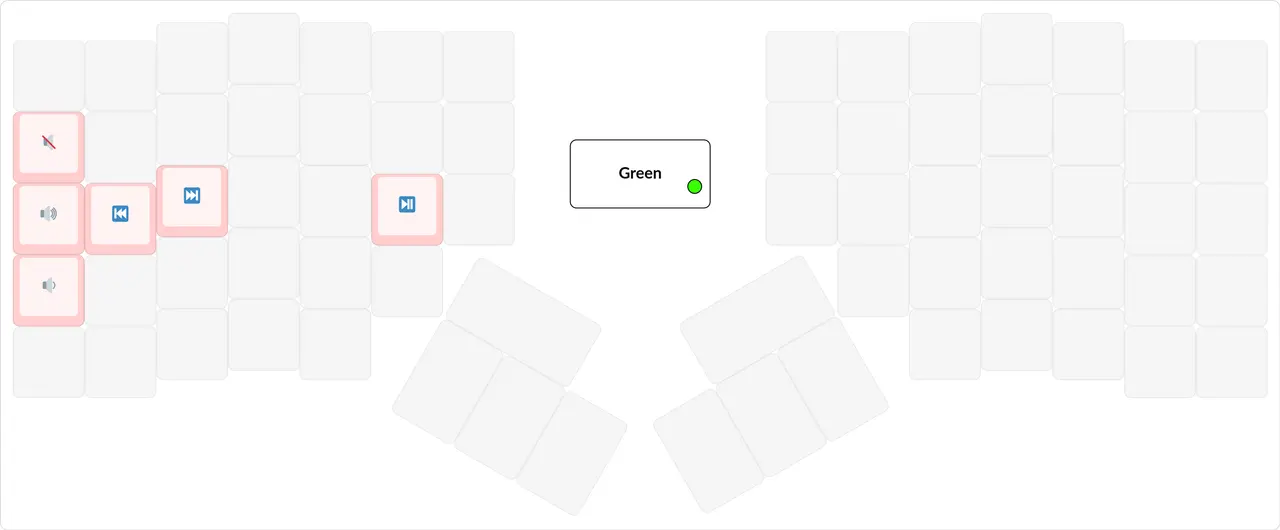
png
These are the keys for controlling the volume and the current track. They must be on the left hand, together with the layerficator that turns them on, because volume control is used very often during videos or movies.
The volume control keys should be on the left hand.
#3Browser hotkeys
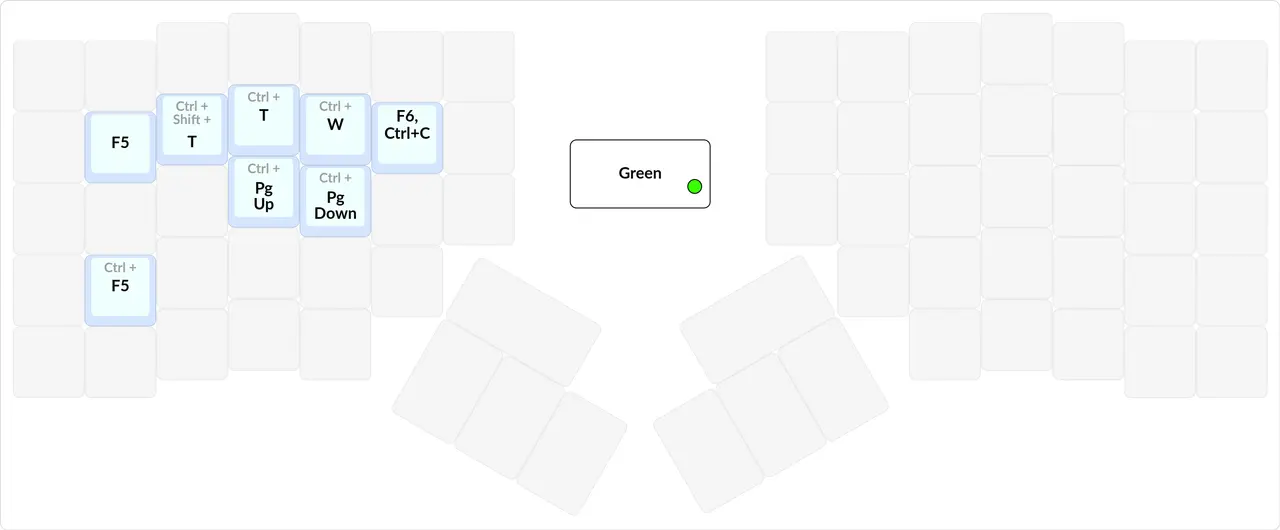
png
As it happens, not only the browser has tabs, but also text editors, terminals and lots of other things. So tab management hotkeys can be relevant across many programs. This set of hotkeys lets you manage tabs in many programs alike. And for the programs where some hotkeys work differently, I configure them to work this way. For example, in Sublime Text 3 I made Ctrl+T open a new tab.
List of hotkeys:
- Ctrl+W — close the current tab.
- Ctrl+T — open a new tab.
- Ctrl+Shift+T — reopen the last closed tab.
- F5 — reload the page.
- Ctrl+F5 — reload the page, clearing the cache.
- F6, Ctrl+C — go to the address bar and copy the address. Since links are copied all the time, this is a very handy thing.
I want to dwell on the hotkeys for moving left and right between tabs in more detail. There are the Ctrl+Tab and Ctrl+Shift+Tab hotkeys, which usually switch to the tab on the right and on the left respectively. But some especially gifted programs think these hotkeys should switch tabs in most-recently-used order! Most-recently-used order is just as disgusting and hard to use as Alt+Tab, so you should give it up and switch to unconditional tab navigation.
Tabs aren't programs: there can be very many of them, and often you're not on the same sites in the browser, so unconditional switching to tab 1, tab 2 won't work here. But moving left and right will. It's also unconditional, but it costs mental fuel because you need to look at the screen; still, it's much easier to use than switching in most-recently-used order.
In my first layout for the ErgoDox, the green layer had keys for unconditionally moving to tab 1, 2, 3, 4, 5 via Ctrl+Digit; I put them there thinking I would use them, but in the end I never did. And I removed them in later iterations. Speaking of not overengineering.
At some point I discovered that the Ctrl+Pg Up and Ctrl+Pg Down hotkeys work everywhere for moving left and right between tabs respectively, so I advise everyone to use them instead of Ctrl+Tab and Ctrl+Shift+Tab.
Tab management hotkeys should be on a separate layer.
#3Mouse control
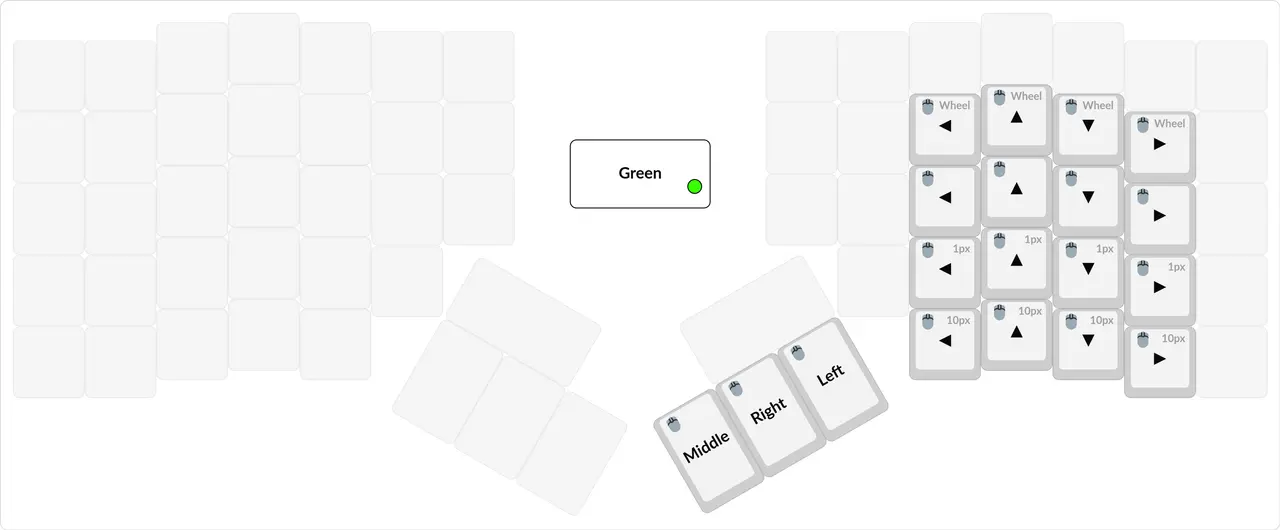
png
An important feature of programmable keyboards is that you can control the mouse from them! Some people even use this in all seriousness to maximize their keyboard time. They're hardcore guys; I can't do that, it's easier for me to move my hand.
This mouse layer shows the full beauty of my flat arrows principle. With the inverted-T approach, the keyboard wouldn't even have enough room to fit all these 4 kinds of arrows.
Flat arrows are divine.
The regular mouse control keys accelerate the mouse depending on how long they're held, so once you get the hang of it, you can potentially control the mouse very skillfully.
I also have separate keys for moving the mouse by exactly 1 pixel. This is super handy in all sorts of graphics editors. It's a pity that all these keys are on my right hand rather than the left, where they could be used together with the mouse (yes, mouse keys together with the mouse — I understand the absurdity).
For symmetry with the 1-pixel keys, there are also 10-pixel keys.
Unfortunately, the 1- and 10-pixel keys aren't very usable, because there's no auto-repeat feature, which I described in the section about the 5x arrows. If there were such a feature, these keys would be really handy.
The keys for horizontal and vertical scrolling are also very handy: you don't have to spin the damn wheel, you can just hold them. Again, a pity I can't use them on the left hand.
Actually, I've never used this mouse layer, precisely because it isn't on the left hand, so I need to redesign the layout, add one more layerficator, put these keys on the left hand, and make that auto-repeat feature. And this is an example of me overengineering.
By the way, this is where my having relearned the arrows on the left hand becomes relevant again, because it'll be convenient for me to use all these mouse keys on the left hand.
Mouse control keys, which are potentially meant to replace the mouse, can be useful while using the mouse, so they should be on the left hand.
#2The violet layer
png
As I've already said, I gave up Alt+Tab because it consumes too much mental fuel and causes constant mistakes. And I switched to unconditional switching. This layer holds the keys for it.
Alt+Tab shouldn't be used. There should be a separate layer for keys that unconditionally switch to the most frequently used programs.
Unconditional switching to a window — when I press the hotkey for Sublime, Sublime opens, regardless of the window history.
On Windows this is possible if you arrange the pinned programs on the taskbar in a certain order. Then pressing Win+1 will activate the first program in this list, and so on. Ubuntu is the same story.

jpg
But on Linux I prefer to use the jumpapp program for unconditional switching. You can read more about it in dots#gnome (in Russian).
This layer should be on the left hand, together with its layerficator, because it comes in handy incredibly often with the mouse.
The layer for unconditional switching to programs should be on the left hand.
I also added hotkeys for:
- Closing a window
- Going up a folder in the file manager (Alt + Up)
- Renaming the selected file (F2)
- Unconditionally moving to workspaces 1, 2, 3. Although now I realize I don't use these combinations, and they can be removed.
You can see that my set of hotkeys here is rather simple. You'd think that such an obsessive person as me would use some tiling manager, or at least have more hotkeys for window management. But no, for the rest of window management I mostly use the mouse; luckily, on Pop!_OS that's rather convenient.
#3How I failed to master i3
i3 is a shell of sorts (more precisely, a window manager) that manages windows in a general sense: moving, opening, and closing them. And it lets you arrange windows so that they touch each other at the edges — this is called tiling. More details on the official website or in a video.
I had heard about this program for a long time, and people advised me to try it. Once I decided to switch to this i3: I installed Linux next to Windows, put i3 on it, set up the perfect layout for i3, and started using it. Here's the layout I designed back then:
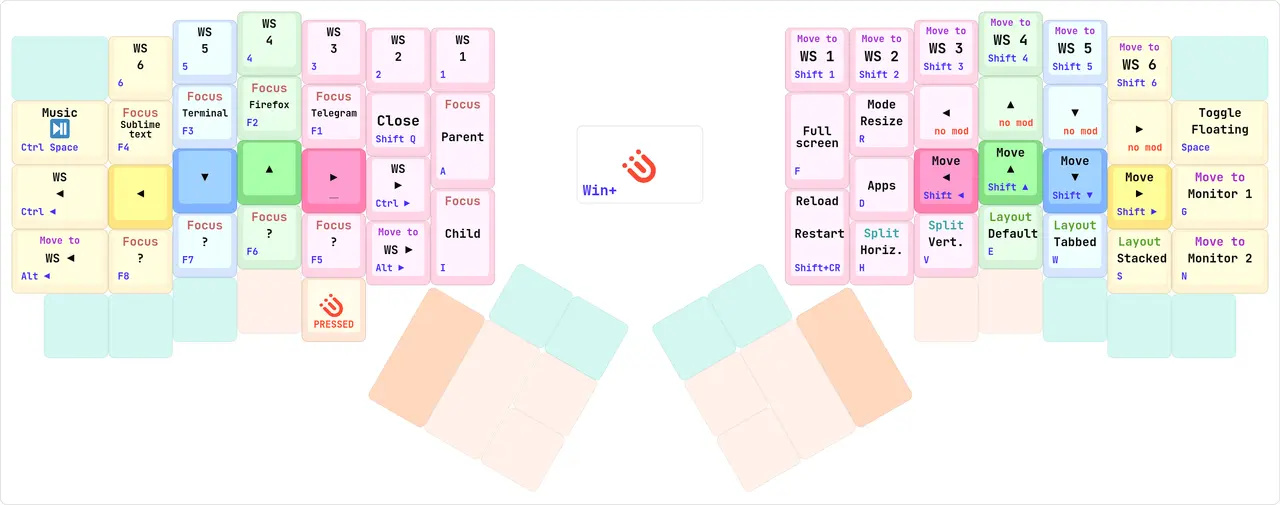
png
You'd think I'd thought everything through and set up all the hotkeys.
But then it turned out that I really don't like it when the Telegram window expands to the full screen, or even to half the screen. I like Telegram hanging as a small window somewhere in the middle of the screen.
And on top of that, this i3 opens all sorts of small settings windows at half the screen. And I really hated that. Plus, I spent too much mental fuel mastering these hotkeys and quickly arranging windows the way I needed.
In short, it all came down to me no longer booting Linux, because it was too hard and painful to use. And I stayed on Windows.
In the end I wiped that Linux install with the tiling manager and installed Pop!_OS with a regular desktop. This i3 just isn't for me after all; Windows has spoiled me.
And here you can see the principle about not overengineering your layout working in all its glory.
This story shows that if you force yourself to adapt to too many changes, it will all end with you giving up.
So if you're going to buy a proper keyboard, you need to start small. First you need to learn touch typing on the SK. Then you can try remapping a couple of keys on the SK: put Shift under the thumb in place of Alt, Backspace in place of Caps Lock. And then buy a proper keyboard and gradually modify the layout there.
I know several examples of people who bought themselves ErgoDoxes and the like, couldn't switch to them, and stayed on the SK.
#2The yellow layer
This is the backlight control layer; nothing interesting here, I just put everything about the backlight that might ever interest me into one layer, just in case. Plus there are keys for controlling the LEDs, to play around with, and so that there's an example somewhere of the code that activates these LEDs.
Check out how I used emoji and symbols to denote the different kinds of backlight animation.
png
#2The gaming layer
Games are something that assumes you have an SK. And some games don't even let you remap keys. So it's better to create a special separate layer for games where the SK is emulated. For chatting in the game chats, you can come up with some keys that turn on the normal layer.
Games shouldn't affect my layout, and my layout shouldn't affect games. To separate these two worlds, I create a separate layer for games that emulates the SK and adds its own conveniences.
I hardly play games, so my layer isn't perfectly polished.
I advise you to create your own layers for all such special cases.
png
For different kinds of programs that heavily rework how the keyboard is used, it's better to create separate layers. For example, you can create a Photoshop layer on the left hand.
#2The "in case of nuclear war" layer
png
All the useless things that might come in handy once in a lifetime I dump into the "in case of nuclear war" layer.
The layer with the most interesting name holds the least interesting keys. This is where I put what I deliberately threw out from everywhere else, things that don't make much sense but might come in handy once in a lifetime, in case of nuclear war.
Namely, here you'll find:
- The whole numpad and its keys. Because some programs work exclusively with numpad digits, and from the OS's point of view the numpad digits and arrows are different from the regular digits and arrows.
- All the modifiers, even the right-side ones.
- All sorts of useless Scroll Lock, Caps Lock, Pause Break, Insert, Menu.
- Print Screen for the
0.1%of cases when you need to capture the whole screen. - Keys that set which hotkey will be used to switch the language. These are probably the only actively used keys on this layer, because sometimes I use Windows and need to tell the keyboard about it.
In general, this "in case of nuclear war" layer pattern is a handy pattern, and you can have it regardless of your keyboard or personality type. It's convenient to dump all the junk there.
#Technical details
#2How I made this layout
The good thing about ZSA is that they make a product not only for programmers, so they have an official visual layout configurator for all their keyboards. In this configurator you can use lots of QMK features, you can practice typing in a trainer right there, and you can look at other layouts. This configurator is called Oryx. Here's what it looks like:
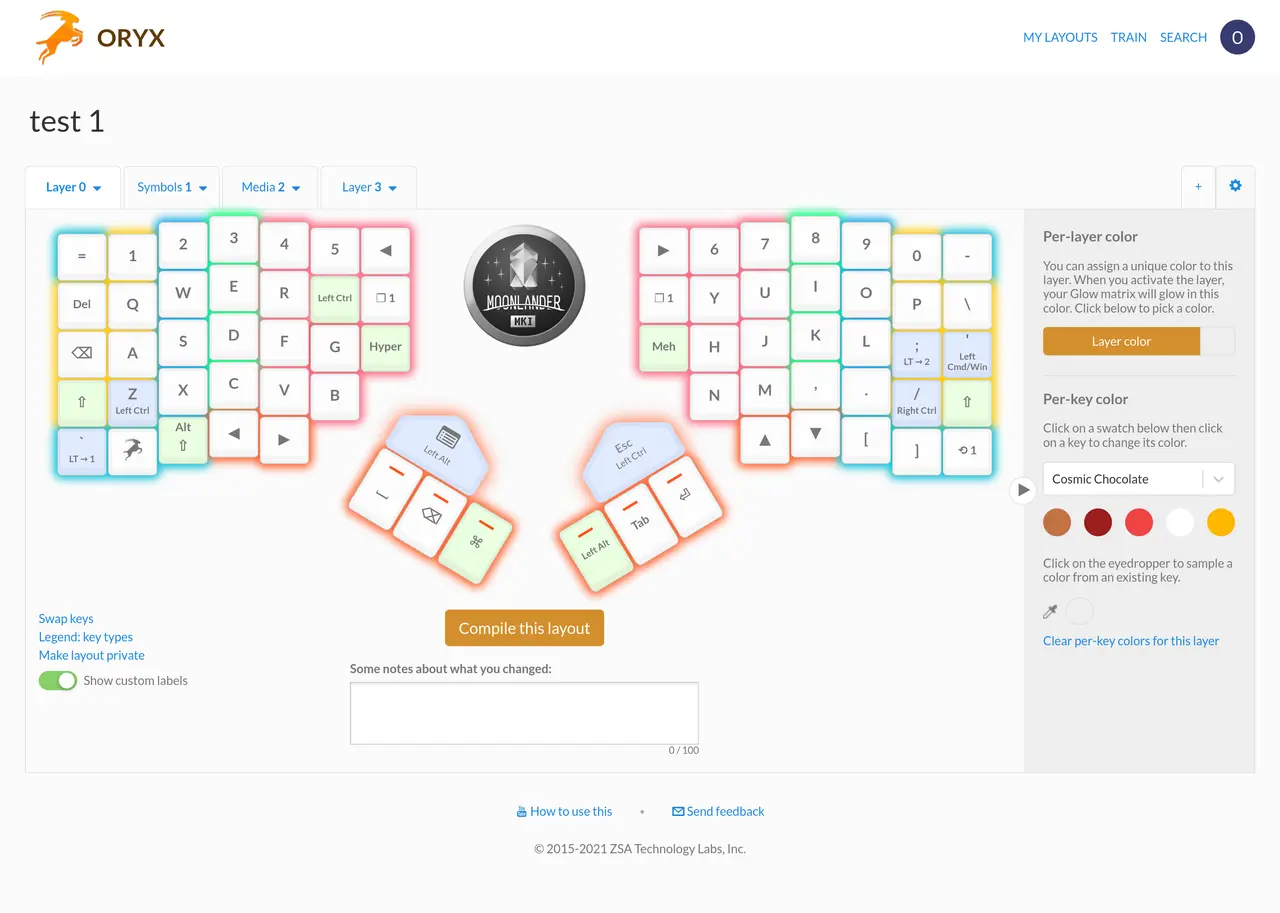
png
By the way, look at the layout. This is the standard layout they ship on the keyboards, and it hurts me to look at it!!! Shift on the pinkies; all sorts of junk like Tab and Enter on the thumbs; and the arrows are on the thumb; duplicate Backspaces. AAAAAAAAAAAAAAAAAAAAAA!!! That's why you should never trust preinstalled layouts on proper keyboards, and shouldn't even think about them: make your own right away.
Don't trust the preinstalled layout.
In this visual configurator you can press a button at the bottom and download your layout as ready-made firmware and as source code. Since I'm a programmer, the most important thing for me is the source code.
But in general, not only this company's keyboards can be configured in a visual editor: there's also the EasyAVR firmware, QMK has a visual editor, and in general, if you google, there are lots of ways to make yourself a layout without programming.
But of course, a layout of my level of complexity will have to be programmed in some form no matter what.
I downloaded the source code from the visual editor, learned some of the subtleties from it, read the QMK documentation, and started writing my own extensions.
#2Images
Since my layout exists as code, I can't keep reading the code to remember what is pressed where; I need to keep a visual version of what I programmed somewhere. And the Keyboard Layout Editor website is perfect for that. But this site makes slightly ugly pictures and has a couple of bugs, so I took its source code and modified it a little for myself. The result of this modification is at kle.klava.org. You can read on the wiki (in Russian) how exactly my modification differs from the original.
After you've drawn the pictures, you need to get them as, well, pictures. And for that you can take a screenshot. But taking a regular screenshot is tedious, and it comes out at a low resolution, so I use a special screenshot feature in Firefox.
To use it, first open the console (Ctrl+Shift+K) and enter the following command, replacing NAME with the file name:
:screenshot NAME --selector '#keyboard-bg' --dpr 3--dpr 3means how many times the picture should be scaled up when taking the screenshot, that is, this command produces a picture with 3 times the resolution of what's currently on the screen.--selector '#keyboard-bg'lets you specify exactly which part of the page to screenshot. Here I choose the most important part, where the layout is drawn.
It's better to capture layout pictures at a higher resolution than they appear on screen, so that the text can be read easily if needed, and the picture looks slick on any monitor. This also comes in very handy for printing.
Taking huge screenshots this way is a dream.
#2Table of contents
Have you noticed what an awesome table of contents this article has? I love it too. Thanks to it, writing and understanding this huge article was much easier.
#2Code
While writing the firmware for the Moonlander, I thought it would be nice to make it very high-quality, so that other people could use it too. Back in the days of the ErgoDox firmware, even I found it painful to look at my own code.
As a reminder, the firmware is written for the QMK library.
Thanks to this, I extracted three modules that anyone can reuse in their own keyboard:
- arbitrary_keycode (in Russian) — for pressing an arbitrary keycode. It's a dependency of
combo. - combo (in Russian) — a module for defining chords, much more powerful than QMK's built-in combos.
- lang_shift (in Russian) — a module for defining alternative Russian and English layouts without any modifications on the OS side.
I wrote detailed documentation for all three of these modules, so open them, read, and you'll get the idea.
There are also separate pieces of code responsible for custom hotkeys, macros, playing music, and backlight control; but they're not suitable for reuse, so if you're interested, you can read them in this repository at your own risk.
I really like the keymap.c file, because almost everything there is defined with arrays rather than code.
#2How to put your own letter and punctuation layout into the keyboard
For example, there are the Dvorak and Diktor layouts, and you want to put them into the keyboard. In this case there are two ways:
- Make the keyboard work on any computer with standard layouts, without any software setup (that's what I did).
- The main thing is that it works as conveniently as possible on your own computer; the amount of software setup doesn't matter.
The first way is bad because it requires knowing how to program at least a little, or how to build firmware, although you can use my lang_shift module (in Russian) for it.
The second way is good because it doesn't require any special knowledge: the keyboard layout can be made in a visual editor, for example EasyAVR. And then you make a software layout with MSKLC, for example. This approach is also good because you can put all sorts of exotic characters like «guillemets» or dashes into the layout without pressing AltGr. Kanazei and Steve Key use this approach. You can ask them in the chat for details.
With this approach you can make your layout in a visual configurator, then a software layout in another visual configurator, and you'll get a really cool layout, all without a single line of code.
#2How to flash
If you try to download the source code of a layout made in Oryx, it will only work with ZSA's fork of QMK. Of course, you can use regular QMK, but something seems to be missing there. So the first thing to do is to download this fork (the commands below don't work on Windows).
git clone https://github.com/zsa/qmk_firmware zsa_qmk
cd zsa_qmk
./util/qmk_install.sh
git submodule init
git submodule update
Then you need to create a symbolic link to the folder with your layout. You need a symbolic link specifically so you don't have to keep your layout somewhere deep in the jungle of this QMK fork:
ln -s /home/optozorax/my/moonlander ~/zsa_qmk/keyboards/moonlander/keymaps/optozoraxTo flash, run this command inside the fork:
make moonlander:optozorax:flash#2Setting up the OS so that my keyboard works
I've mentioned here and there how exactly I set up the OS so that my layout works properly in it.
Critical:
- The OS must have the standard layouts for Russian and English: ЙЦУКЕН and QWERTY respectively. They must be switched with one of the hotkeys the keyboard knows about.
Less critical:
- The Win+12345678 keys must be set up to activate specific programs.
- The main text editor is
Sublime Text 3. - In the terminal, copy-paste must be on Ctrl+C, Ctrl+V, and killing a program on Ctrl+J.
- On Linux,
flameshotmust be installed, with a hotkey set up for taking an area screenshot.
Not critical at all:
- The Compose key must be supported, and it's set to Right Alt.
- Other program settings described in the dots repository (in Russian).
As you can see, for the most critical points my layout requires little setup. Accordingly, if your layout isn't more complex than mine, it won't require more.
#Conclusion
#2Lessons from the story
I included the story for general interest, so that you understand what kind of person uses such a complex layout and how you can even arrive at something like this. Also, some useful conclusions can be drawn from the story:
- Convincing a person of something isn't that easy.
- Typing on a keyboard is more useful, more scalable, faster and more convenient than taking notes on paper.
- You can make a cool layout even on the SK.
- Learning touch typing is hard.
- The best way to stop peeking is to shuffle the keycaps.
- The best way not to press keys outside your zones is to use a proper keyboard.
- Speed is built on Klavogonki.
- Slim keyboards are comfortable for fast typing.
- You can always scrape together money for a proper keyboard.
- Getting used to straight columns is easy.
- Getting used to tall keys is hard.
- On a keyboard with straight columns you can beat your record in 2 weeks.
- A letter layout can be built gradually.
- Chords aren't as scary as they seem.
#2Speed
- Doesn't depend on the keyboard.
- Speed is more pleasant than any switches.
- Speed frees your thoughts.
- Training to build speed is pleasant too.
- As speed increases, so does accuracy.
- You can't type fast without moving your hands.
- Speed = automaticity.
- Speed and layers aren't friends.
#2Ease of relearning
Since relearning happens all the time in the world of proper keyboards, it's important to understand how hard it is for different things. In the article I talked here and there about how hard it was for me, and here it's all collected in one place.
In this list, the lower, the harder. All based on my personal experience.
- Relearning for Ъ on a chord.
- Relearning for a different position of the F-keys and other non-character keys.
- Relearning for straight columns after the SK.
- Relearning for arrows on the left hand when they were on the right.
- Relearning for a different position of punctuation.
- Relearning for tall keys after a slim keyboard.
- Relearning after swapping a couple of letters.
- Relearning for a new letter layout.
- Learning to type on the Kladenets.
#2Why you need a backlight
- To show the current layer.
- To light up the recently pressed keys.
- To show other people your zones.
- For beauty and a solid look.
- To play around.
Actually, I could give up lighting every key if there were an alternative for indicating the layer. Three colored lights are not an option, I already tried that on the Ergodox. But a single RGB LED is the way to go.
#2Principles
- I give up the SK.
- The layout's user can touch type.
- I prefer keyboards with a number row.
- I prefer a keyboard with at least 3 keys for each thumb.
- I prefer a keyboard that uses outer thumb keys more than inner ones.
- Keycaps should be blank.
- Only I type on my keyboard.
- The keyboard should be able to report the current layer.
- I mark zones with color.
- I try to put as many things as possible that are convenient to use together with the mouse on the left hand.
- I try to make the layout consume as little mental fuel as possible.
- Logic beats three percent.
- Everyone has their own layout.
- Don't overengineer.
- Down with modifiers.
- Down with right-side modifiers especially.
- A layer should be activated in
TGmode by pressing an ordinary layerficator three times. - Turning a layer off should be in the place of the Esc key.
- The main layerficators should be on the thumb.
- A separate key for switching the language.
- I use chords with two-key presses.
- Chords should only be on pressing several keys with one finger.
- There should be one Shift, and it should be on the thumb.
- A separate key for the sticky single-use Shift.
- Backspace should be close.
- Delete should be on the left hand.
- A separate key for Ctrl+Backspace.
- Separate keys for copy-paste and select all.
- Ctrl+Z should be symmetric to Esc.
- There should be an area screenshot key on the left hand, in a comfortable place.
- There should be one space.
- The comma should be typed without Shift.
- The comma with a space should come first, and then the regular comma.
- Basic text punctuation should be in the same positions for Russian and English.
- All punctuation should be typeable from any language.
_should be separate from-, both keys should be typed without Shift, and they shouldn't carry anything else that is typed with Shift.- Digits are typed with Shift held. It's important that the most frequent digits are pressed with stronger fingers, not the pinkies.
- I always write Ё.
- I don't put a single letter on a layer.
- F-keys on a layer in place of the digits.
- I always type new brackets in pairs.
- Symbols shouldn't be on a layer because of synchronization problems.
- Home and End should be used.
- On the arrows layer, the copy-paste keys shouldn't be used for anything else; they should stay themselves.
- There should be a layerficator on the left hand that lets you press the arrows with one hand.
- The arrows should be on a layer.
- There should be separate arrows with Ctrl held.
- The arrows are entirely on the home position, and the pinky is used for the arrows.
- The up key should be on the middle finger.
- For me, sideways movement is at the edges, and up-down movement is in the center.
- My arrows are on the left hand.
- The volume control keys should be on the left hand.
- There should be hotkeys for tab management.
- The mouse control keys should be on the left hand.
- Alt+Tab shouldn't be used. There should be a separate layer for keys that unconditionally switch to the most frequently used programs.
- The layer for unconditional switching to programs should be on the left hand.
- A separate layer for games.
- An "in case of nuclear war" layer.
- Don't trust the preinstalled layout.
- It's better to capture layout pictures at a higher resolution than on the monitor.
#2SK inadequacy
- Not using layers.
- The standard zones are painful for the left hand.
- Uneven row offset.
- Lots of distant keys.
- Not using the thumb.
- It's crooked.
- Right-side modifiers.
- No key for switching the language.
- The Shifts are on the pinkies, and there are two of them. There should be one, on the thumb.
- Caps Lock isn't needed.
- Backspace is very far away.
- The space bar is too big.
- ЙЦУКЕН is made so that most keys are pressed by the index fingers.
- They dragged Ё so far away!
- The arrows are far away; by default they aren't on the home position.
#2Number row
Why it's needed:
- I put punctuation there, not digits! Punctuation is typed without Shift, and digits with Shift.
- Having it minimizes the synchronization problems caused by using layers.
#Thanks
Thank you, reader, for reading this far. The article turned out very long; by classification it's more of a book than an article, so thanks for spending your time.
If you have criticism or suggestions about this article, you can write in the comments section where it's published (I'll read them all), or message me on Telegram: @optozorax.
I want this article to be as good as possible, so I'll accept attempts to improve it after every release.
#Community
I'm a member of a community of non-standard keyboard enthusiasts. People there design new keyboards, build them, come up with layouts, program them, and explore in every way how else the keyboard can be improved. Our community isn't for people who love the SK; that's not our thing.
We have a Discord server (in Russian).
We're also developing a wiki: klava.wiki (in Russian). It has links to other layouts and other articles from our community.